Matching purchase orders, deliveries and invoices
See what has been ordered, delivered and invoiced on every purchase order line, record deliveries as they happen, and match invoices and delivery notes to the right PO lines.
Written By Ashraf Ahmed
Last updated 8 days ago
Three-way document matching checks that what you were invoiced for matches what you ordered and what was delivered. In Coreloops, invoices and delivery notes are matched to the lines of a purchase order (PO). Each PO line then knows how much was ordered, delivered and invoiced, and flags anything that doesn't add up.
1. Seeing progress on a purchase order
Open any purchase order from the Documents table. Above the line items, use the Fulfilment / Line details toggle to switch view. POs open in Fulfilment by default.
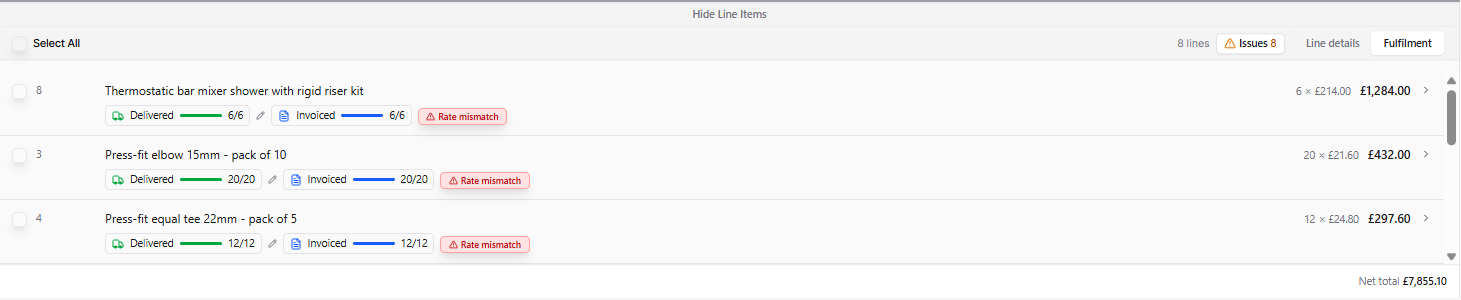
In Fulfilment view, each line shows two progress chips:
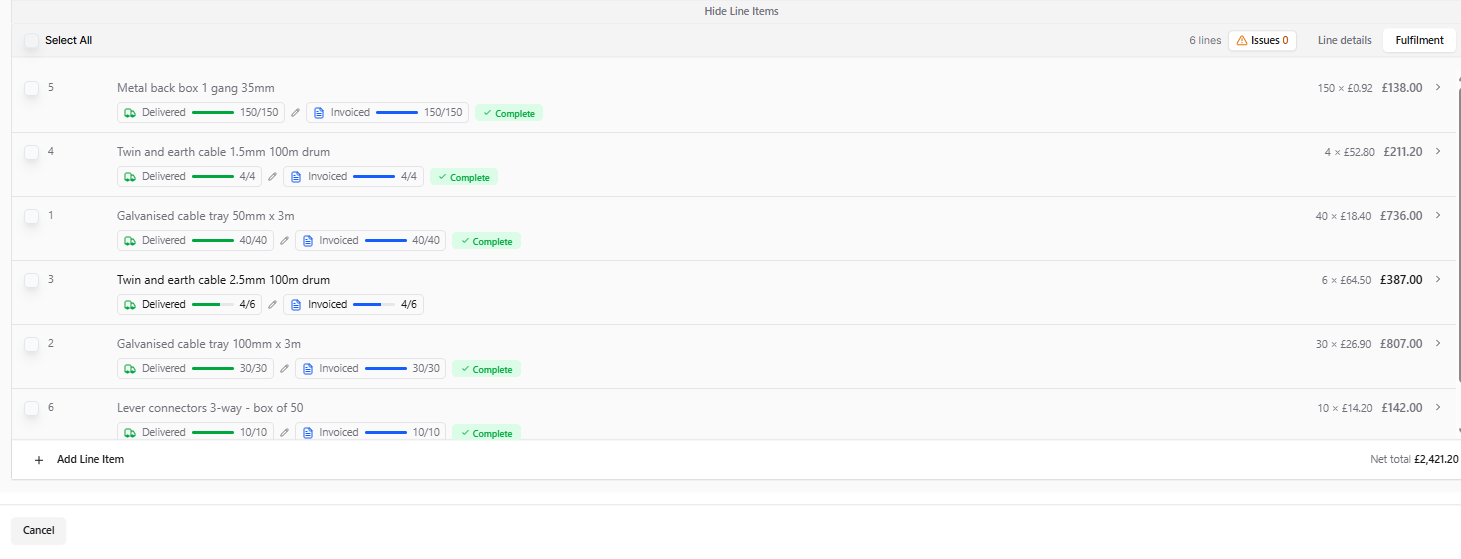
• Delivered: how much has been delivered against the ordered quantity, for example, 20/40.
• Invoiced: how much has been invoiced against the ordered quantity, for example, 12/40.
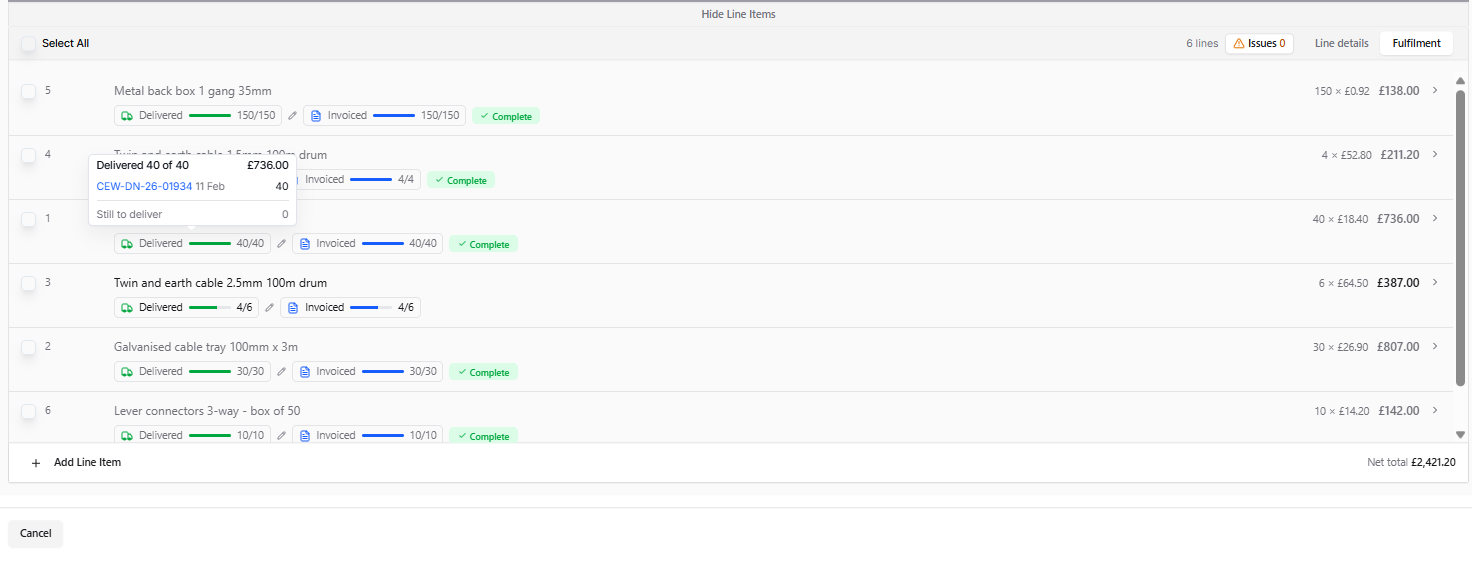
Hover over the Delivered chip to see each delivery note or recorded delivery, with its date and quantity, and how much is still to be delivered.
Switch to Line details to see each line's cost code, unit, quantity, rate and VAT.
The PO header shows its overall fulfilment status, for example, Part delivered, worked out from its lines.
2. What the line flags mean
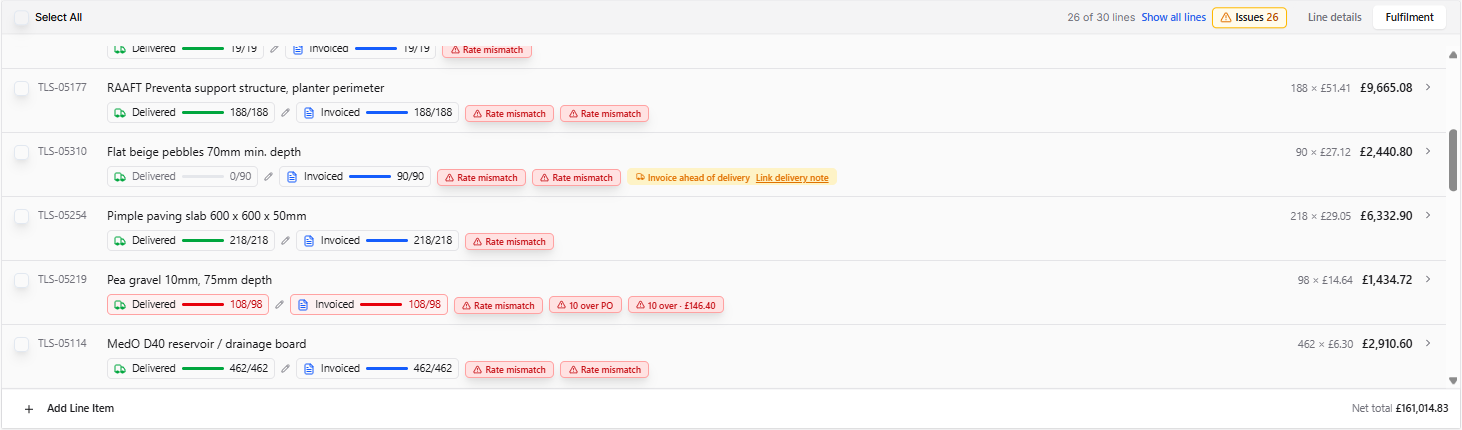
Coreloops flags a PO line when the figures don't add up. Flags never block approval; they show the team what to check.
A line that is fully delivered and invoiced will show as complete. The same flags appear on matched invoice lines, for viewing only. Decisions on a rate mismatch are made on the PO.
Working through issues - The Issues chip in the line items toolbar shows how many lines need action. Click it to show only those lines, with actions inline.
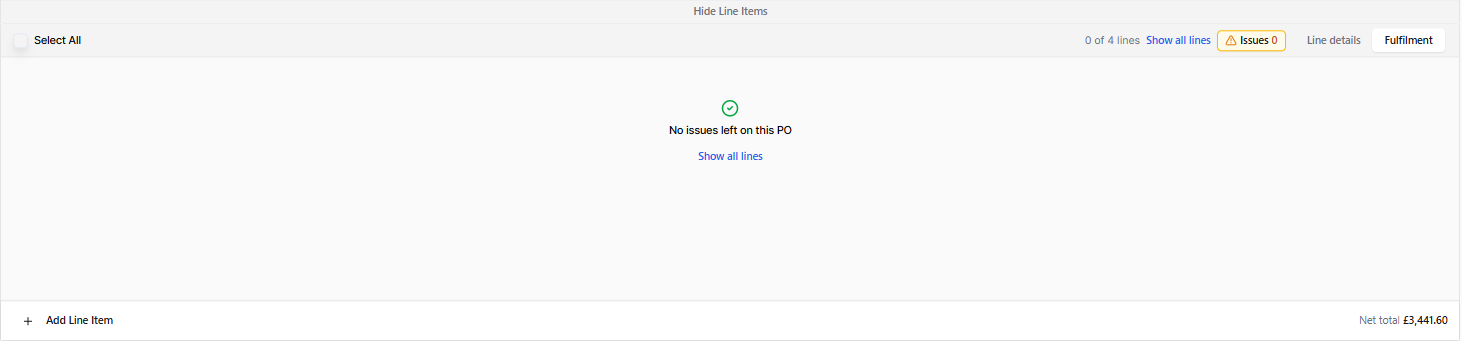
Click Show all lines to return to the full list. When everything is resolved, the PO shows that no issues are left.
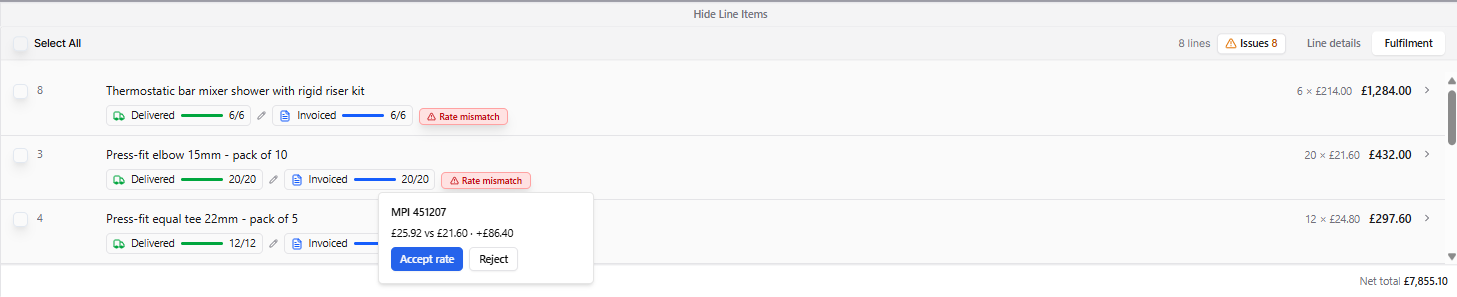
Rate mismatches - The PO rate is treated as the agreed rate, so only an invoice rate above it is flagged. An admin can review the mismatch and accept or reject it. An accepted rate shows as "Rate accepted" with the accepted rate and no longer counts as an issue. Accepting records the decision only; neither the PO line nor the invoice line changes its rate. If a line's rate changes later, it is reviewed again.
3. Seeing where a line's figures came from
Click the arrow at the end of any PO line to open the line sidebar. It shows:
Ordered, delivered and invoiced, in quantity and value
Each delivery note and invoice behind the line, with date, quantity and rate
Any differences, with their £ impact, and the line's flags with their actions
Click a delivery note or invoice to open it in the same window with the matched line highlighted. Use the back link to return to the PO line.
Invoice lines have their own sidebar showing the PO and the date the line was ordered on, the PO quantity, the quantity on this invoice, and how much is left to invoice.
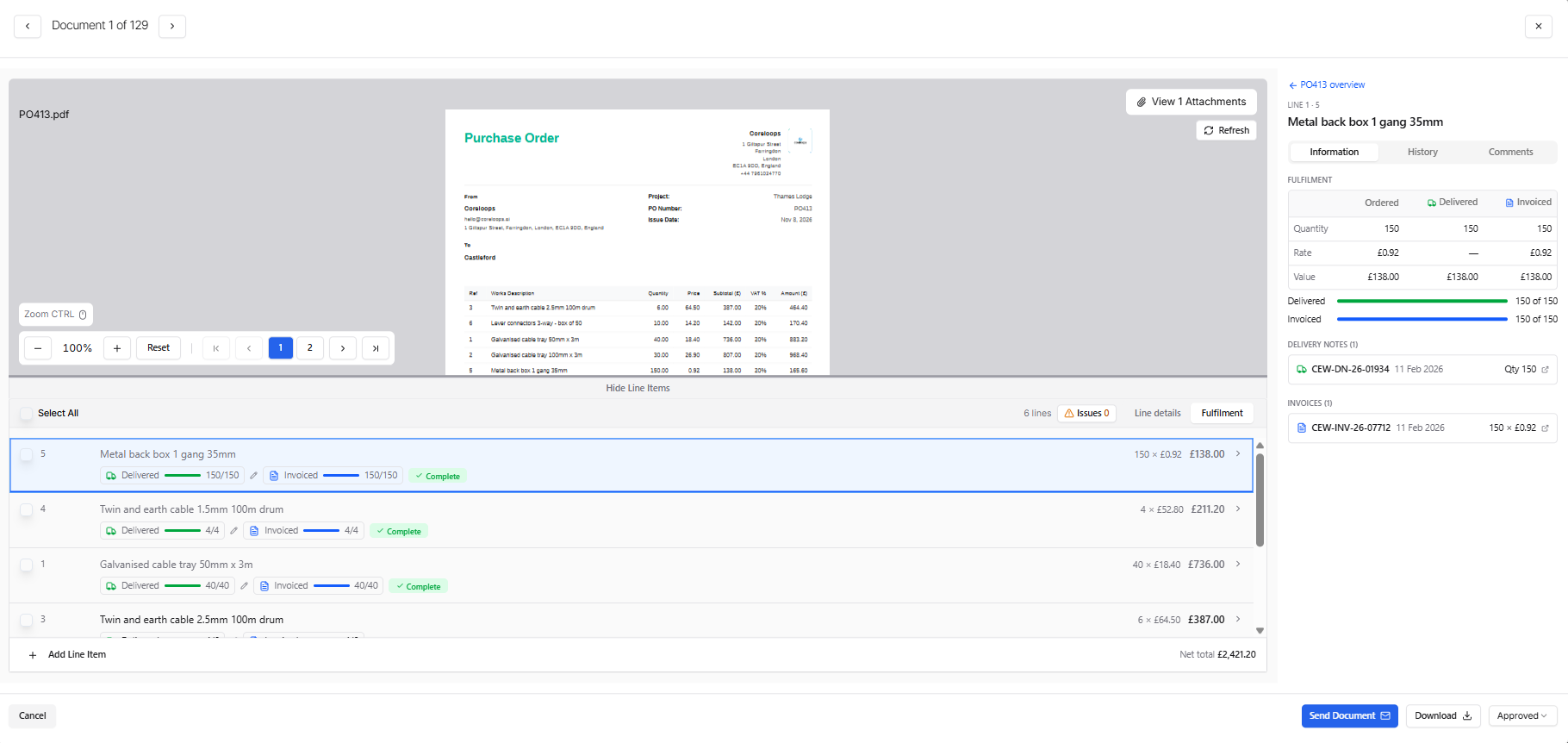
Use Side by side to view the PO and the source document together with the matched line aligned.
4. Matching invoices and delivery notes to a PO
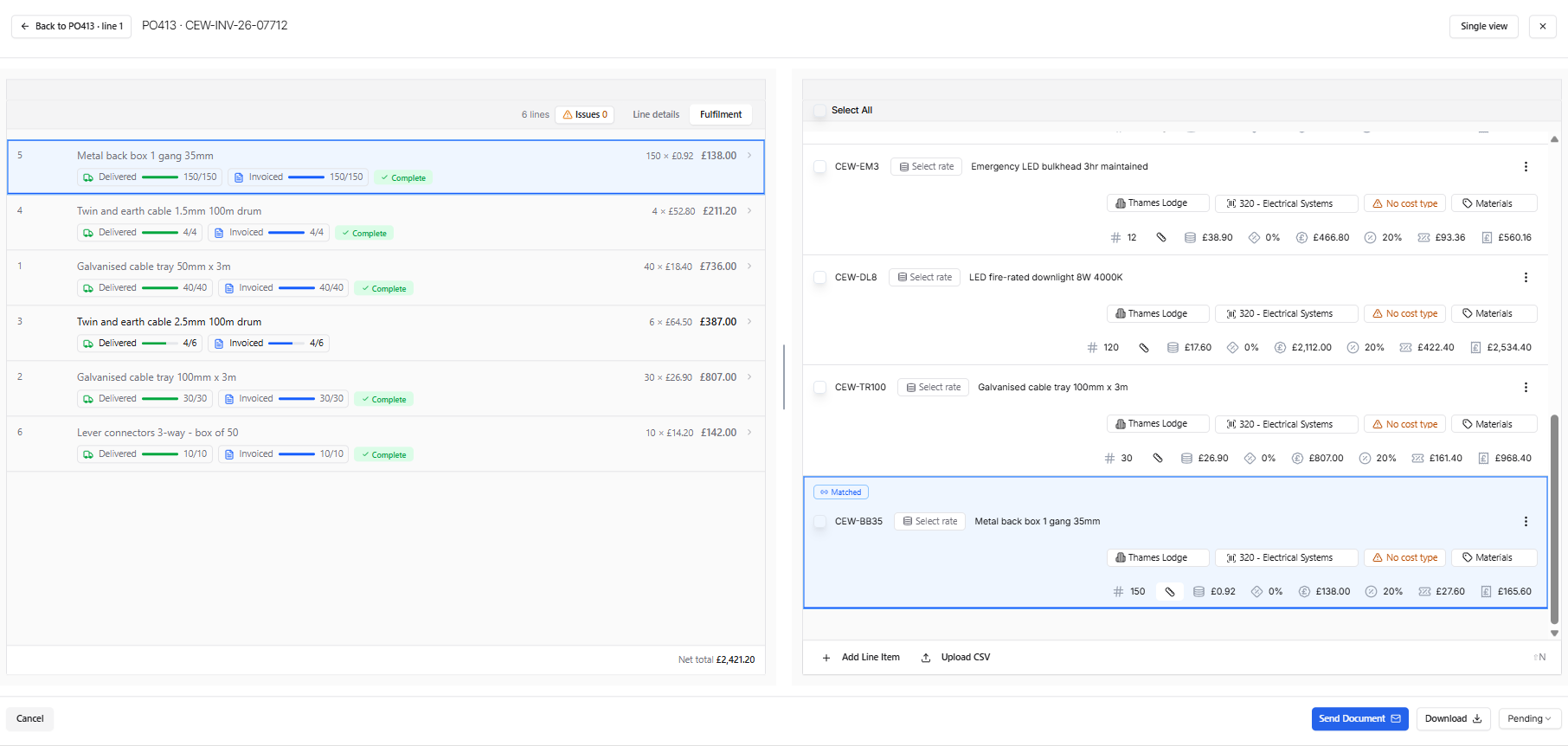
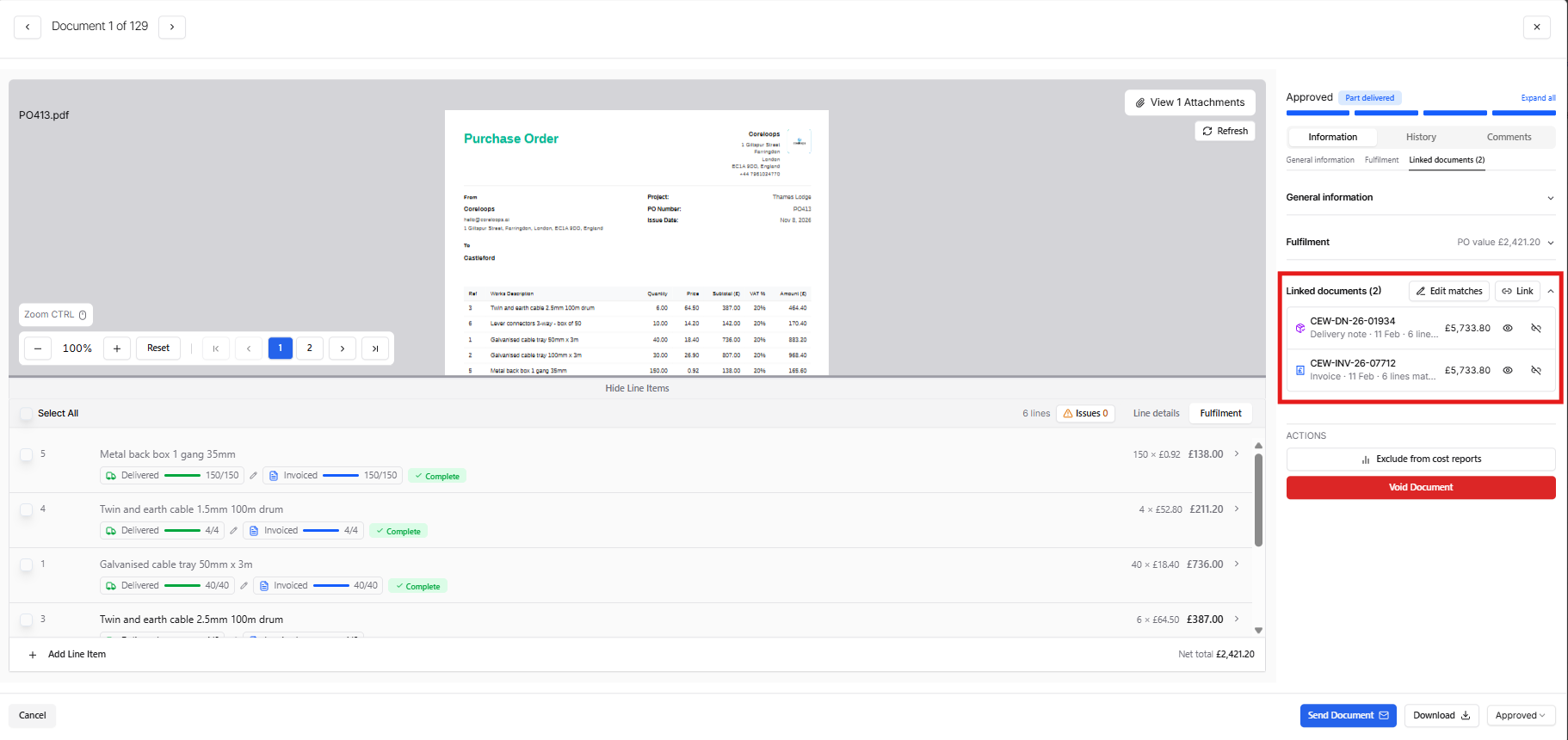
Open the match window from a PO, an invoice or a delivery note, using Link or Edit matches in the Linked documents section.
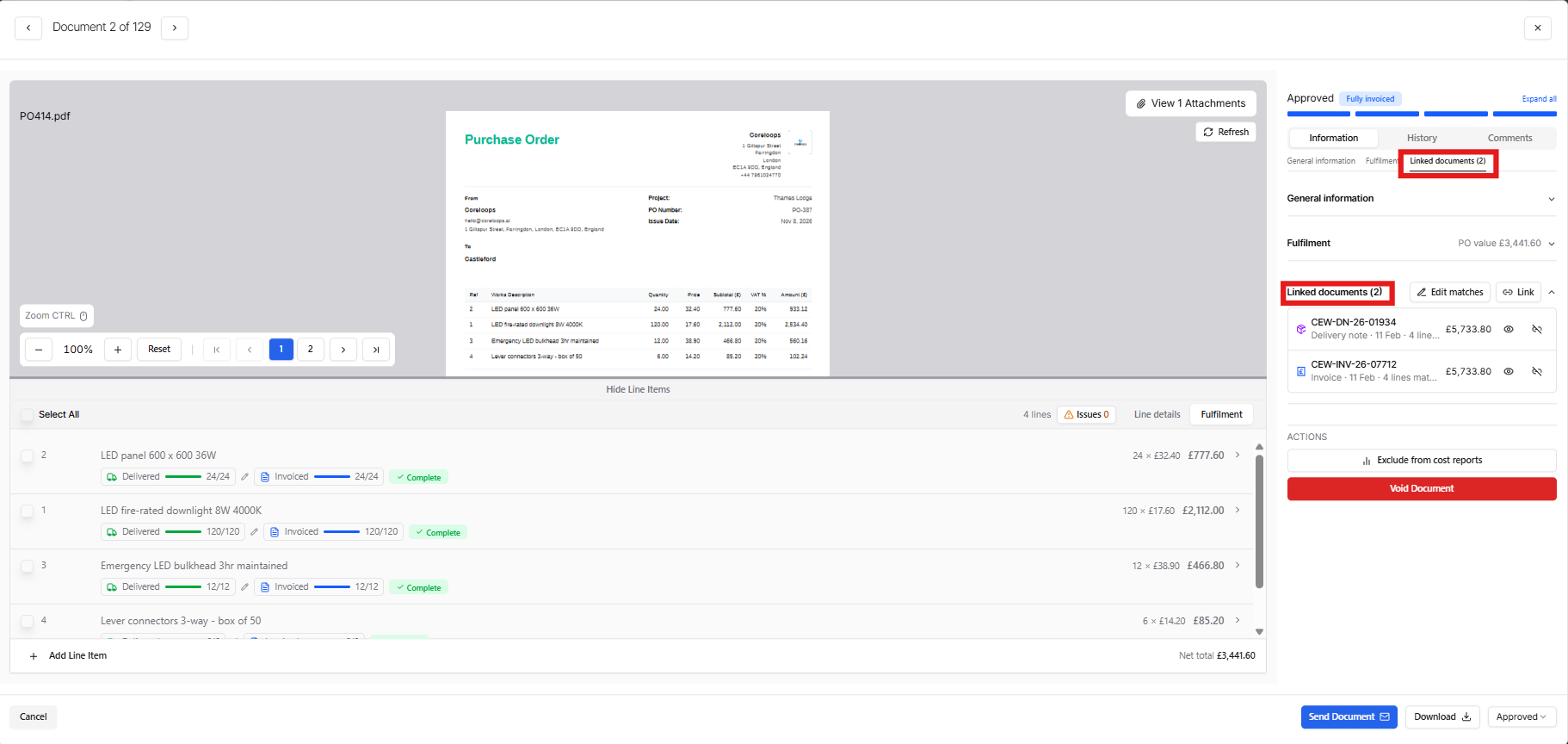
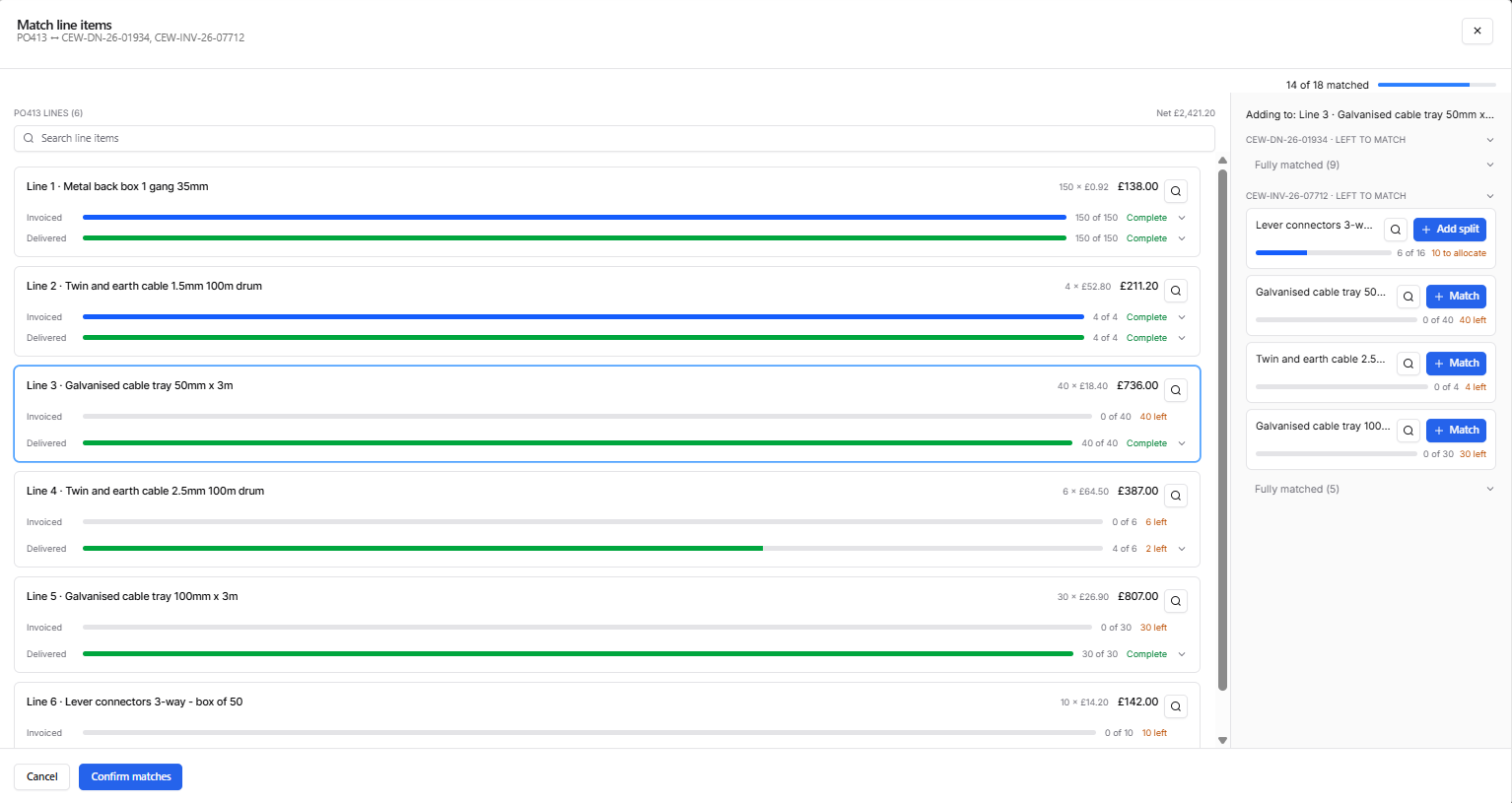
The PO is always on the left and the linked document on the right.
Each PO line shows what is already matched to it, Invoiced and Delivered bars, how much is left, and any suggested match with an Accept button.
The right side lists the document's lines still to match from Delivery Notes and Invoices. Fully matched lines are collapsed.
Choose a PO line, then match a line from the right.
Enter any quantity for each match. A new match starts at what the PO line has left, so one invoice line can be split across several PO lines, or across several POs, by their own amounts.
Several delivery note or invoice lines can be matched to the same PO line without being split.
Use the search box to filter line items on both sides. This helps with documents with many lines.
Rate mismatches show inline with their £ impact.
The header shows how many lines are matched, for example, 4 of 5. Click Confirm matches to save.
Lowering a quantity leaves the rest unallocated, and unlinking a match leaves the amount listed on the line unmatched. Coreloops never re-spreads quantities for you.
Credit notes are matched from their own page, against their invoice.
5. Invoices that aren't matched yet
Whilst Coreloops will look to match PO’s with Invoices and Delivery Notes as they come in, not all documents may be able to be matched. An invoice with no PO shows Needs matching. This is a flag, not a status, and never blocks approval.
The PO match section suggests a purchase order and says why it was suggested, for example, from the order reference on the invoice. Only open POs in the invoice's project are suggested. Each invoice line shows its suggested PO line, with a warning if that PO line is already fully invoiced.
From here you can:
• Match lines: link the suggested PO and open the match window
• Choose another PO
• Approve without PO: approves the invoice through the usual checks and records "Approved without a purchase order" in its history. This is only available when no PO is linked.
6. Delivery notes on invoices
When a delivery note is linked to a PO, it is also shown and linked on the invoices matched to that PO, so you can check deliveries from the invoice.
7. Who can record deliveries
On a PO at any status except Voided, including Billed and Paid, only admins can record deliveries, accept hand-recorded deliveries, and accept or reject rate mismatches. Recording a delivery doesn't change the PO's status and isn't sent to your accounting software.
A voided PO is read-only for everyone.
Was this helpful?
Still need help? Ask the team