Understanding the Bill of Quantities — how it powers your project dashboard
Written By Gabriel Makinwa
Last updated About 1 month ago
The Bill of Quantities (BOQ) is the financial backbone of every project in Coreloops. This article explains what the BOQ does, how it connects to your project setup, and why getting it right from the start unlocks the full value of your cost report and project dashboard.
What is the BOQ in Coreloops?
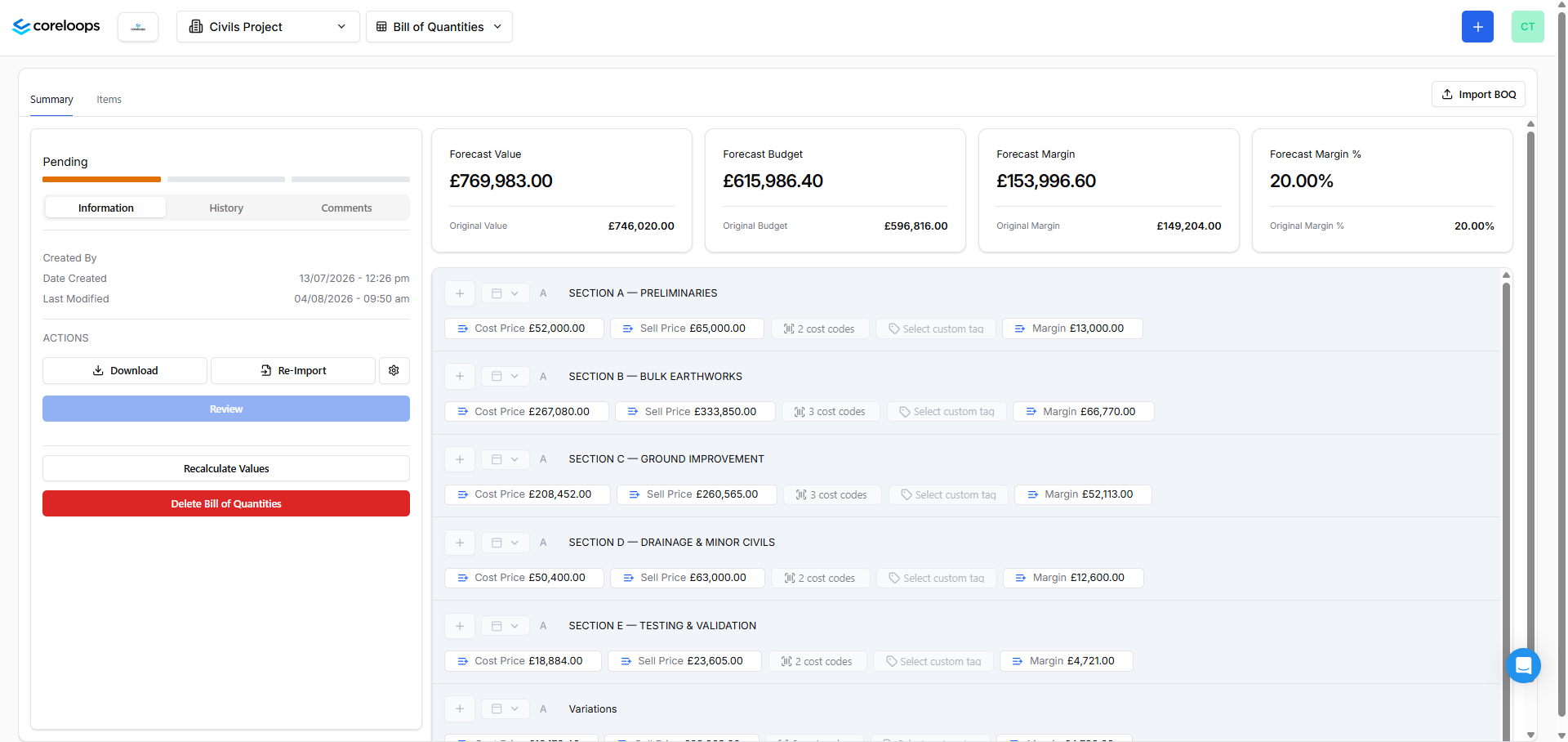
The BOQ is your original cost plan. It captures the full scope of your project, broken down into sections, subsections, and individual line items — each with a quantity, unit, cost rate, and sell rate.
In Coreloops, the BOQ serves two purposes:
It is the original budget against which all project spend is tracked.
It provides the line item structure that links your planned costs to actual supplier invoices, timesheets, and documents.
Without a BOQ, you can still receive and process documents — but you won't have a baseline to measure performance against, and your cost report won't show meaningful budget vs. actual comparisons.
How the BOQ connects to your project
Sections and subsections → project structure
Sections (e.g. Substructure, Superstructure, M&E) and subsections (e.g. Excavation, Concrete Frame) form the hierarchy that organises your cost data throughout the project. This structure is reflected across your valuations, cost report, and document views.
Line items → cost codes
Each line item in your BOQ should be assigned a cost code. Cost codes are the categories that group similar spend together — they're the bridge between your planned BOQ items and the actual invoices, receipts, and timesheets that arrive during the project.
When a supplier invoice comes in and is tagged to a cost code, Coreloops automatically compares that actual cost against the corresponding BOQ budget.
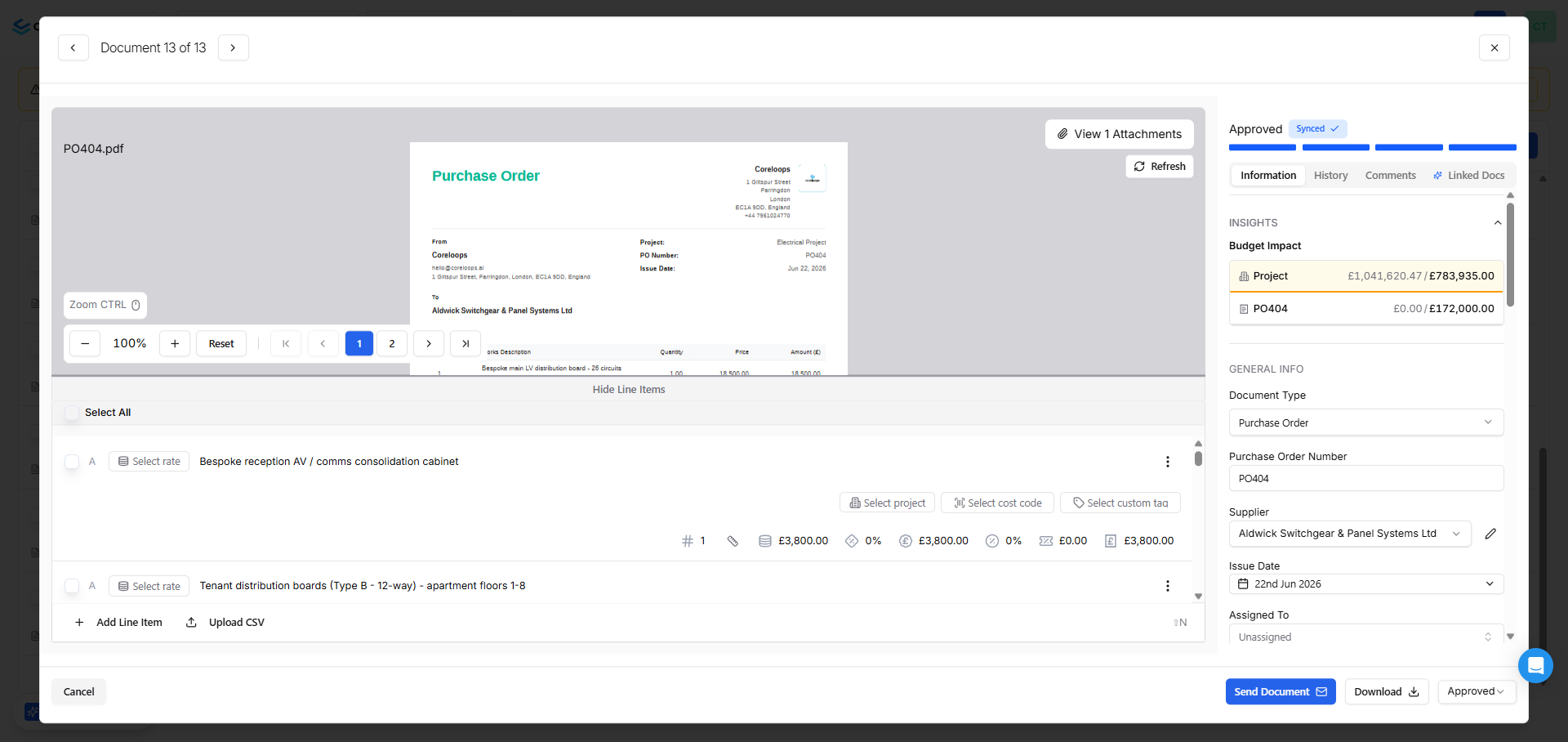
Sell rate vs. cost rate
Each line item carries two rates:
Cost rate — what you expect to pay (your internal budget)
Sell rate — what you're charging the client (your contract value)
The difference between the two is your project margin. Coreloops uses both rates throughout the dashboard to show your contracted position and your budgeted position separately.
How the BOQ feeds the dashboard
Once your BOQ is set up and cost codes are assigned, the data flows directly into your project cost report.
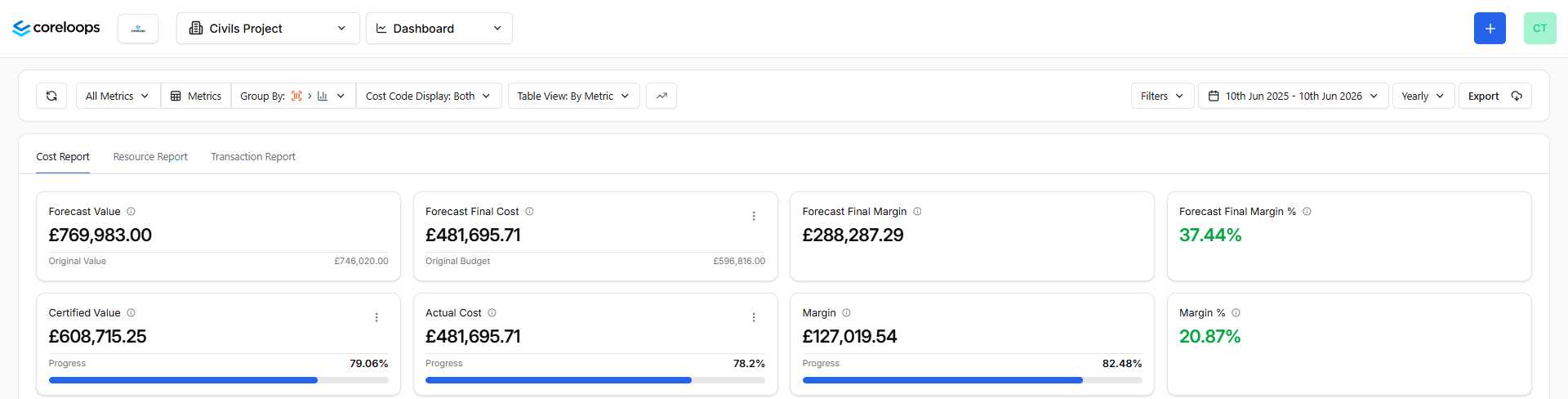
Original / Forecast values
The BOQ establishes the baseline numbers in your dashboard:
Contract value (sell rate × quantity)
Original budget (cost rate × quantity)
Original margin
These appear as the Forecast or Original columns in your cost report — the reference point everything else is measured against.
Tracking actuals against the BOQ
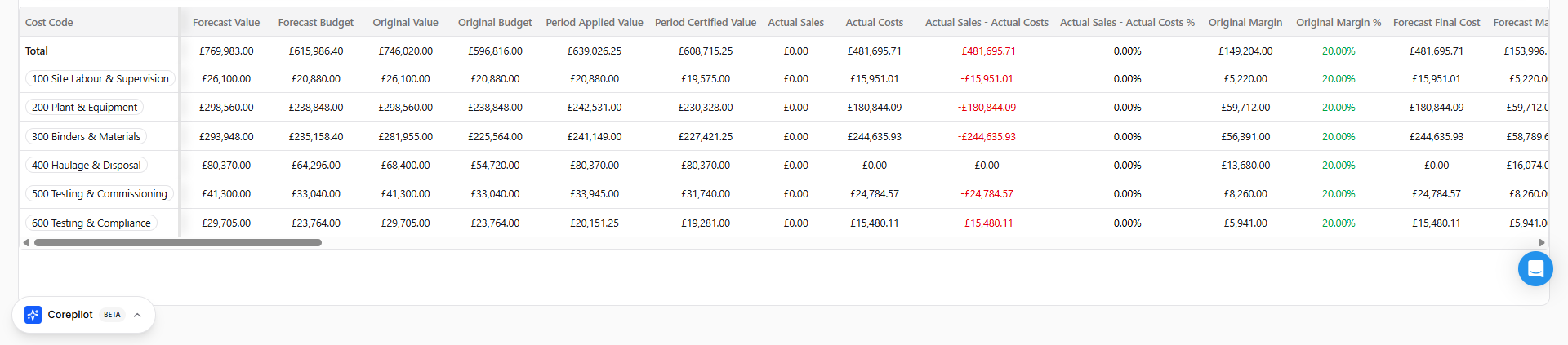
As the project progresses and invoices are processed, Coreloops compares actual spend — via cost-coded documents — against your original BOQ budget, line by line. The dashboard shows:
Budget used vs. remaining per cost code
Variance between original budget and actual cost
Applied and certified values across the project
Valuations and payment applications
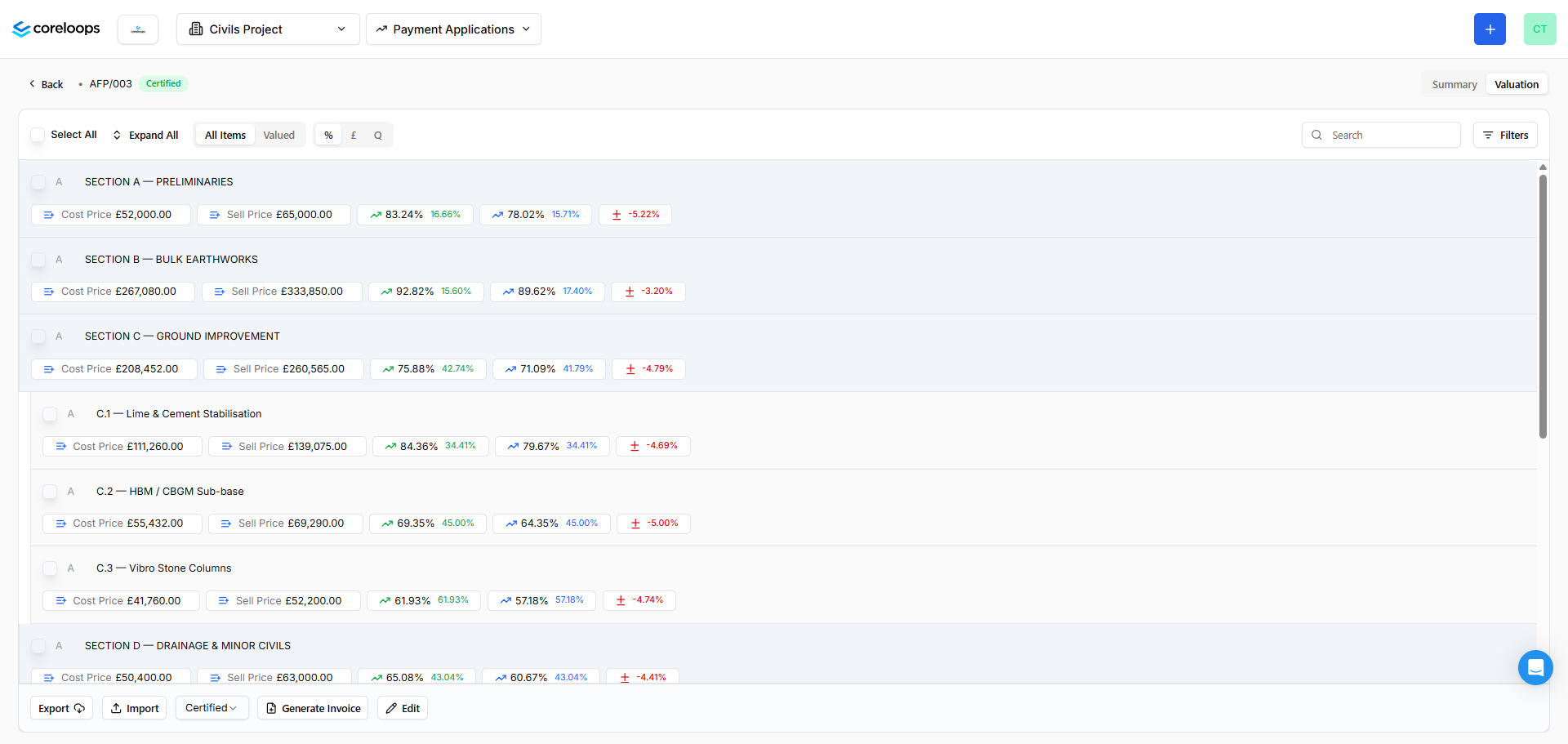
If you run valuations or applications for payment through Coreloops, the BOQ line items populate the valuation schedule directly — so your applied and certified values trace back to the original cost plan throughout the project lifecycle.
Setting up your project for success
To get the most from your dashboard from day one:
Import your BOQ before processing documents — the BOQ provides the structure and budget baseline that makes cost tracking meaningful. Documents can be tagged retrospectively, but it's much easier to start with the BOQ in place.
Assign cost codes to all line items — untagged line items won't appear in the cost report breakdowns. Use bulk assignment to do this quickly after import. See Connect your BOQ to cost codes.
Enter both cost rate and sell rate — even if your client only sees the sell rate, entering your cost rate gives you margin tracking that makes the dashboard useful for profitability management.
Keep your section structure consistent with how you report — if you report costs by element or trade package, set up your BOQ sections to match. The cost report groups by the structure you create here.
Related articles
Connect your BOQ to cost codes
Auto-categorise BOQ line items
Was this helpful?
Still need help? Ask the team