Duplicate Document Detection
Coreloops automatically checks uploaded documents against existing records and flags potential duplicates before they cause issues with your accounts or reporting.
Written By Gabriel Makinwa
Last updated About 1 month ago
How it works
When a document is uploaded or created, the platform compares it against existing documents using key fields — including totals, tax amounts, dates, and supplier details. If a strong match is found, both documents are flagged.
Identifying duplicates
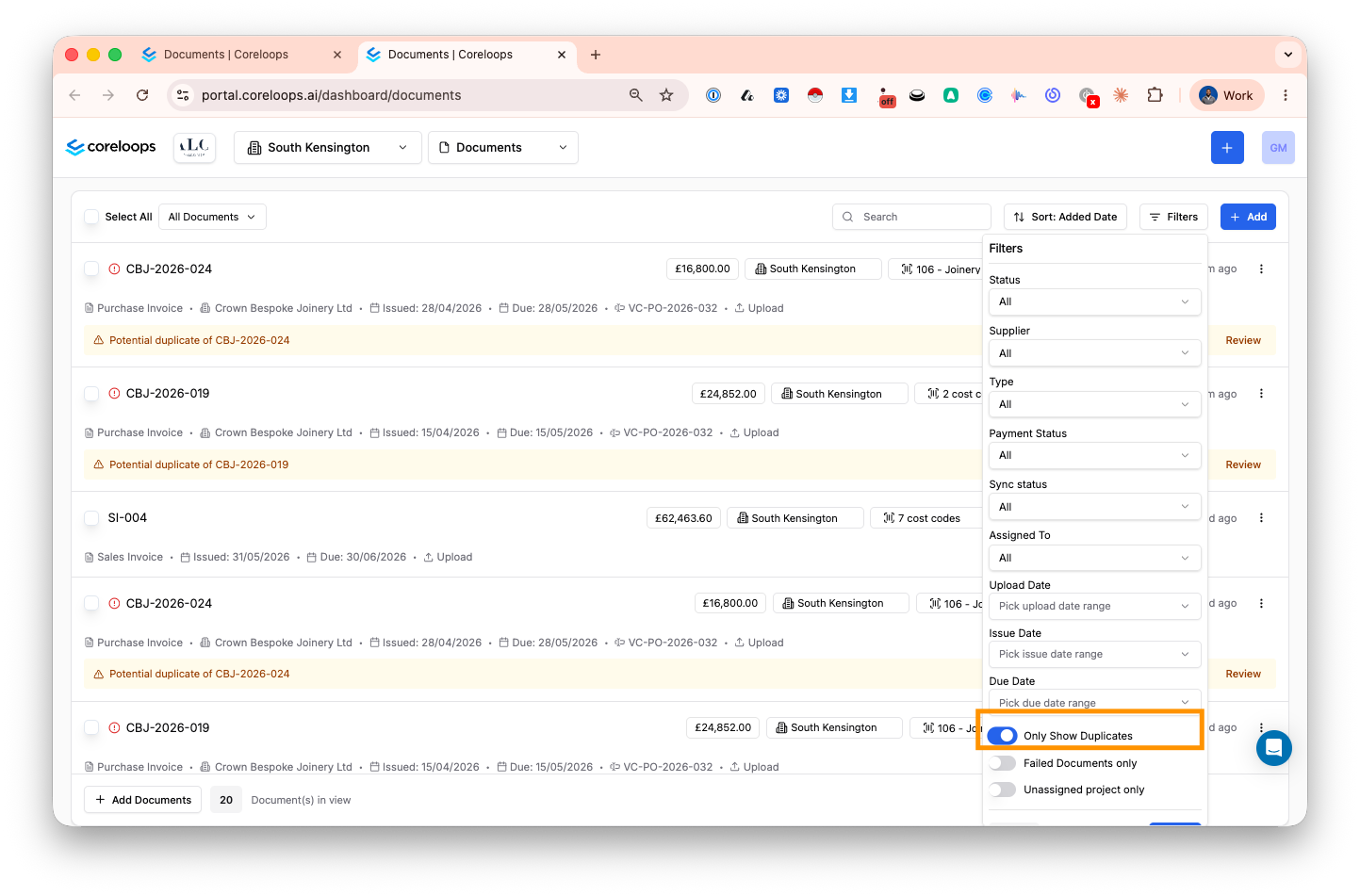
Duplicate indicators appear in:
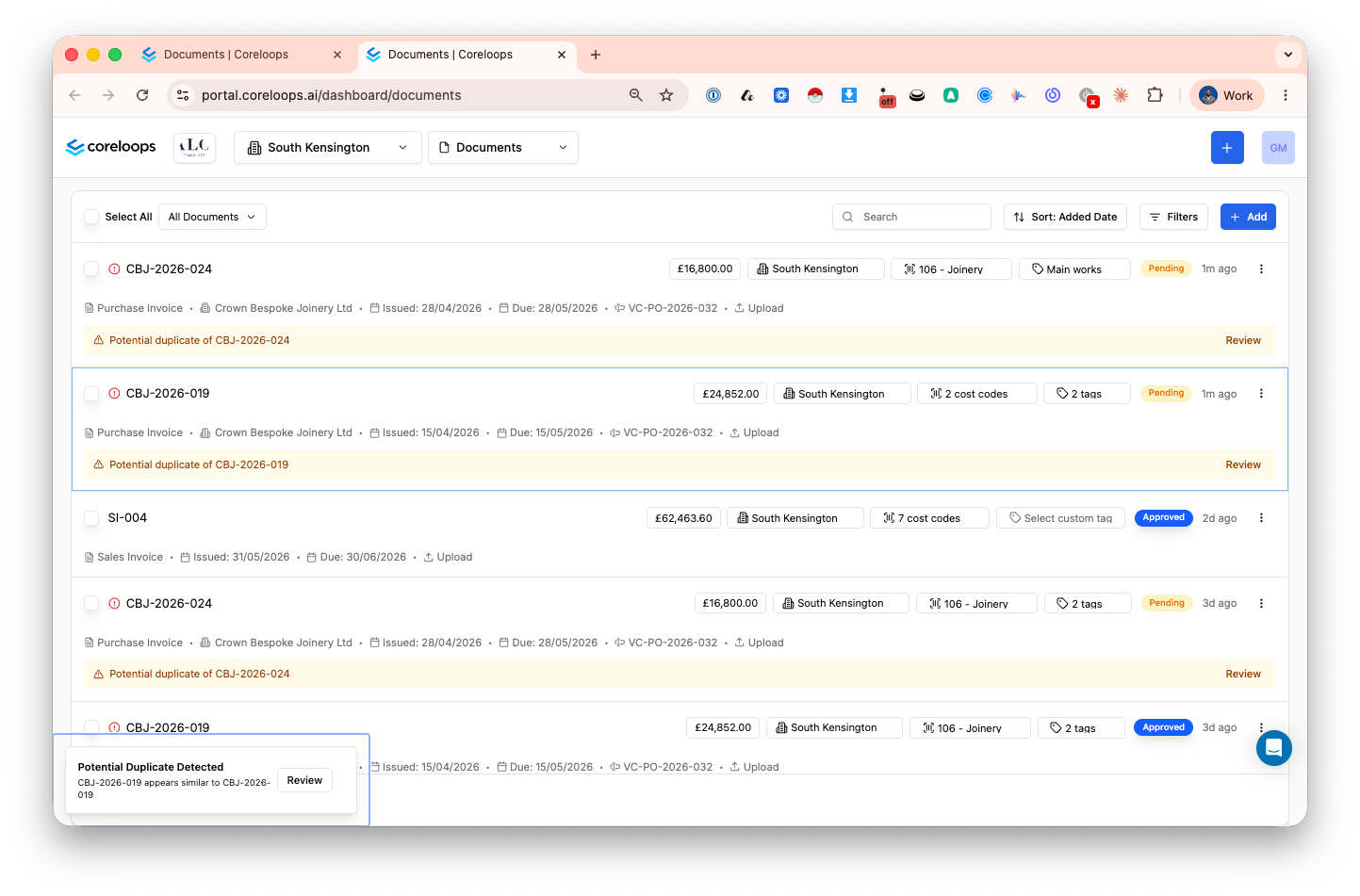
Document cards — A warning banner on the card indicates a duplicate match has been detected
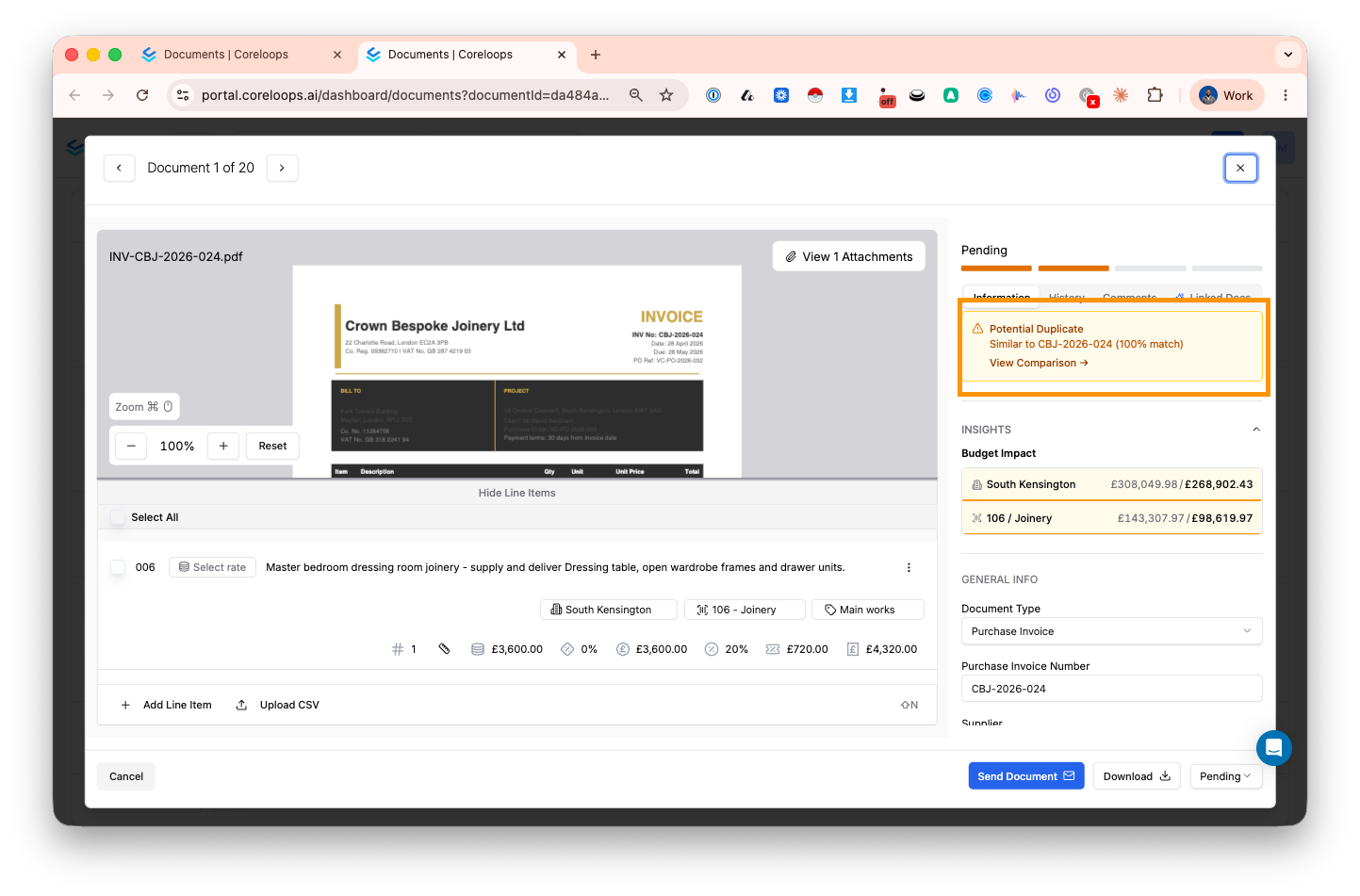
Document sidebar — A duplicate warning section appears at the top of the sidebar with a link to the matching document
Documents table — Use the Has Duplicates filter to show only documents flagged as duplicates
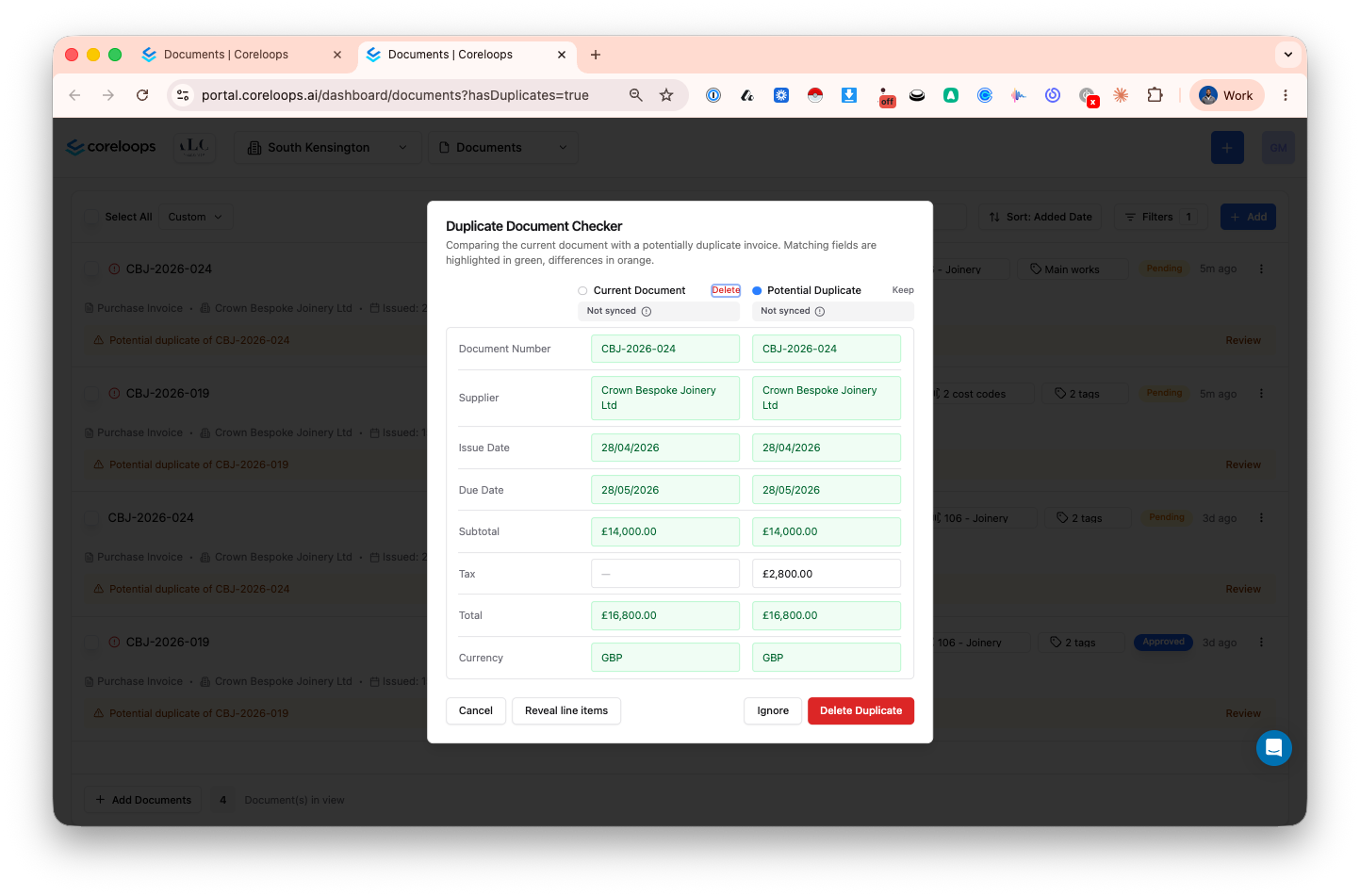
Reviewing potential duplicates
Click View Duplicate on any flagged document to open a side-by-side comparison modal. Review both documents to confirm whether they are genuine duplicates or separate records.
Resolving duplicates
From the comparison modal you can:
Ignore — Mark the pair as a false positive. The warning is removed from both documents.
Delete — Delete one of the duplicate documents directly from the modal.
Was this helpful?
Still need help? Ask the team