Creating, editing and quoting a compensation event (NEC)
How to create a compensation event, price its added items and omissions, make bulk edits, and prepare your quotation.
Written By Gabriel Makinwa
Last updated 1 day ago
A compensation event (CE) is a change that entitles you to a revised price, a revised completion date, or both. This article takes you from creating the event to preparing the quotation. Issuing, managing and publishing it are covered in Issuing, managing and publishing a compensation event (NEC).
This guide applies to NEC projects only. For the wider picture, see Setting up and managing NEC projects.
In this article
The compensation event register
Creating a compensation event
Choosing what it is compared with
Adding items and omissions
Editing in bulk
Understanding the totals
Preparing the quotation
The compensation event register
Open your NEC project and go to the Compensation Events tab. The register lists every CE with its reference, title, status, ground, dates and value.
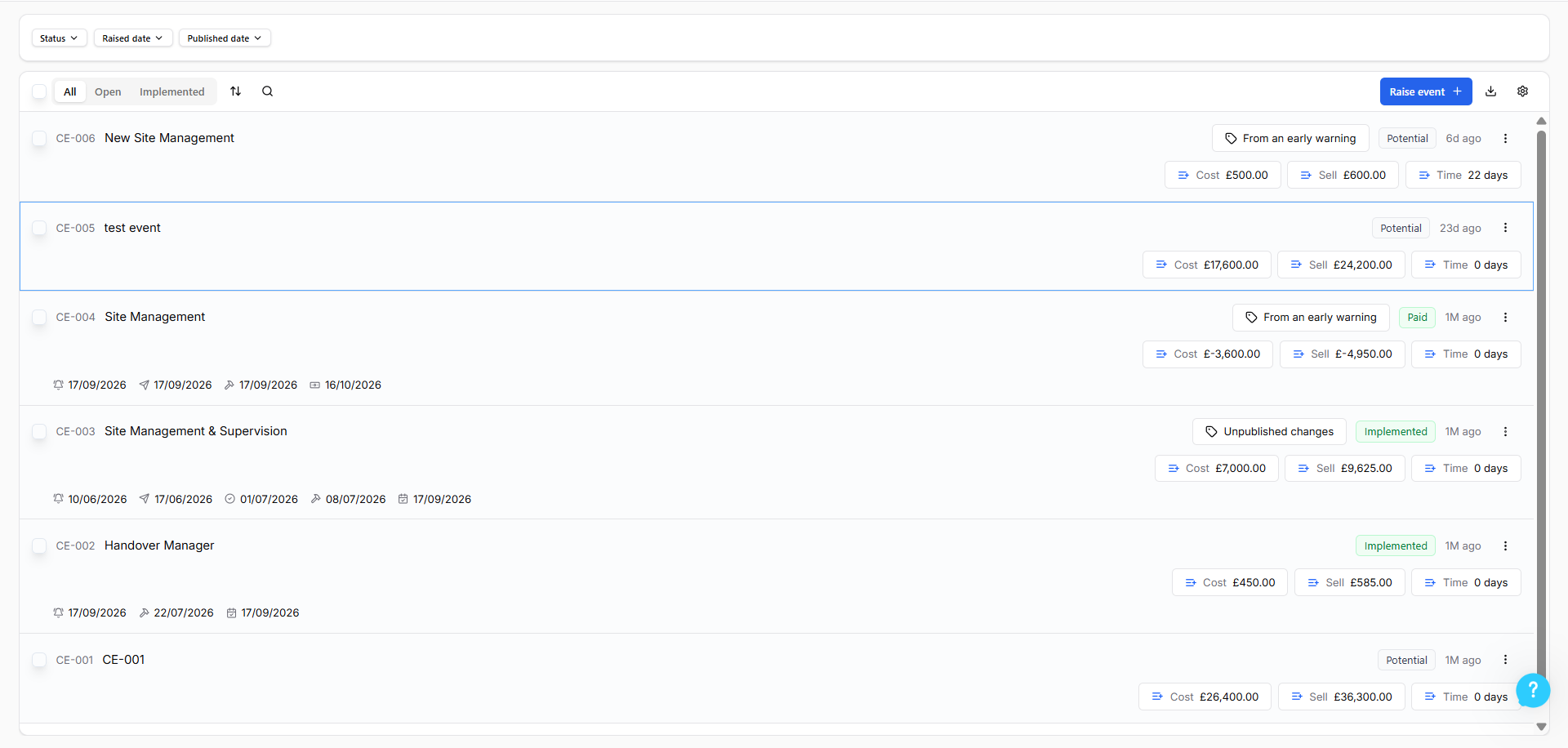
Use the tabs to focus the list:
All shows everything.
Open shows events that are not yet Implemented or Rejected.
Implemented shows events that have been agreed and applied.
You can also filter by Status, Project and Date range. Filters apply as soon as you choose them
Creating a compensation event
There are three ways to start one:
From an early warning: Escalate it, and the details carry across. See Issuing and escalating an early warning (NEC).
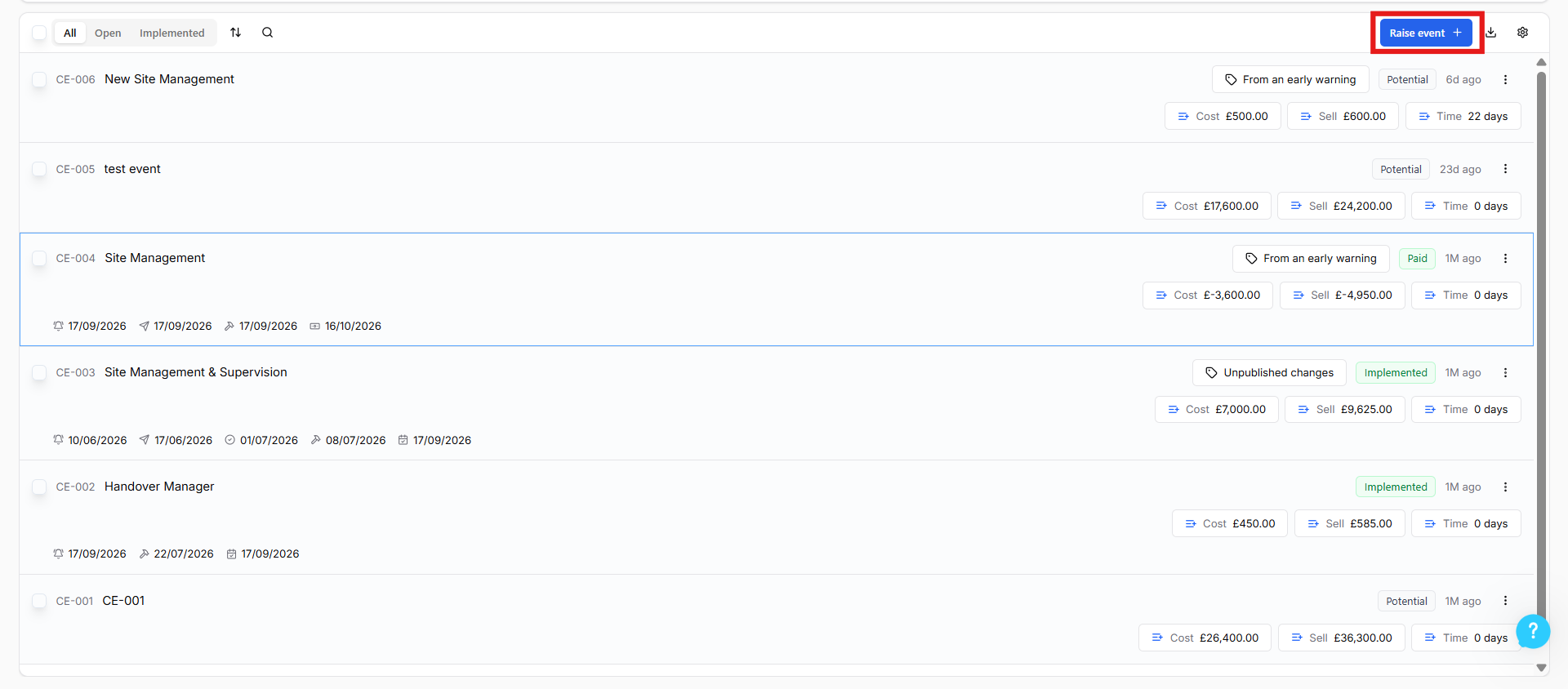
From scratch: Select Raise Event in the register.
As a standalone event. Use this when the change is not related to an earlier event. See "Choosing what it is compared with" below.
When you create one, complete the following.
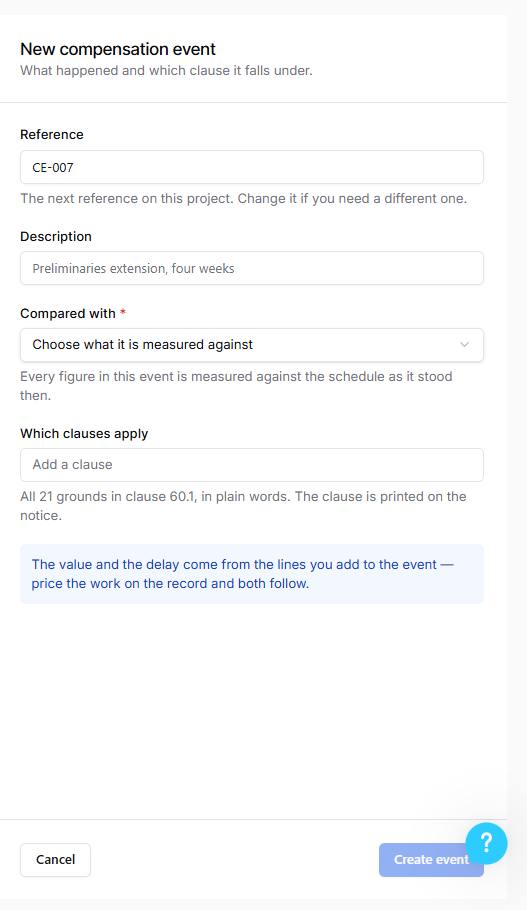
Title and description of the event.
Which Clauses Apply: Select the clause 60.1 event that entitles you to a compensation event. The list includes the Z clauses added by your contract, so you can select those too.
Compared with. See the next section.
Select Create event. The event starts in the Potential status.

The full set of statuses is Potential, Notified, Quotation Submitted, Under Review, Implemented and Rejected. Each change of status can carry a note, and the history of every change is kept in the event.
Choosing what it is compared with
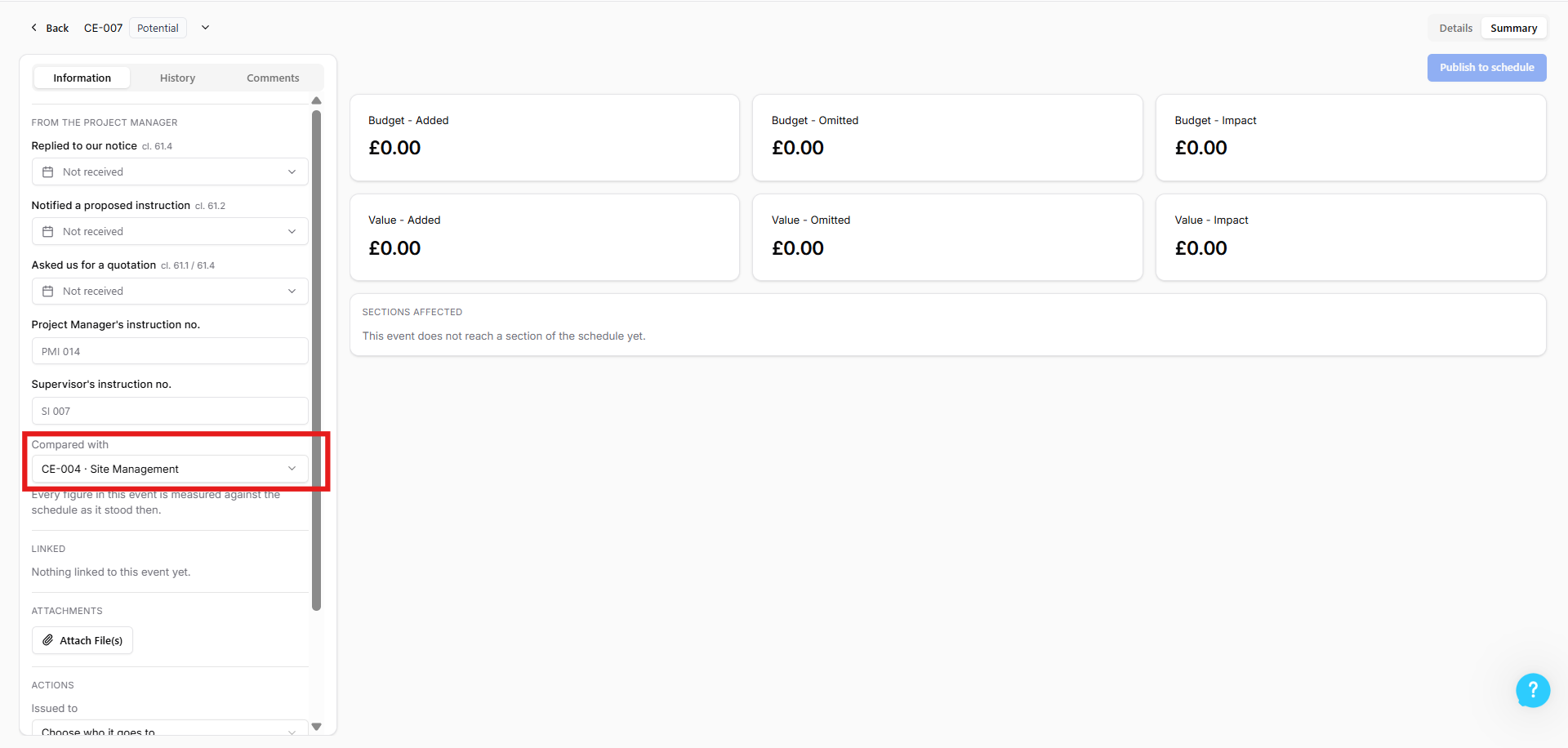
Every compensation event must say what it is being measured against, so the value you quote is the change and not a repeat of work already priced.
Choose an earlier compensation event if this one builds on or revises it.
Choose Original scope if the event is standalone and stands apart from every earlier event.
This field is required.
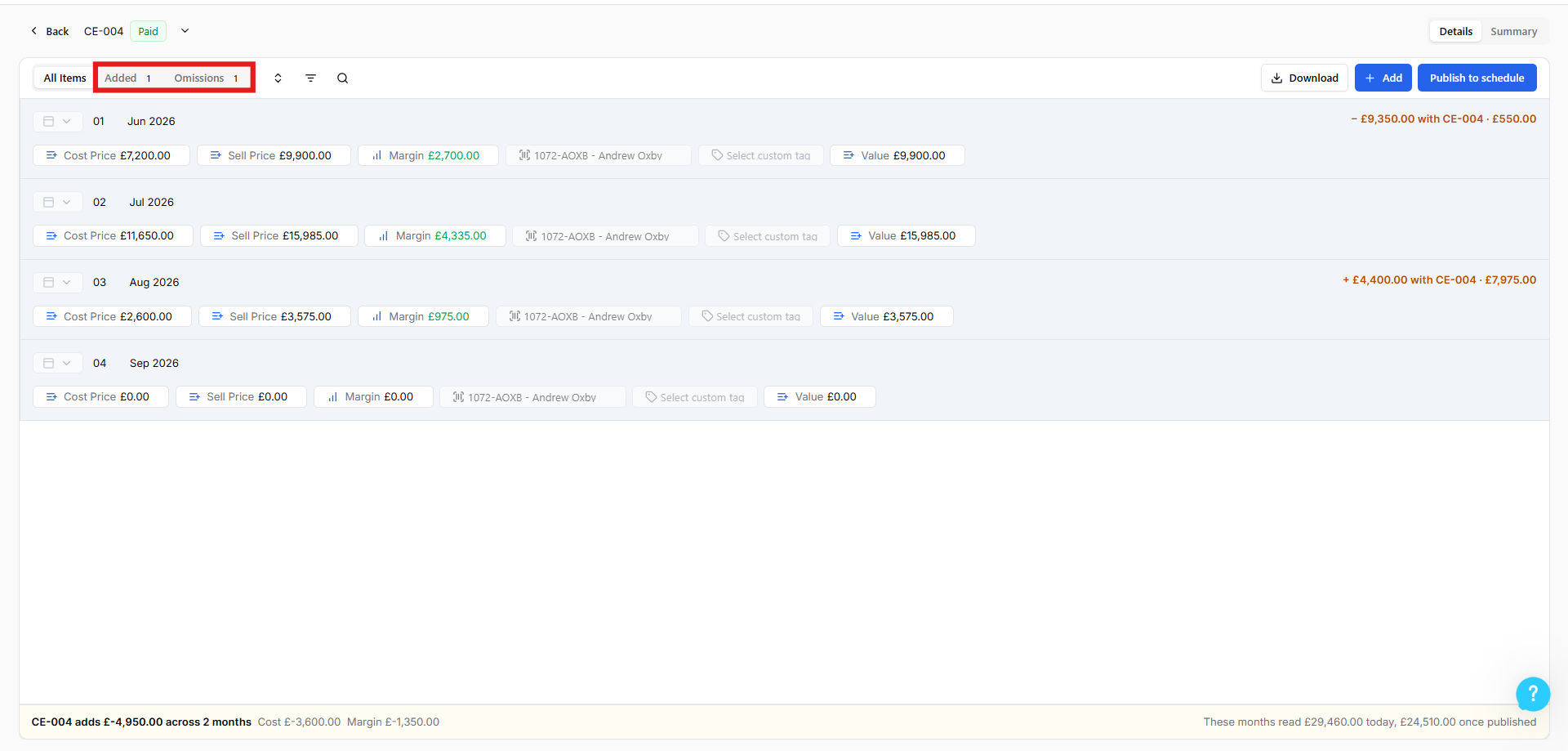
Adding items and omissions
A compensation event has two tables:
Added for work or cost you are adding.
Omissions for work you are removing.
To add a line:
Open the event and select the Added table.
Select Add.
Choose a rate from your library, or enter the description, quantity, unit and rate yourself.
Check the section shown for the line. This is where it will sit in your activity schedule or BOQ once the event is published.
Check the cost code. If you used a rate from your library, its default cost code is applied for you.

Add omissions the same way in the Omissions table. Omitted rows are shown in red so they are easy to tell apart.

VAT is hidden on the line items unless you have set a VAT rate at line-item level.
Editing in bulk
When you have many lines, you do not have to edit them one at a time.
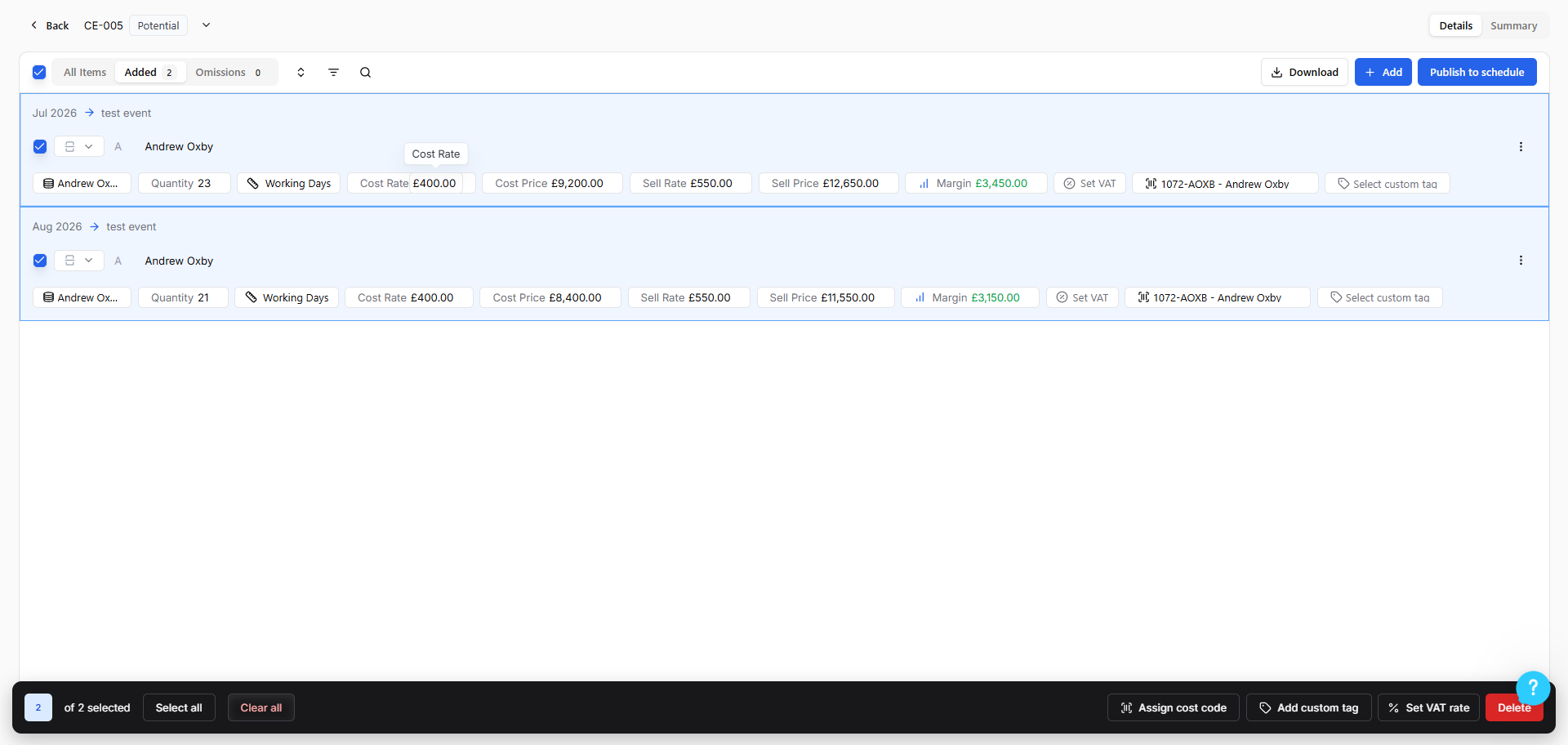
In the Added or Omissions table, tick the lines you want, or use select all at the top of the table.
A bar of bulk actions appears. Choose from the available actions, for example, setting a cost code or adding tags.
Confirm. The change is applied to every selected line.
Bulk edits work on the lines in the compensation event.
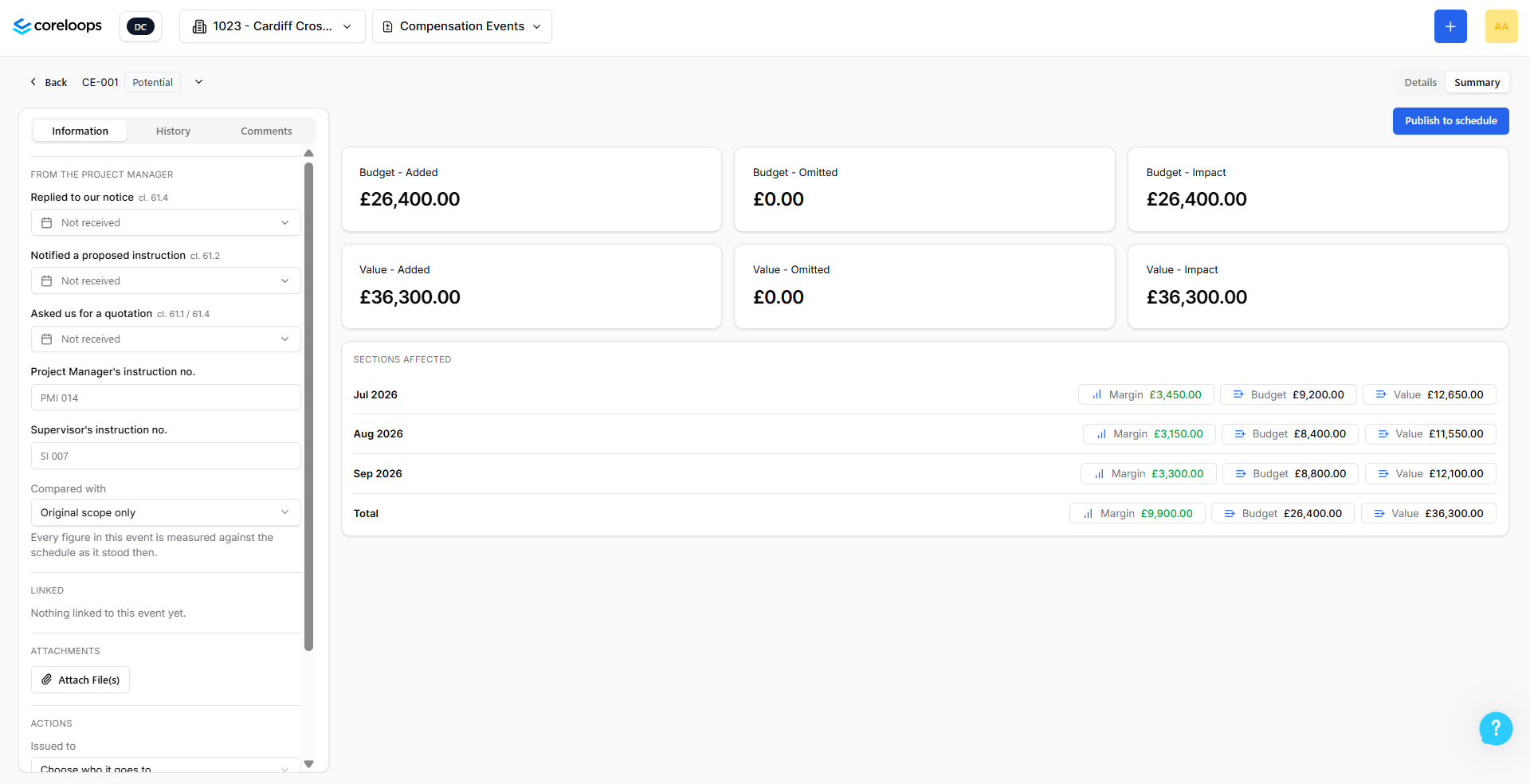
Understanding the totals
The event shows the totals for added items, omissions and the net effect.
Preparing the quotation
When your event is priced, you turn it into a quotation for the Project Manager. Under NEC the contractor submits a quotation for each compensation event, so this is the step that puts your price in front of the client.
Open the event, go to the Summary tab and choose Send the quotation.
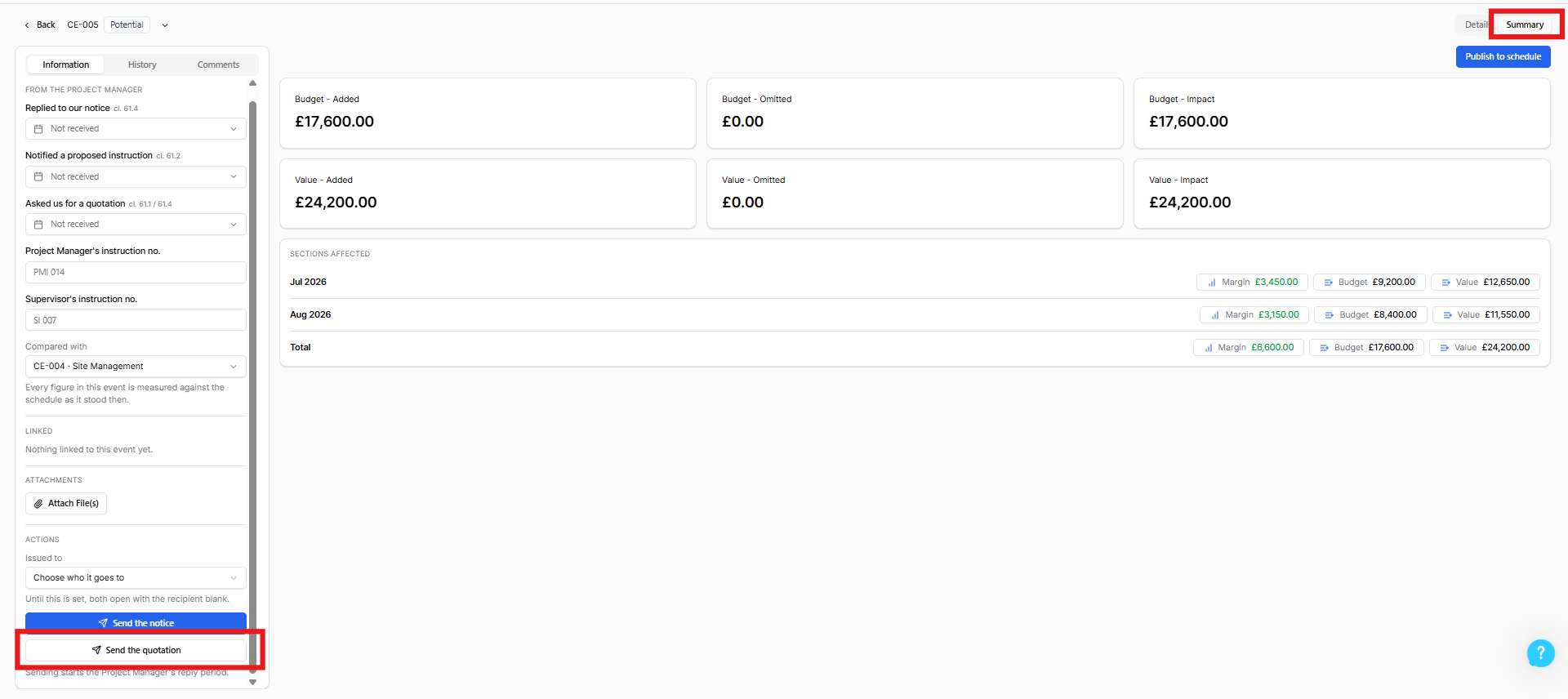
When you send the quotation, Coreloops builds a sales quote from your added items and omissions. It uses your normal quote numbering settings and adds the compensation event's name and description as a reference so the two can be matched later.
Lines are grouped by rate and price so the quote reads as a clear summary rather than a long list.
Review the quote (select Preview what goes out to review the sales quote). Edit any wording or descriptions before you send.
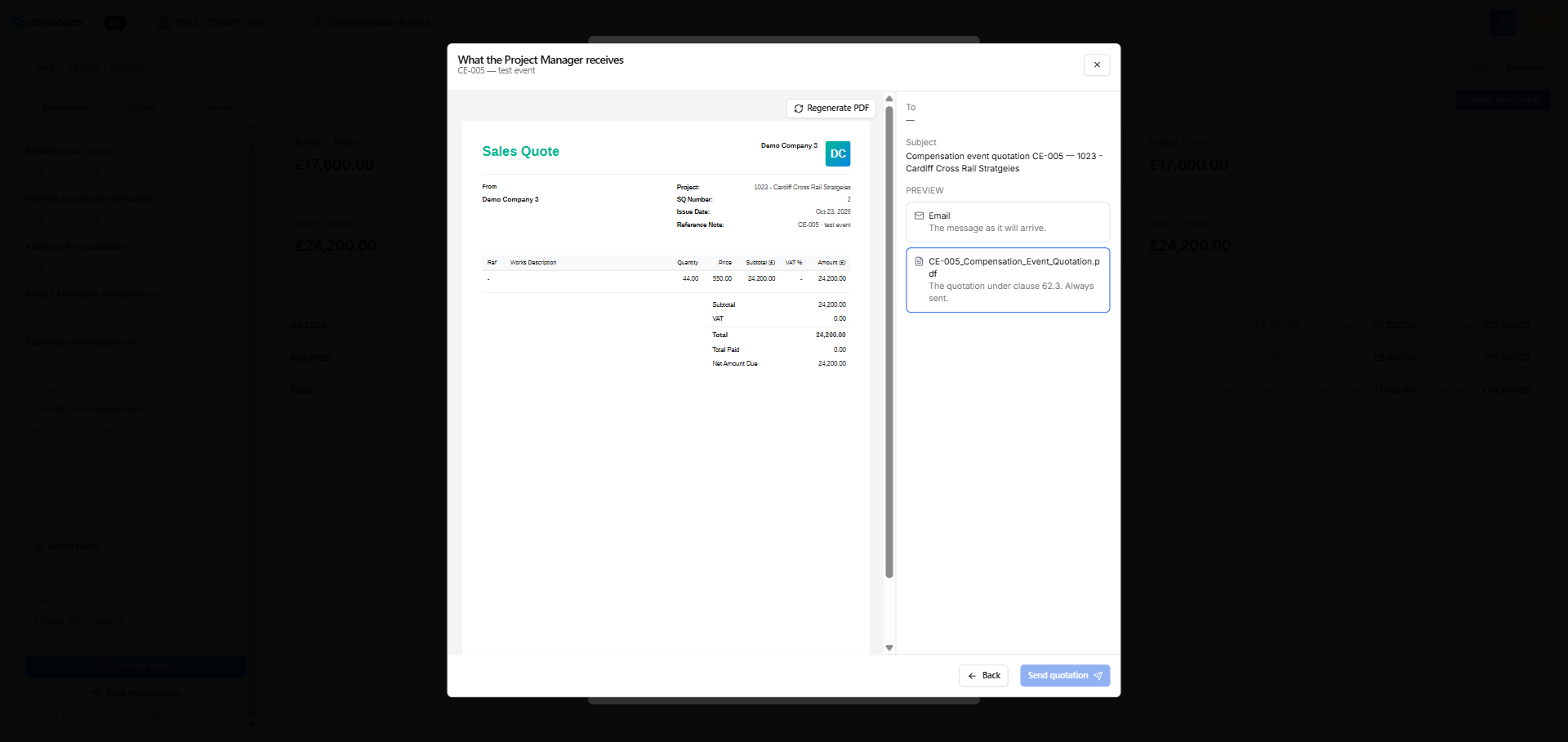
Send it from the next step in the flow, covered in Issuing, managing and publishing a compensation event (NEC).
Two points to know:
The quote is not generated until you send it.
The quotation's time limit is set by the quotation submission period in your NEC contract details. See the next article for the reminders that use it.
Next step
When the quotation is ready, continue to Issuing, managing and publishing a compensation event (NEC).
Was this helpful?
Still need help? Ask the team