
Reviewing & Approving Documents
Reviewing Documents
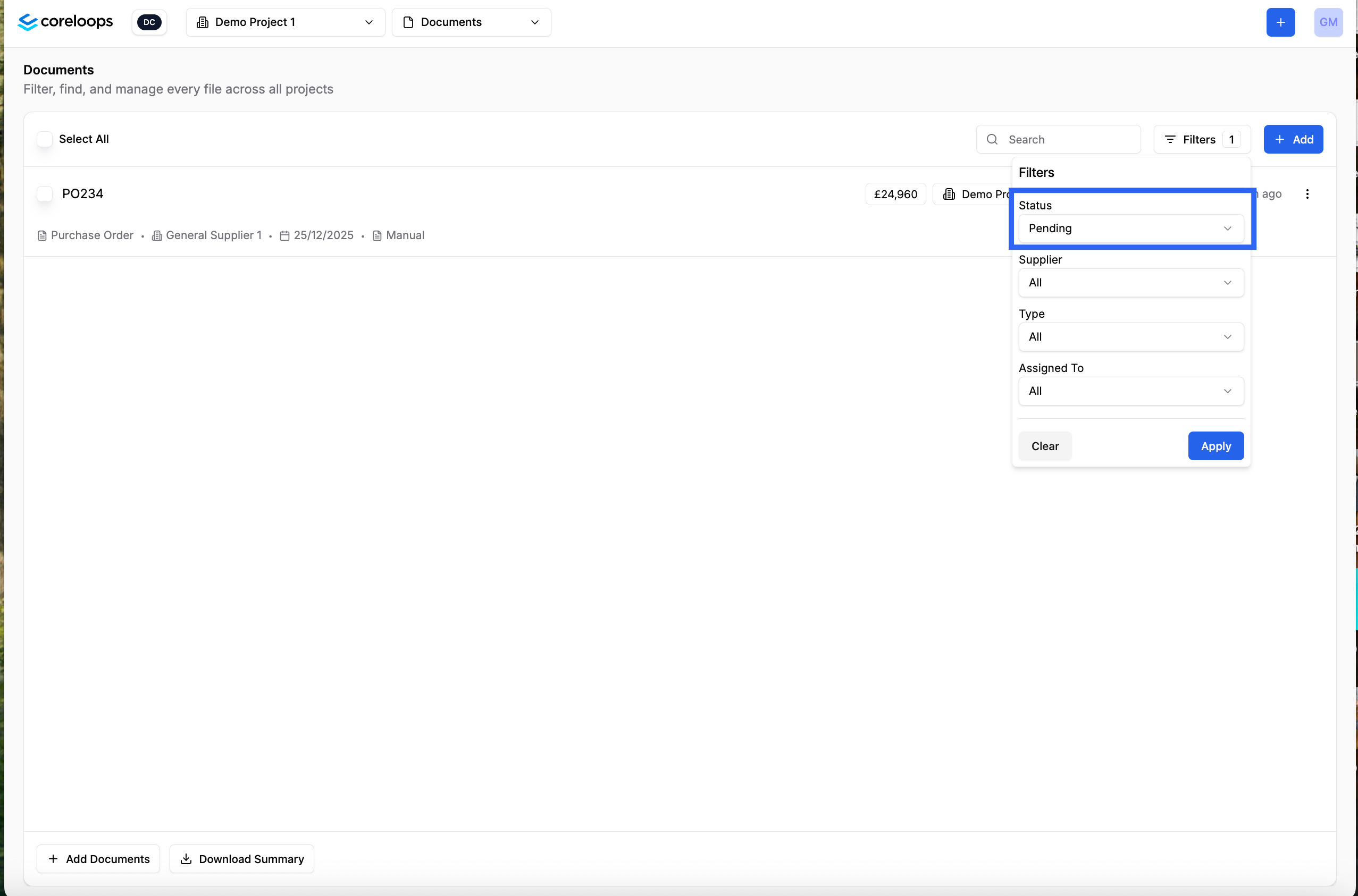
You can filter for documents that are pending review by clicking on the Filter and updating the status.
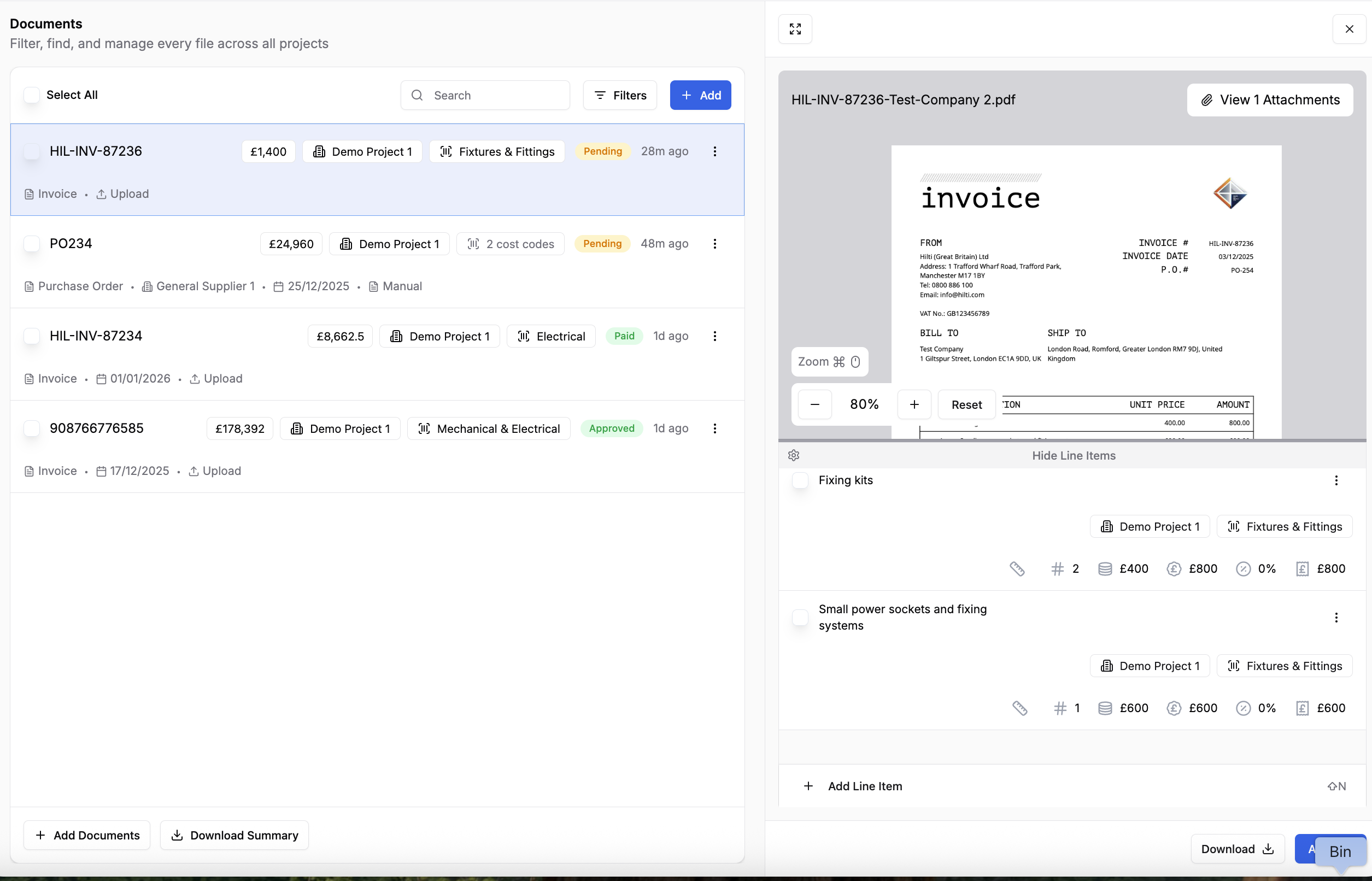
When you click into a document that is pending review the side panel opens up with the line items and document information. You also get a preview of the actual document file.
You can expand into full view by clicking the expand icon or the menu for this document in the table.

When you expand into full view you'll see the actual document you've uploaded on the left hand side and all of the information that has been pulled from the document on the right. The line items pulled from this document also show up under the document viewer.
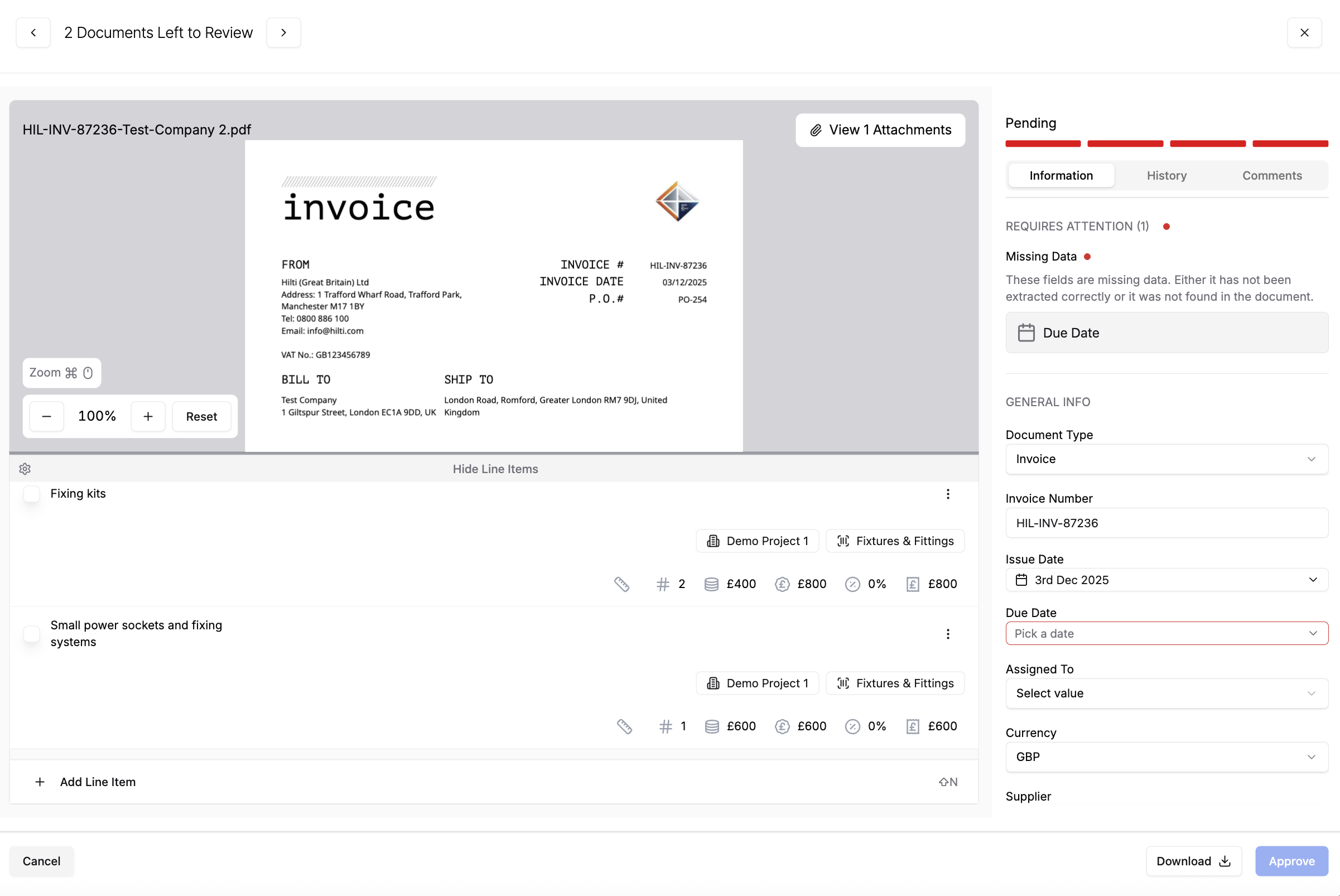
You can configure or update any of these fields below.
| Field name | Description |
|---|---|
Document Type | The platform will try to determine the document type while it is being processed. The document type, e.g. quote, PO or Invoice, will determine what fields will show below. You can update this if the document type is incorrect. |
Document No. | The Invoice ID, PO number or Quote number identified from the document |
Purchase Order Number | The PO number is identified from the document. If the invoice doesn't have a PO number or hasn't been identified correctly, you can update this directly. When the PO number is matched to a PO in the system, it will update the project and cost code to match that of the PO or highlight that there are multiple cost codes. |
Issue/Due date | The date the document was issued and the date it is due to be paid. |
Assigned to | You can assign a document to another team member. They will receive an email asking them to review and approve the invoice. |
Currency | This is the currency that has been identified from the document. If this is incorrect it can be updated manually. |
Supplier | This is the supplier identified on the document. You can update the supplier or create a new one. If the system identifies this as a supplier that is not currently in the system |
Subtotal | This is typically the amount before taxes, and therefore, this is the actual amount paid for the goods, services or work. This is the value that will be used to update your cost report once the document is approved. |
VAT Amount | If there is any VAT stated on the document then this will be pulled in here. |
Retention | If there is any retention stated on the invoice then this will be pulled into this field. |
Discount Amount | If there is any total discount stated on the invoice, then this will be pulled into this field. |
CIS Amount | If there is any CIS stated on the invoice then this will be pulled into this field |
Total | This is the total amount due on this document. It should typically include the sum of Subtotal + (CIS,VAT). However some suppliers may structure their invoices differently. |
Total Paid | If any payments are listed on the invoice, they are listed here. You can add payments that have been made manually by clicking Add payment. Simply add the amount paid and the date of payment. If the whole invoice has been paid you can simply "Approve and Mark as Paid" from the approve button above. |
Add Payment | Here, you can add a manual payment to the invoice manually. You can add part or full payments. |
Amount Due | This is the amount still due for payment. This is typically the Total Due - (CIS, Retention & Total Paid). |
Note: Once you've reviewed the document you can approve it. Approving will update the actual ordered (purchase orders) or actual costs (invoices or receipts) column in your project cost report.
Splitting documents to multiple projects & cost codes
You can split and allocate different parts of a purchase to different projects and cost codes. Update the project and or the cost code for each line item.

Note: This will update the actual costs in each project's cost report and allocate the subtotal (before VAT) to the selected projects & cost codes' actual costs.