Managing Variations
Creating Variations
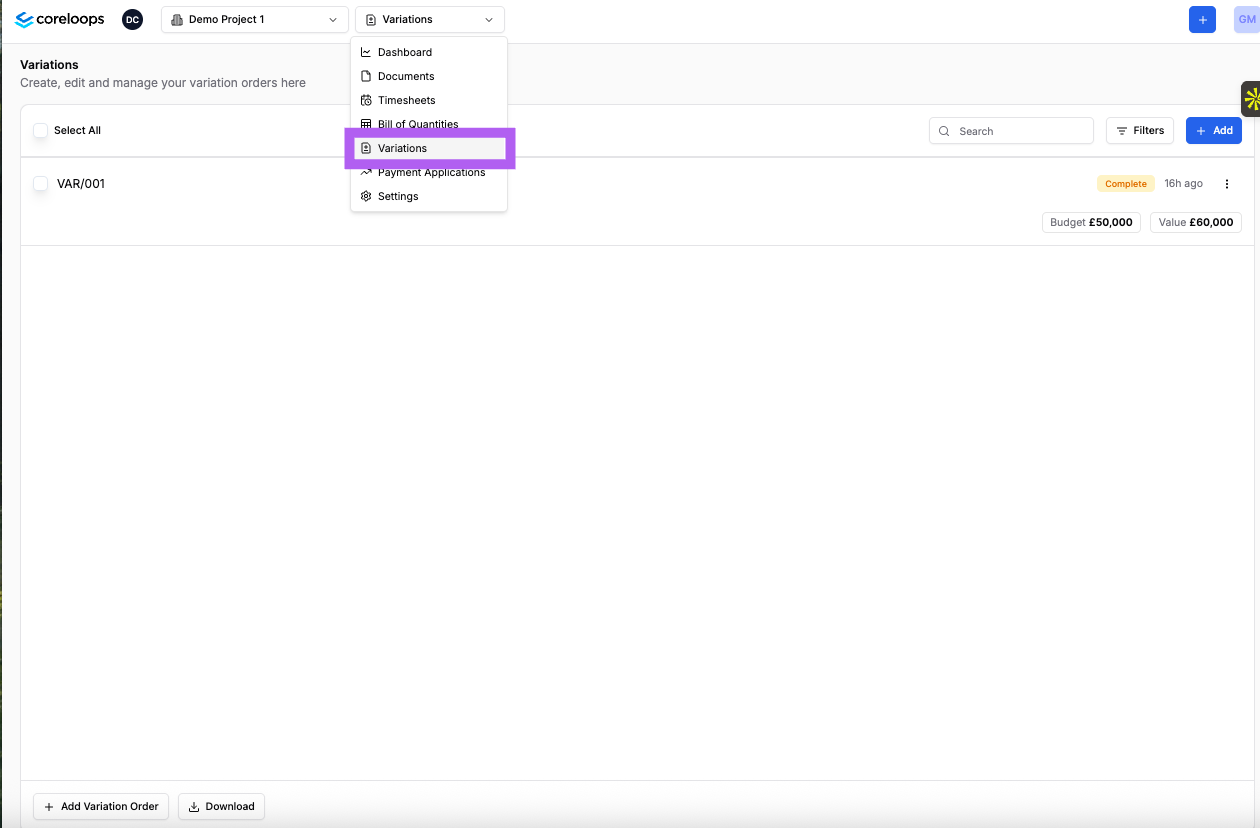
You can create variations for a project by clicking into the variations tab under your project:
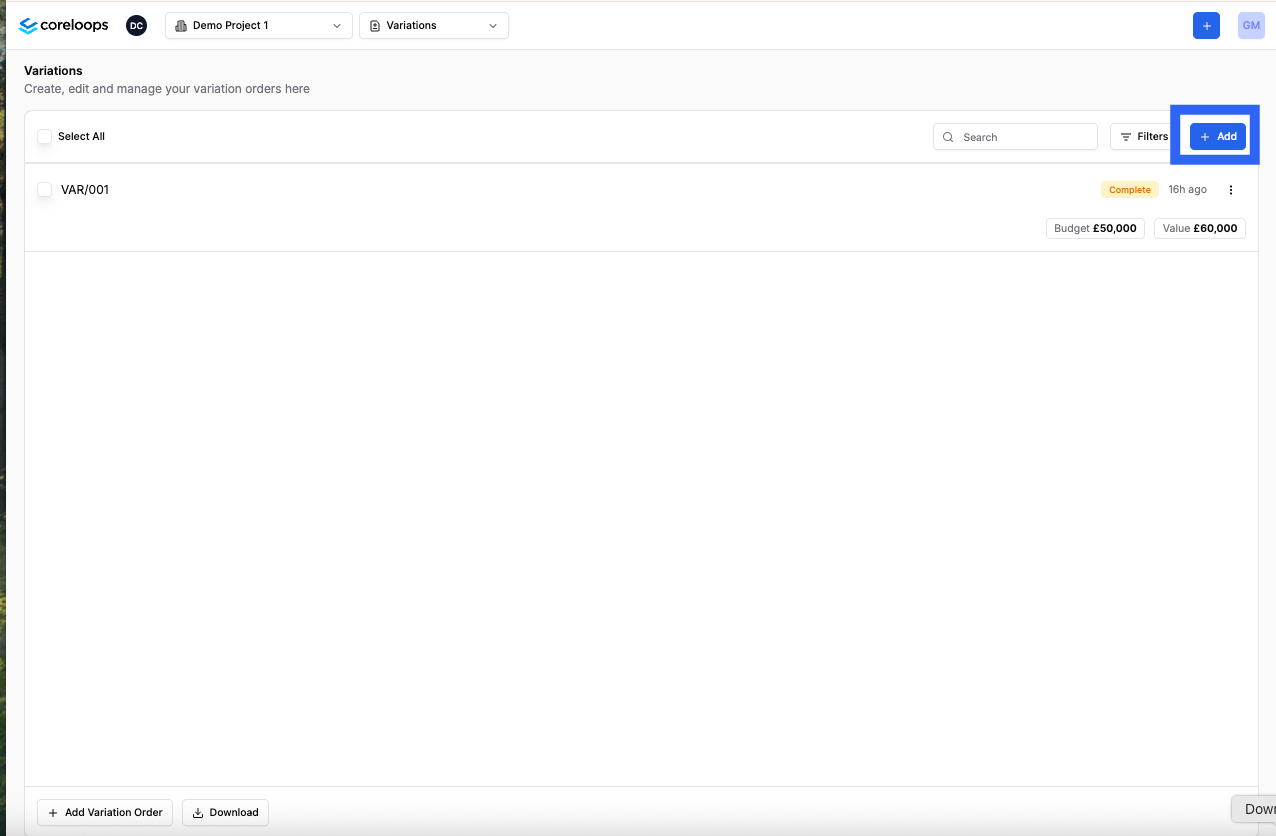
You can add a new variation order by clicking "Add" in the right-hand corner of the variations table. This will create your next vairation order
Removing items: Omissions
You can remove (omit) existing items from the BOQ from the all items view. Navigate to the section and then line item that you want to remove and click on the red bin icon on the left hand side of that line item.

Add new items: Additions
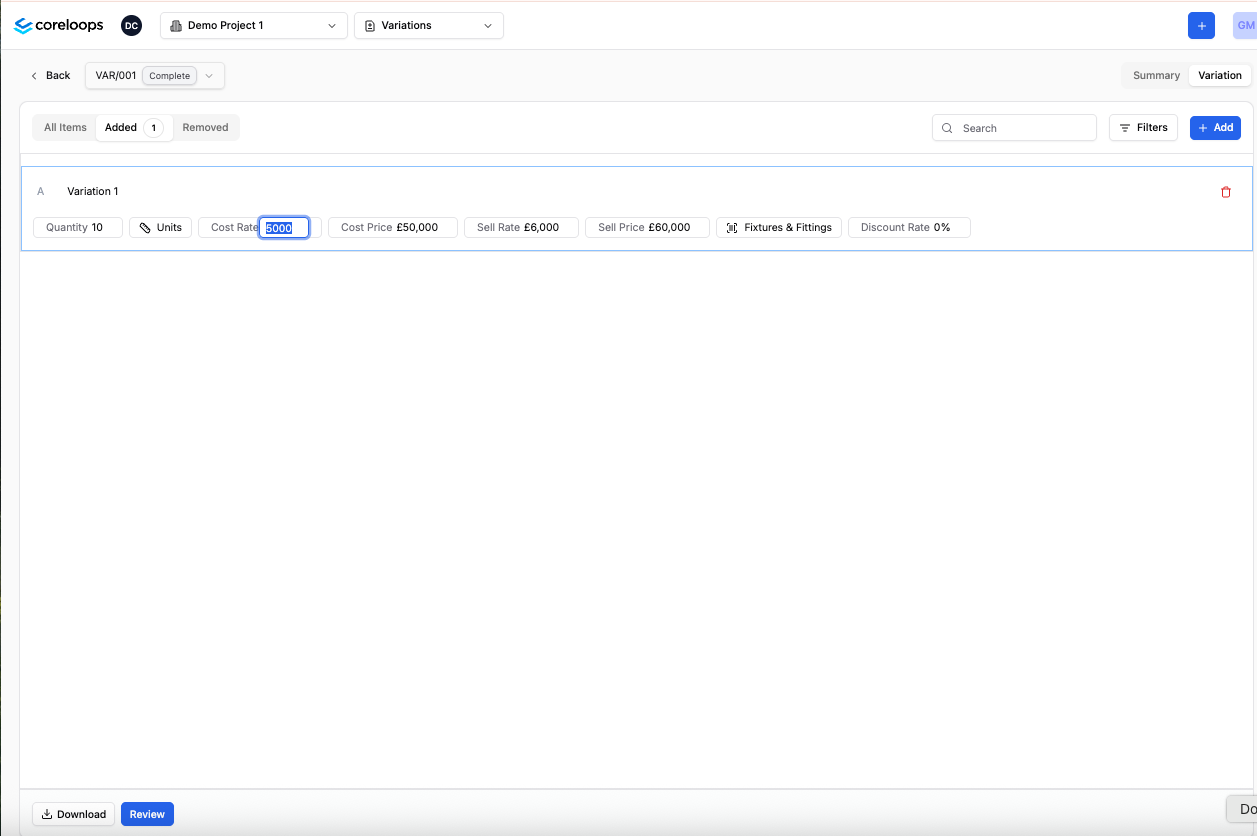
You can add new items to this variation order by clicking on the add item button to the right. A line item will be created under the variation order sub-section. You can also access all added items in the "Added" tab.
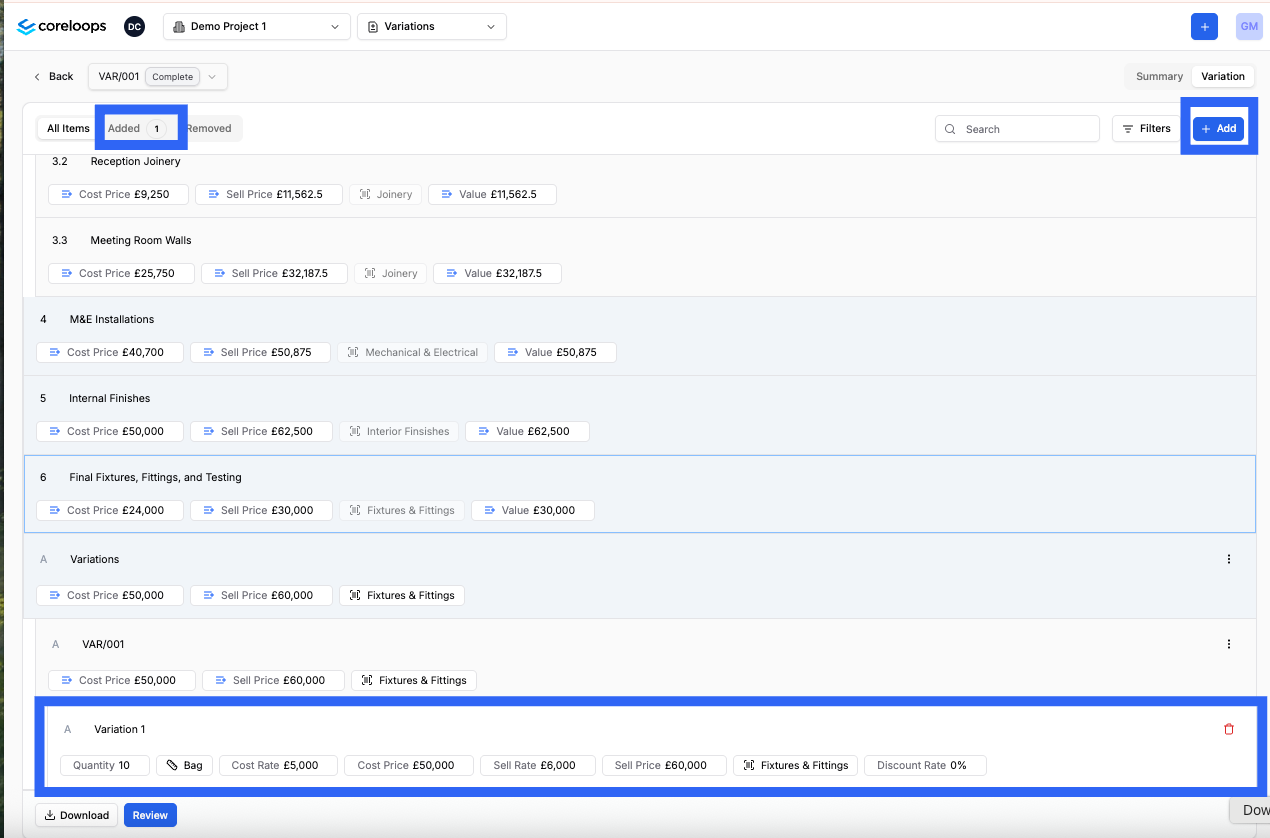
Once you've added a new line item, you can fill in the details for each field, including the cost rate and sell rate. You can also link this new item to a cost code. This will update your forecast value and budget in your cost report and update your applied/certified value and budget once you've applied for these variation orders.
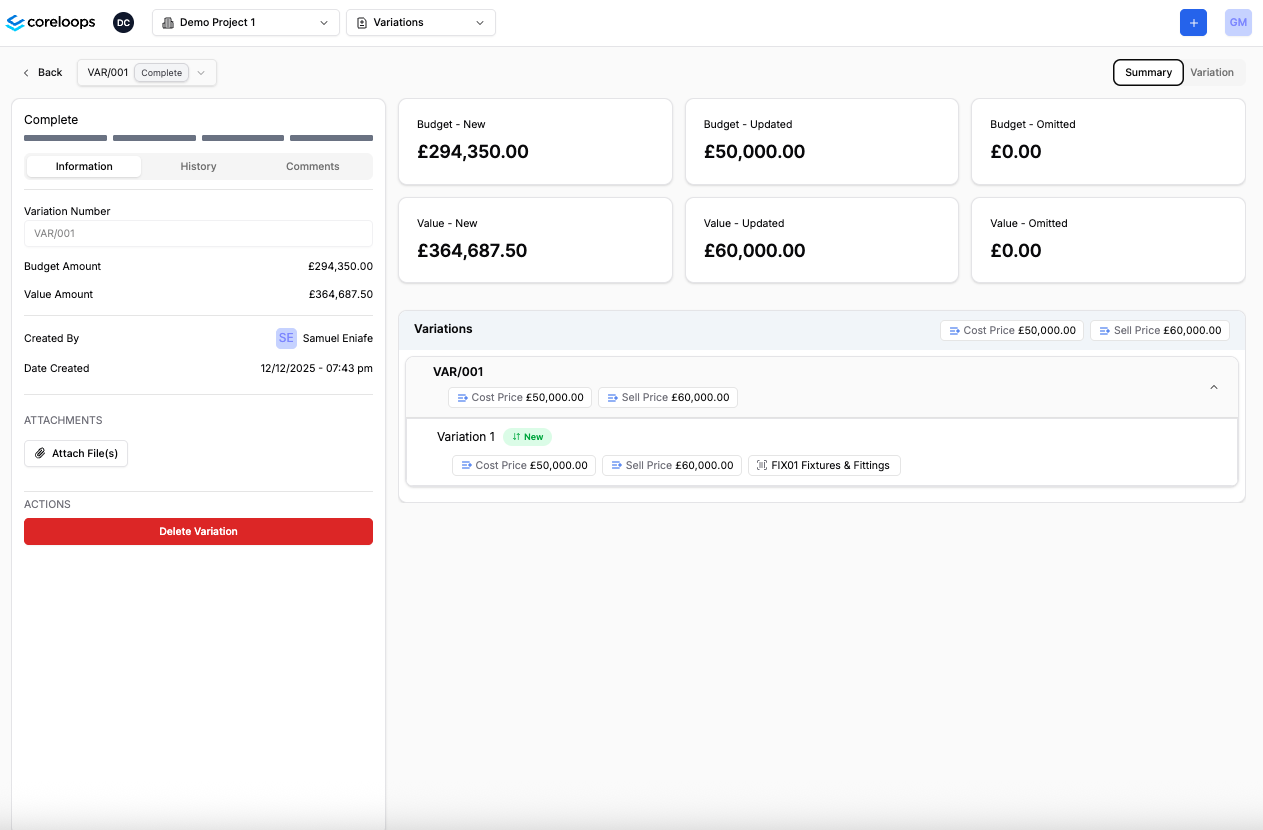
Variation Order Summary
You can review a summary of the variation order and hwo it will impact your project by clicking into the "Summary" tab.
Attach files to the Variation order
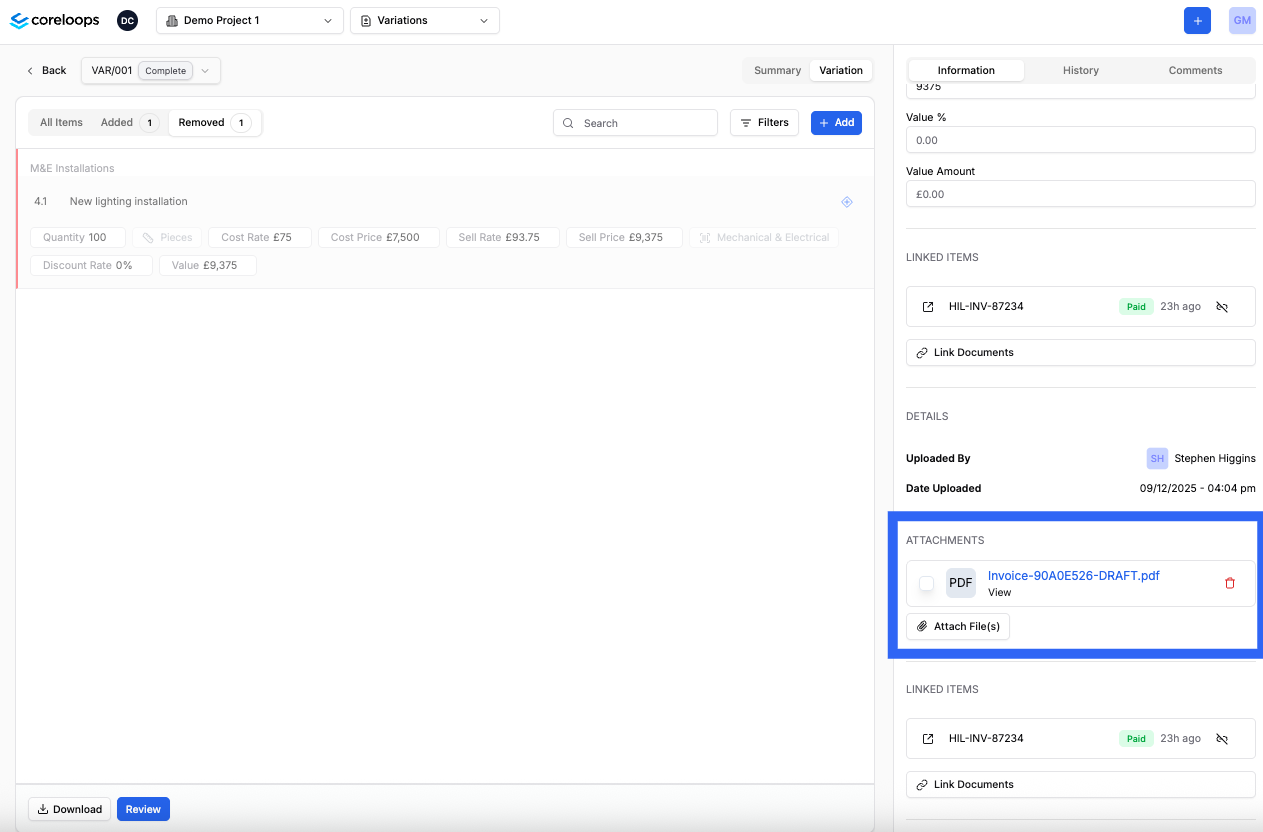
You can attach files (PDF, images and spreadsheets) to a variation order to substantiate the order. You can attach a file to a specifc line item in the variation order or the entire variation order.
You can navigate to the variation order line item you'd like to attach a file and click attach file.
This attachment will appear in the variation order PDF, clearly labelled against the line item.
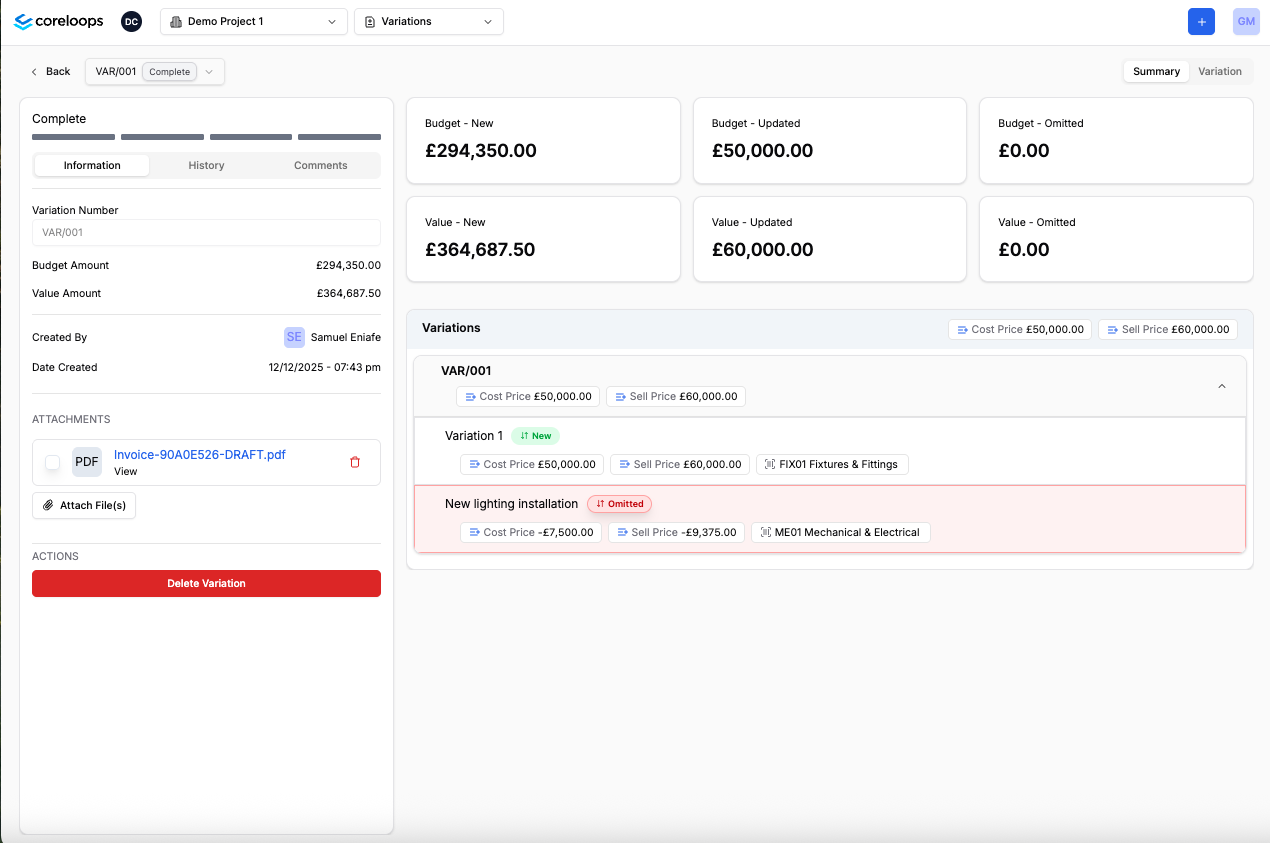
To attach a file to the variation order. Navigate to the summary page and attach the file by clicking on "Attach file" in the infromation tab on the right hand side of the page.
Link existing files to the variation order.
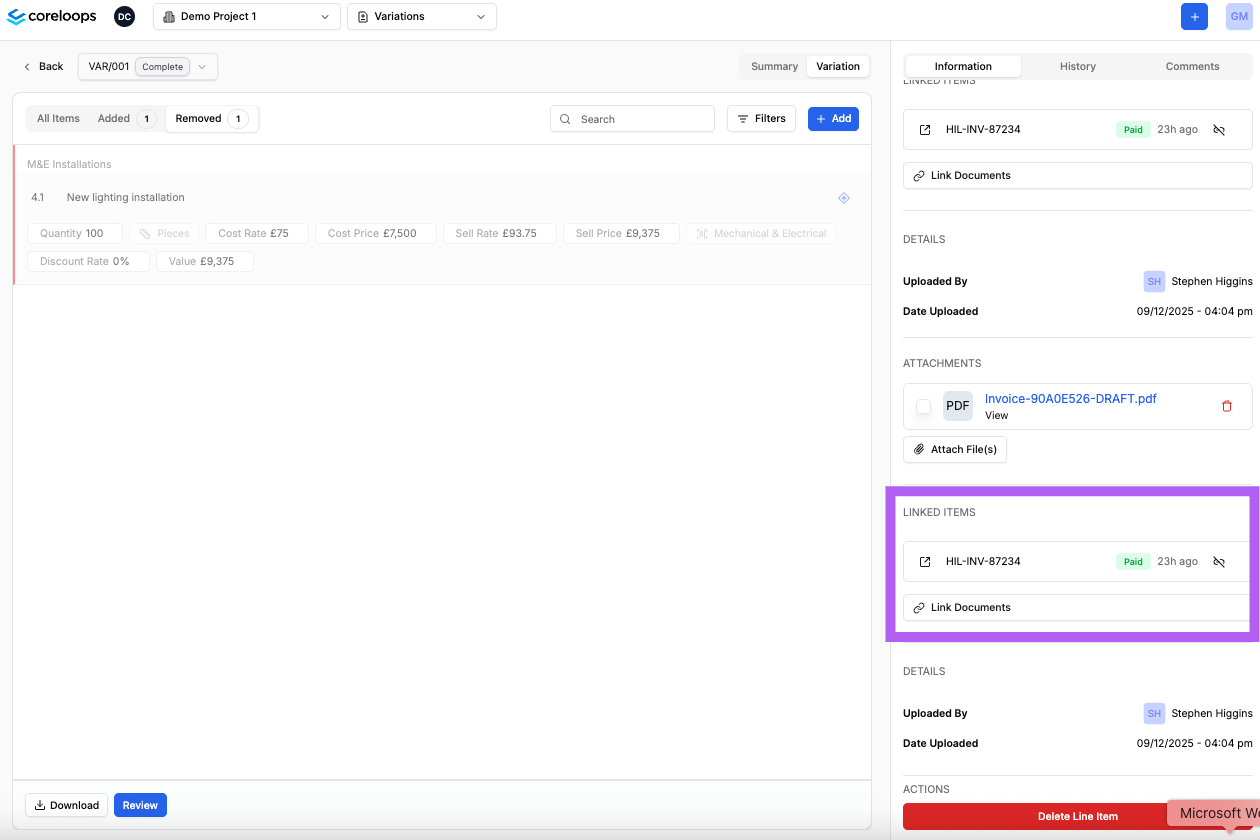
You can link existing files you've already created or processed in Coreloops, such as quotes, purchase orders and invoices, to a specific variation order line item. This will enable you to use values such as the sum of all quotes to estimate how much this should cost to deliver this variation.
Update variation order status
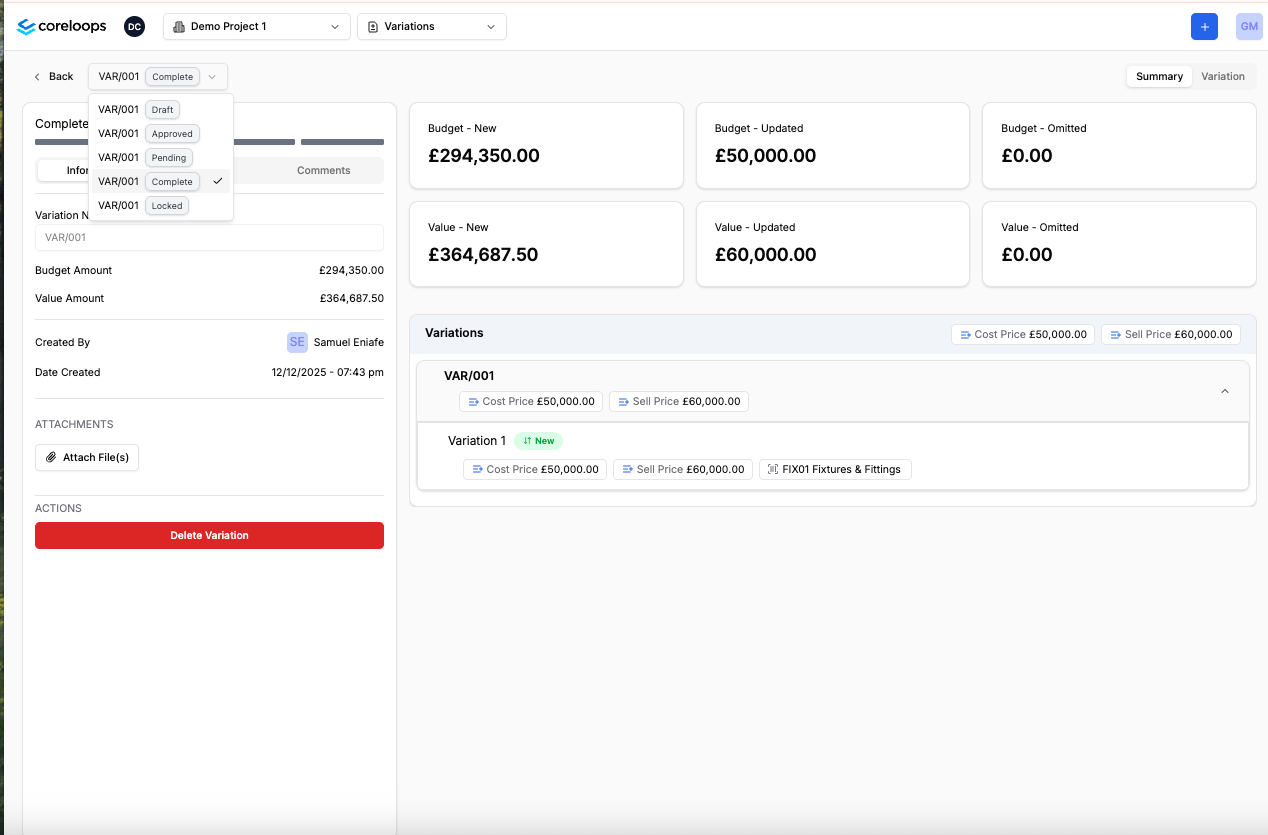
You can track the status of your variation orders by clicking on the status tab in the left-hand corner of the page.
Publish a variation order.
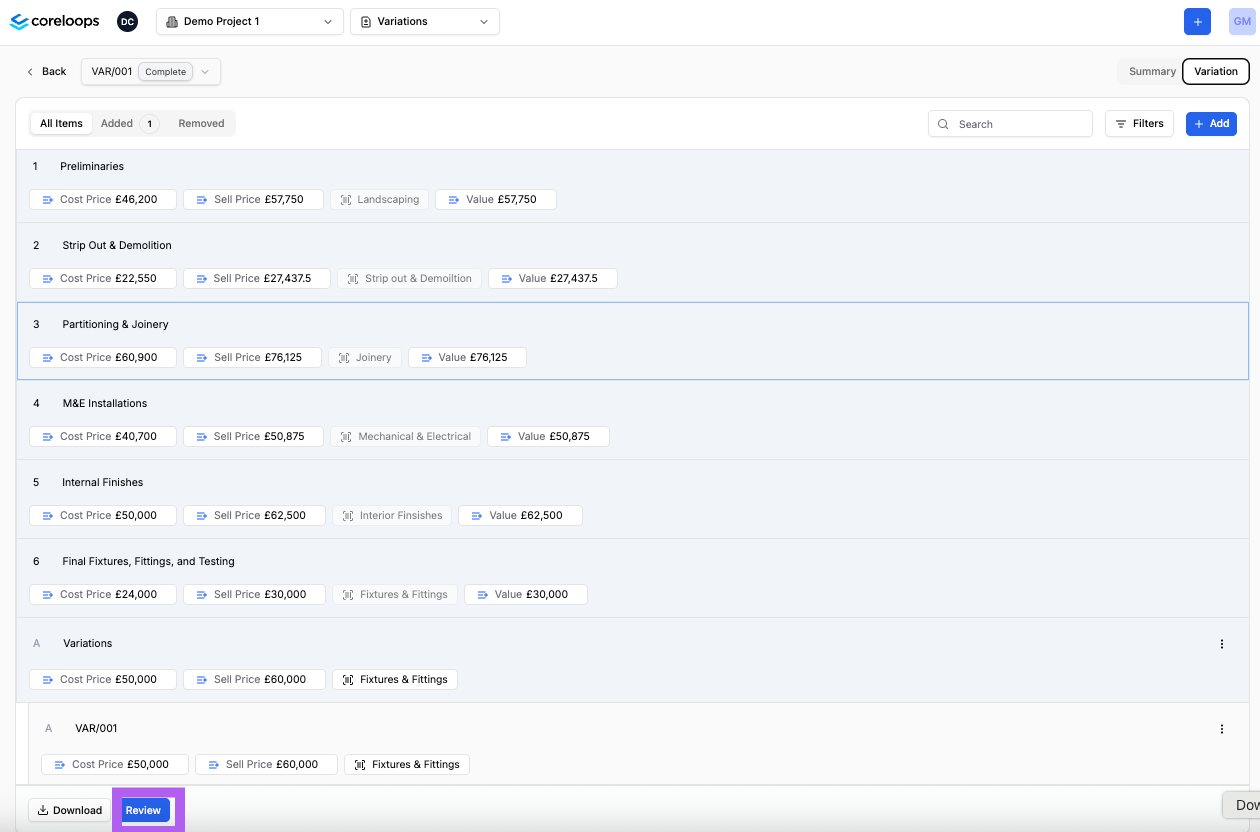
Once you're ready to apply for a variation order, you can publish it, and it will immediately show up in your BOQ under the variations section. It will then be available in all pending and future payment applications.
Updated BOQ with new variation order
Deleting a variation order
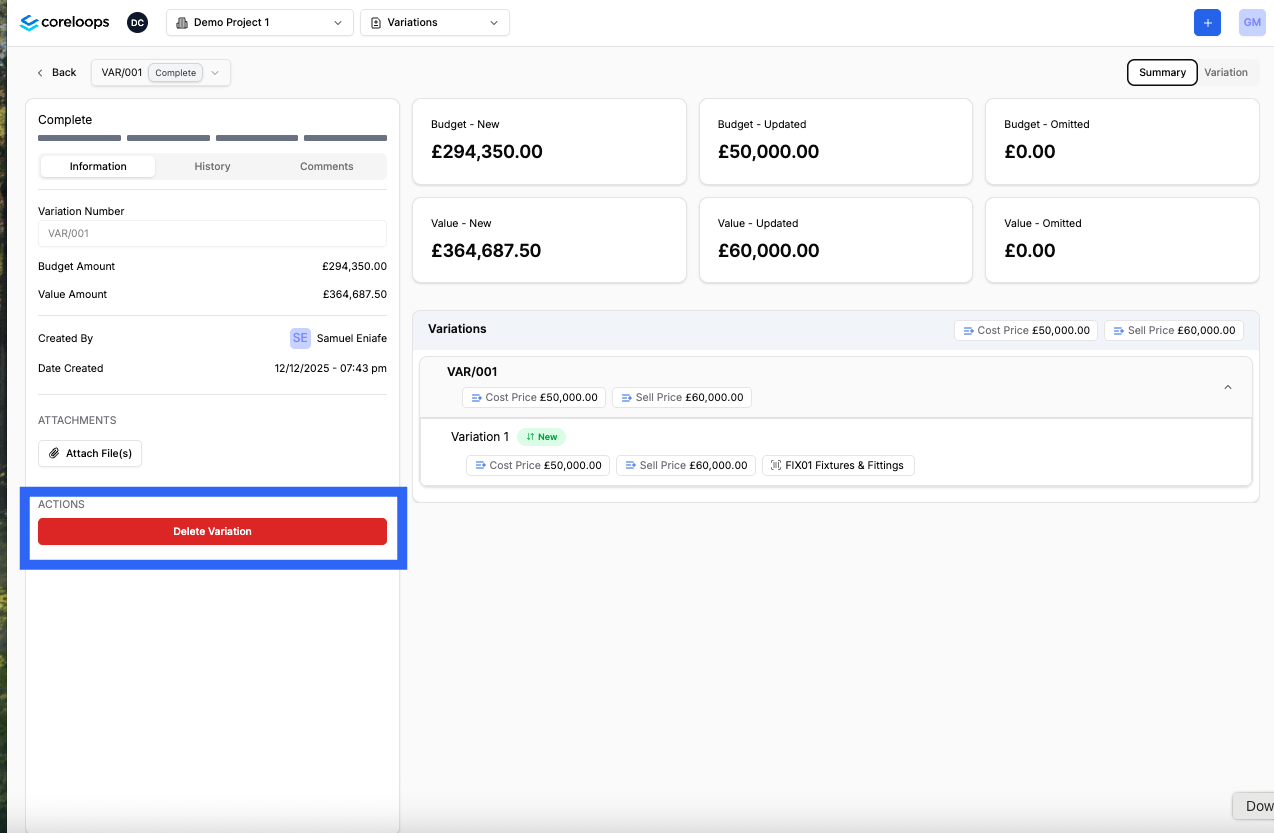
Once you're ready to delete a variation order, you can delete it by navigating to the summary tab and then clicking on delte variation order. This will delete the variation order from your BOQ and pending payment applications where it hasn't been applied for.