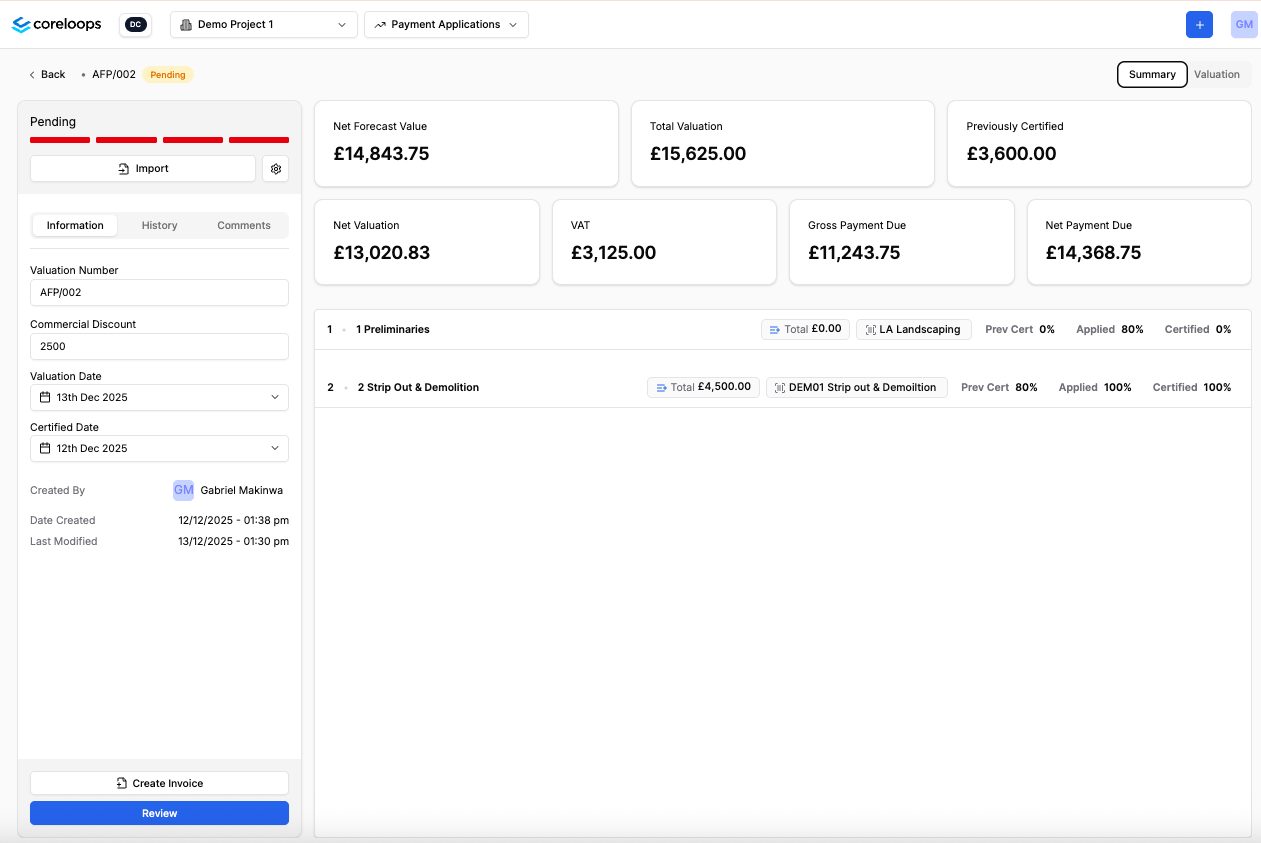
Payment Applications
Overview
In Coreloops, you can track and manage your payment applications by completing your applications in the platform directly or importing them as Excel Files. By linking your schedule of works to cost codes, each payment application will update your applied/certified value and budget in your cost report. You can learn more about setting up your project and linking your BOQ to cost codes here.
Creating a payment application
To create a payment application, click on the navigation menu and select payment applications.
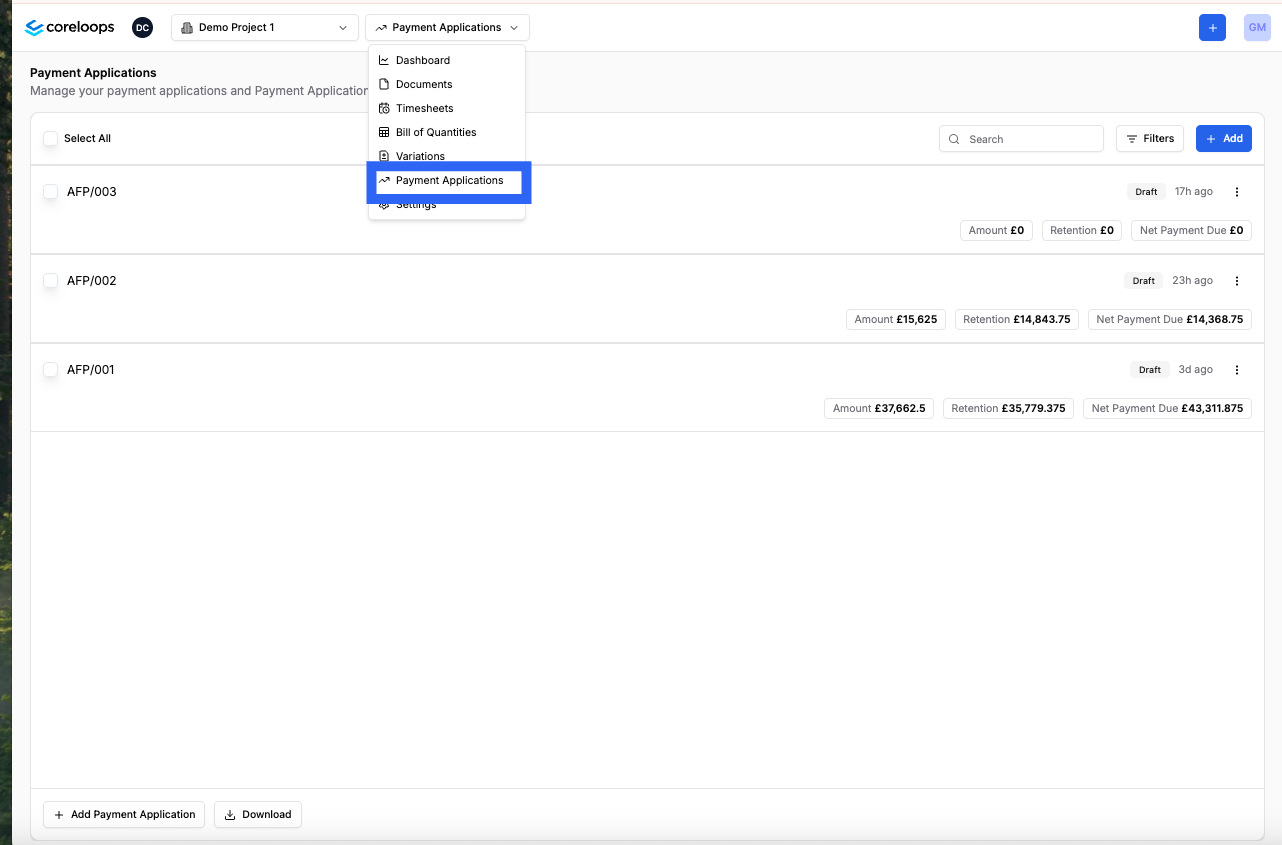
Starting a Payment Application
Click on "Add" in the right hand corner of the applications table to create a new payment application
A new application will be created with all of the items that have been added into your Bill of Quantities at that point. You can then go the items that need to be valued.
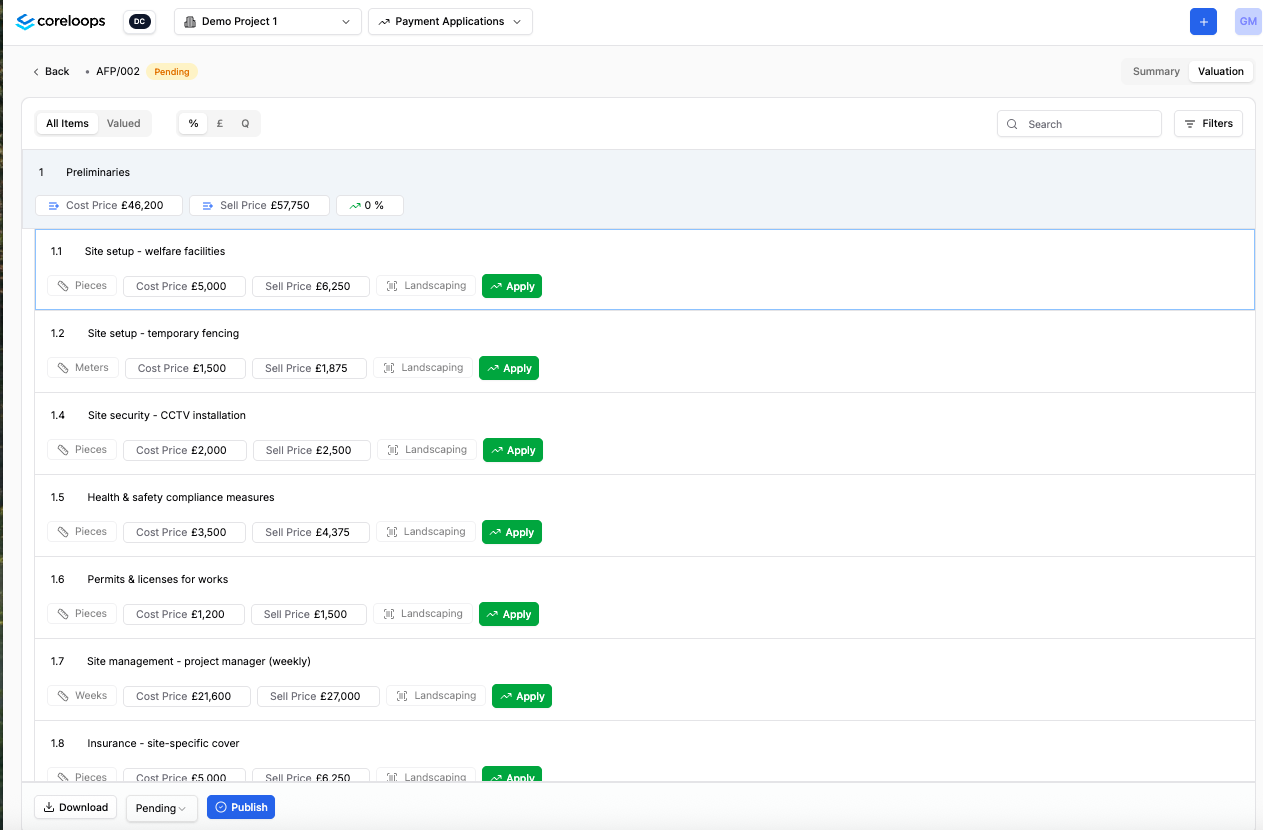
Configure a Payment Application
In the summary page, you can update the payment application settings in the information tab of the sidebar.
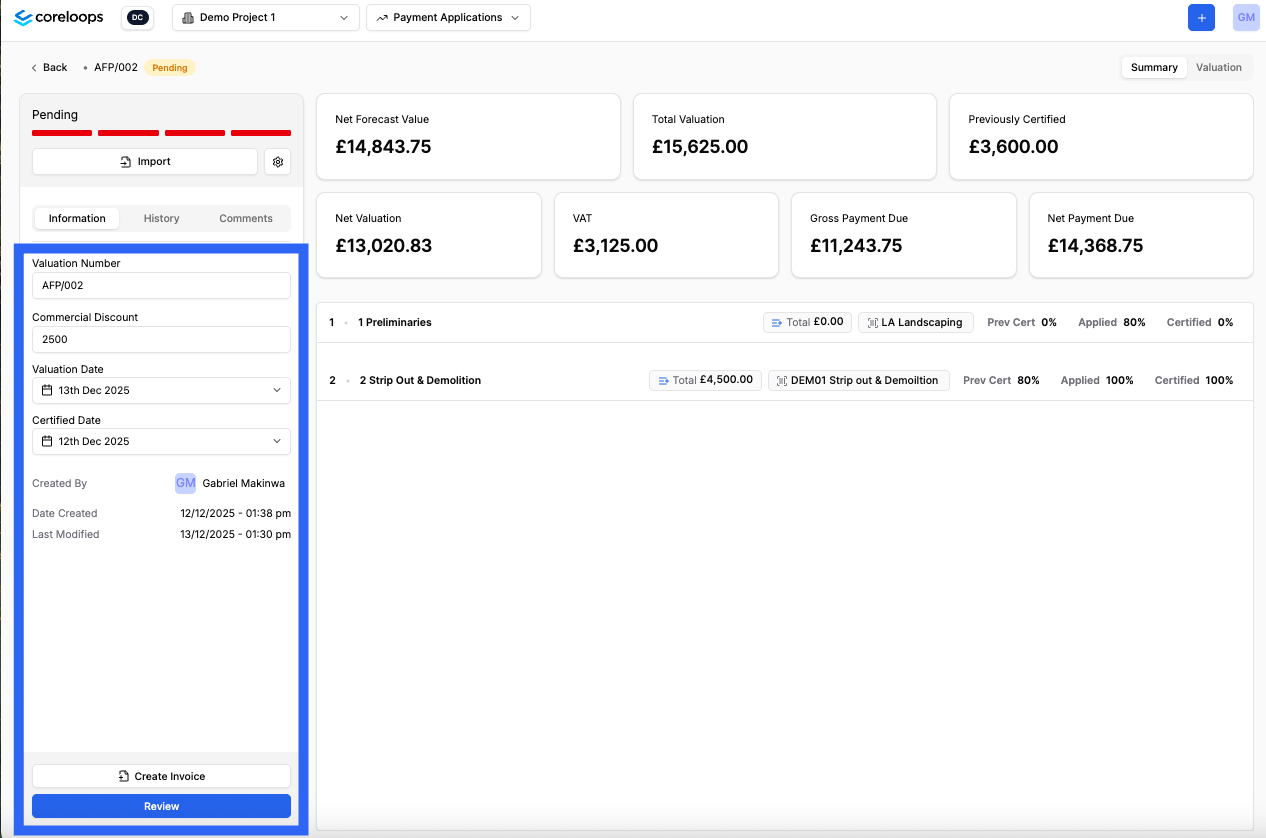
Here you can update:
- The Application Number: The number for this application. These are auto-generated to follow a single digit sequence e.g. 1,2,3 etc
- Valuation Date: The date for this application. This is very important as it determines the month that this application will show up in your reports.
- Certified Date: The date this application was marked as certified. This is updated automatically when the application's status is marked as certified.
- Publish: You can publish the most recent edits in this payment application to yoru reports by clicking on publish.
Completing the application
When you click on a line item a side bar will open up with detailed information, history and comments.
In the information tab you can see the following metrics for that line item:
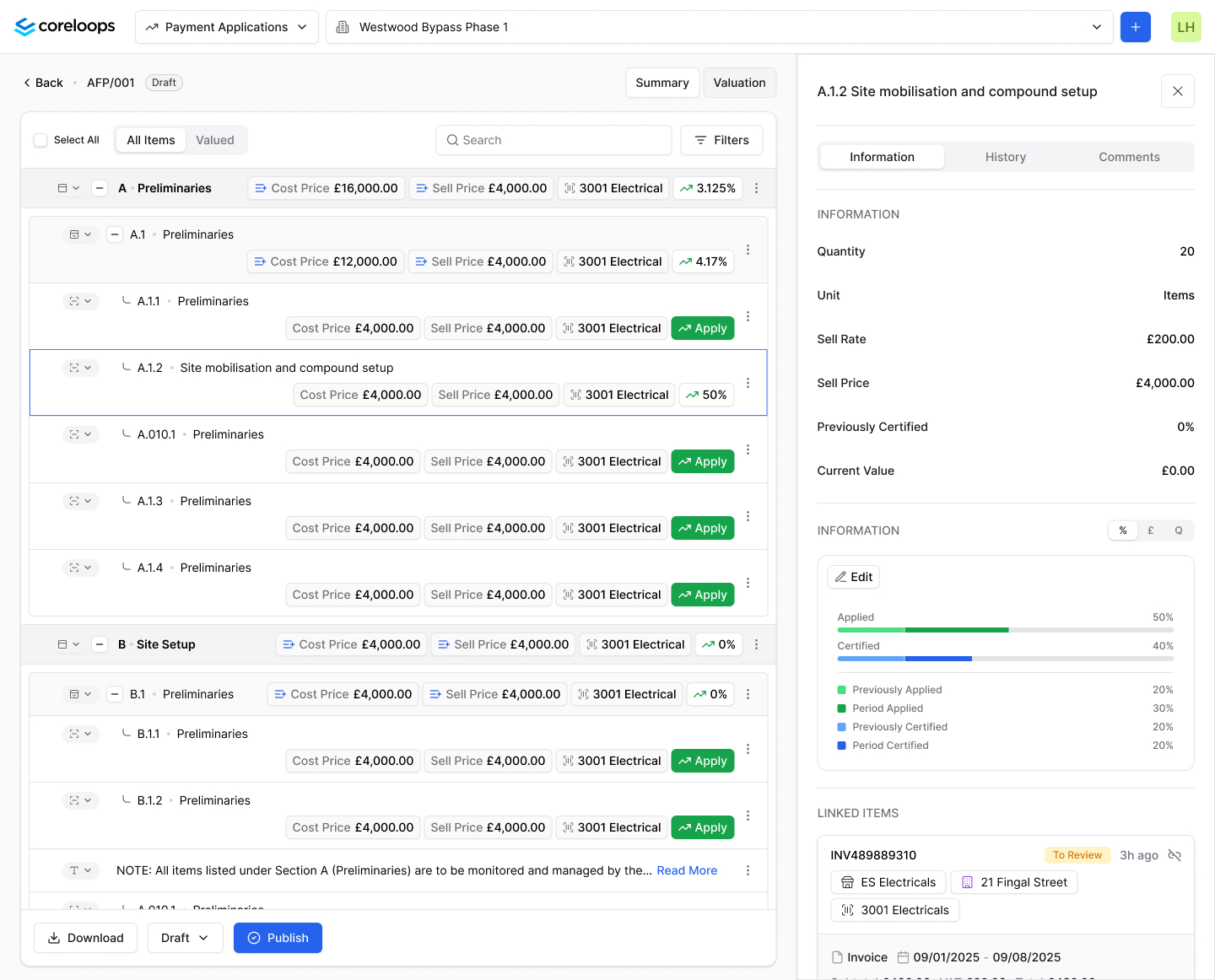
- Applied: The cumulative amount that you've applied for to date in this payment application
- Certified: The cumulative amount you've had certified up until this date in this payment application
- Previously Applied: What you applied for in your last payment application
- Period Applied: The additional progress % you've applied for in this payment application. Essentially Applied - Prev Applied
- Period Certified: The additional progress % you've had Period Certified: The additional progress % you've had certified in this payment application. Essentially Certified - Prev Certified.
- Previously certfied: What you had certified in your last certified payment application
For each line item, you can then enter the amount you'd like to apply for this payment application by clicking Apply and then entering the % amount. You can toggle between entering the %, cash or quantity for each item. The % and amount will be calculated automatically.
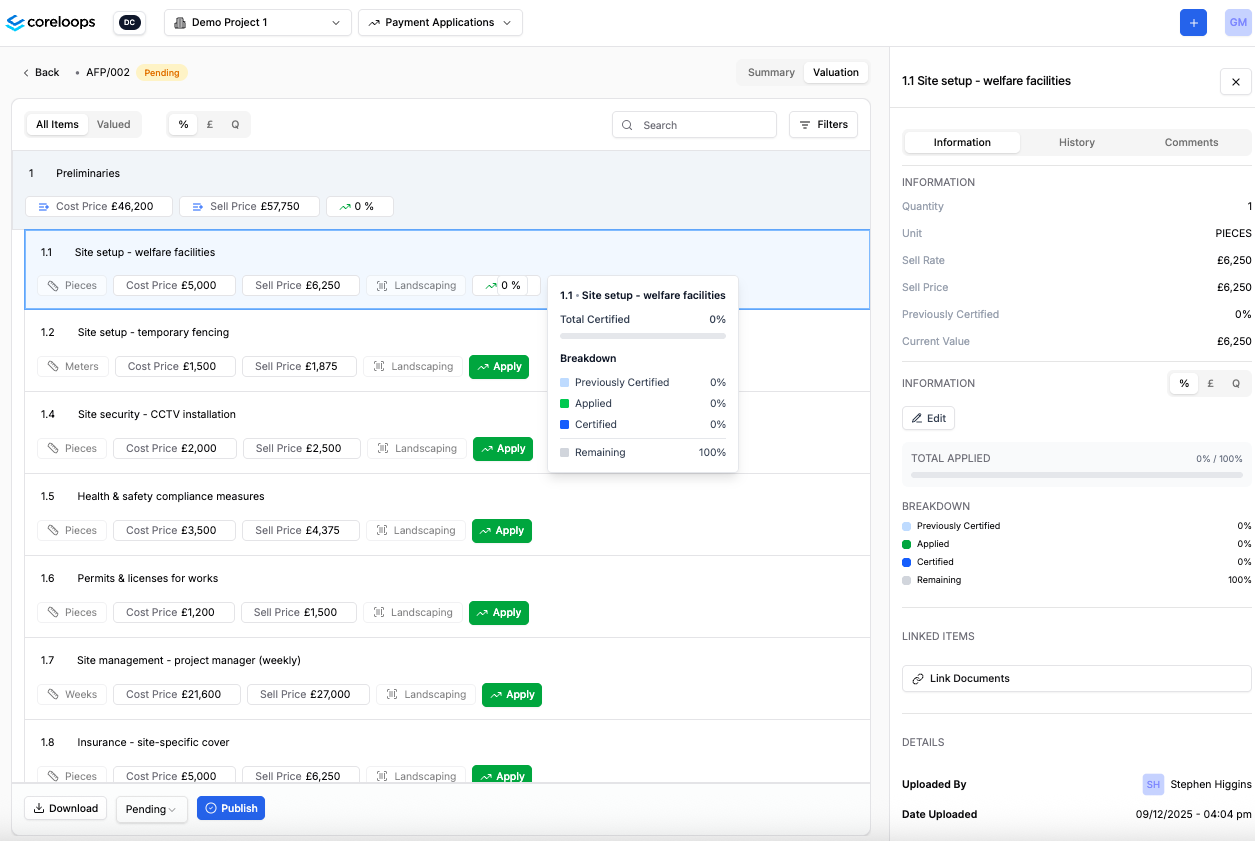
Note: The payment application will autosave each time you make an update in the application so that you don't lose your progress.
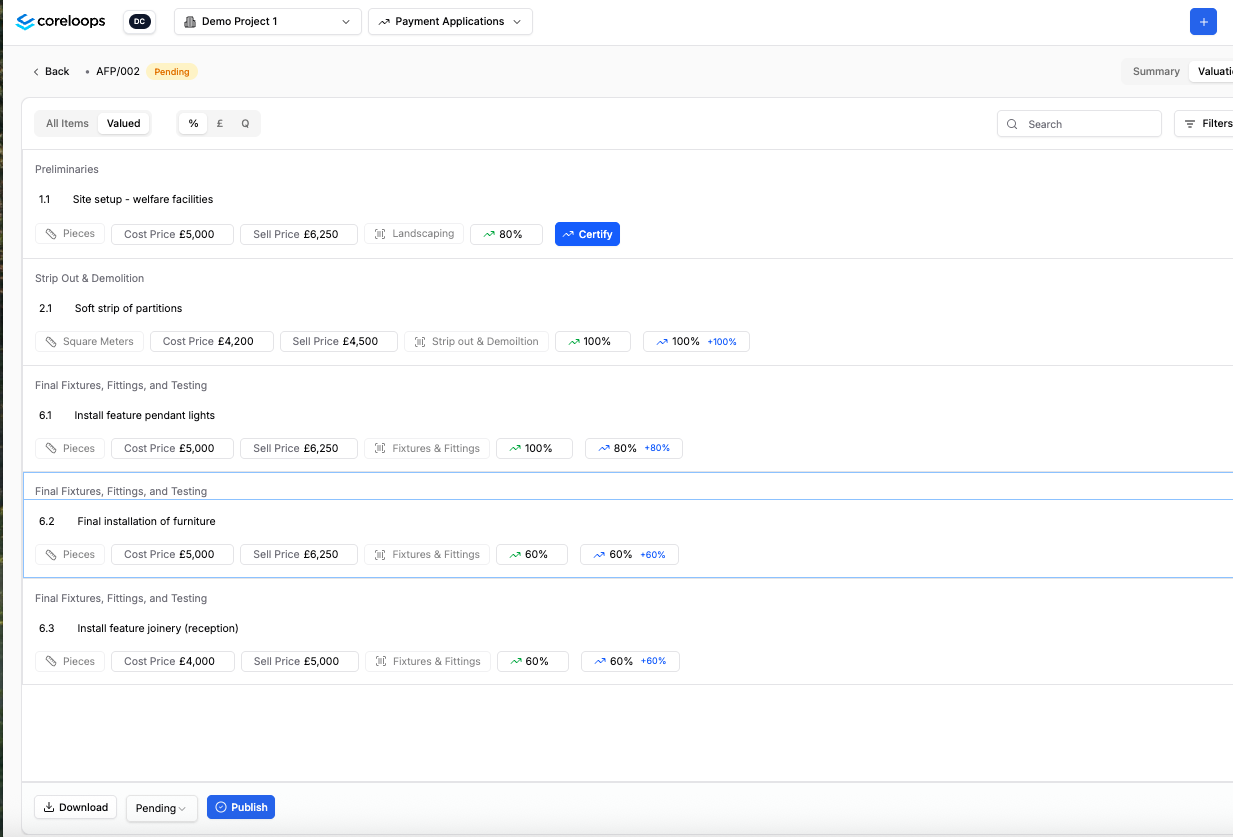
Once you've applied for all items in this application, you can then review them by clicking into the valued tab. This shows a summary of the line items that have been applied specifically in this payment application.
Certifying the application
Once you've entered the applied amount for a line item, you can enter a certified figure by clicking certify.
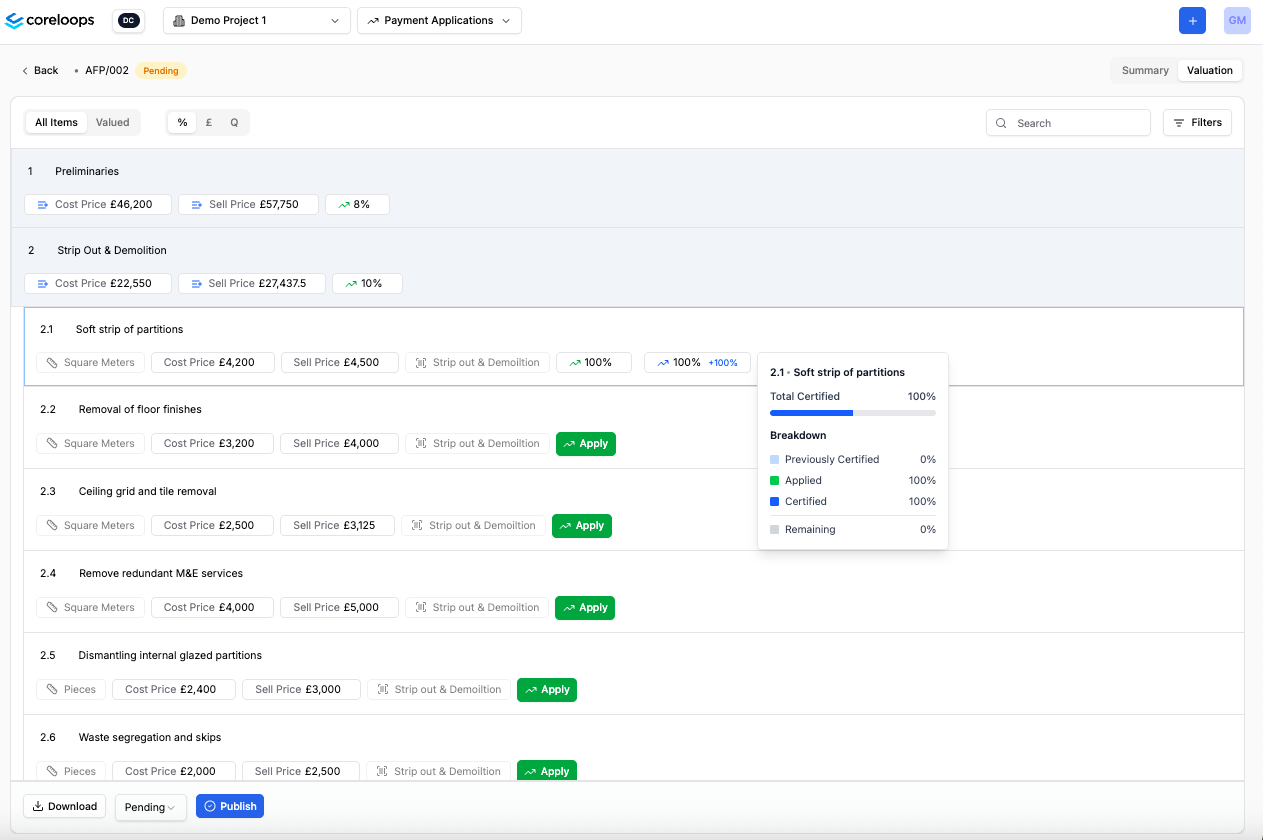
Note: You can use the import flow to certify all line items at once if your client has certified your application in an Excel sheet. You can learn more about that here.
Update payment application status
To update the payment application status click on the status button at the bottom of the payment application table. This will update the status at the top of the table and in the payment application view
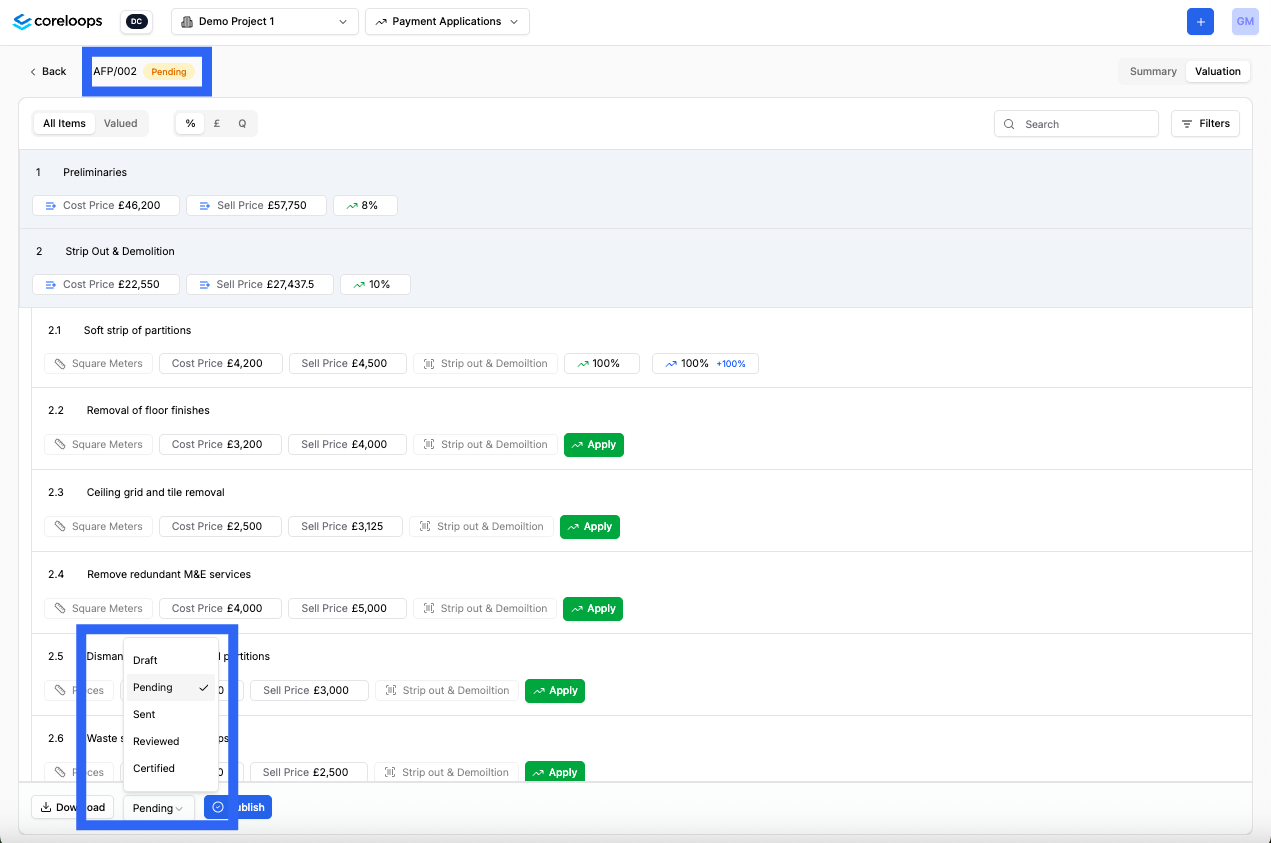
You can always come back and edit an application before it is approved. Once it is approved it can no longer be edited. When an application is approved, teh cost report is automatically updated and line items linked to the respective
Application Summary
You can navigate to the summary page to see an overview of the application. This is essentially your front sheet for the application. Here you can also configure settings specifically for this application.
In the overview you'll see a summary of the following mertics
Field | Notes |
|---|---|
Net Contract Value | The total value of the contract includes all variations and changes to the schedule of works |
Total Valuation | The total value of all applications to date , including this application. |
Total retention | The total amount that will be held as retention for the total valuation amount. The retention rate is set to 5 by default, but it can be updated in the BOQ settings and configured separately for each line item. |
Net Valuation | The total valuation amount after retention. |
Previously Certified | The total value of all applications certified to date. Note: This could be a value pulled from 2 or 3 valuations prior, depending on which application was last marked as certified. |
Gross Payment Due | The total amount due for payment when this valuation is certified (subject to changes) and before VAT. |
VAT (20%) | The total amount of VAT is to be added the Gross Payment due for this application. Note: The VAT Rate for the project can be set in project settings. We don't currently support multiple VAT rates. |
Net Payment Due | The total amount due for payment, including VAT. |
You'll also see an overview of how much has been applied and certified in each section.