
Create Purchase Orders
You can create and track all of your purchase orders in Coreloops. By creating purchase orders in Coreloops you can track the percentage % of each order that has been invoiced and paid.
Purchase order settings
To set up your purchase order numbering;
- Click on 'Settings' and go to the company tab
- Select Documents
- Enter your purchase order prefix e.g. PO and the number that you'd want this purchase order to start at
- Click on 'Save Changes'
Now that you've sent your prefix and number each
Note; You may want to start the purchase order numbering after the last purchase order you created in your accounting system. Once you start to use Coreloops for purchase orders and sync to your accounting system this may interrupt with the numbering you have set up in your accounts system.
Creating Purchase orders
To create a purchase order:
- Head over to the documents tab in the navgation menu
- Click on Add and the select "Create Document"
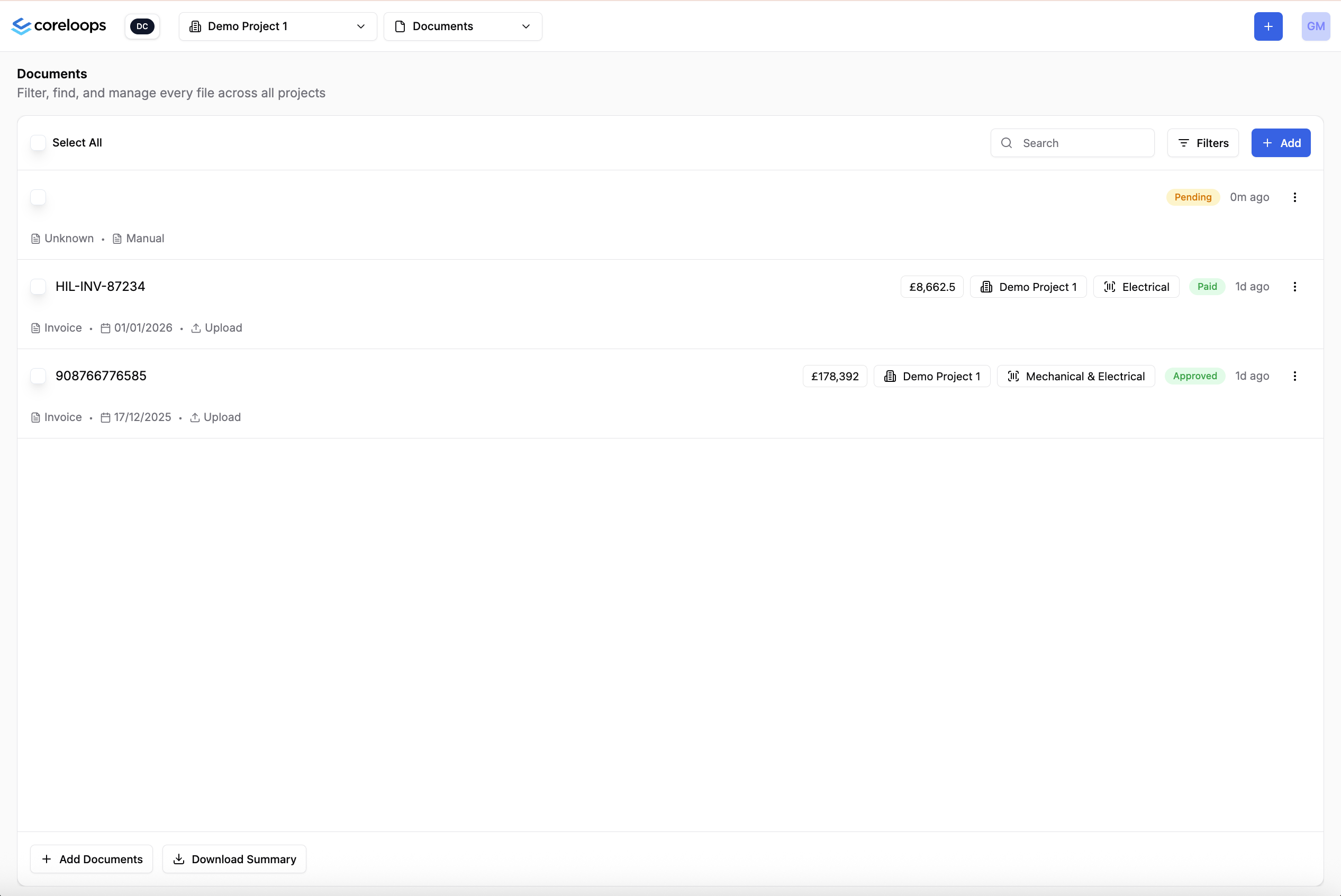
Now let's set up your purchase order.
- Select the document type as purchase order.
- Add line items ( Shift + N) and fill in the values for each line item
- Enter the item description, quantity, unit and unit rate for each line item.
- You can then set the VAT rate
- You can set discounts to be applied before (recommended) or after VAT
- You can link each line item to a specific project and cost code
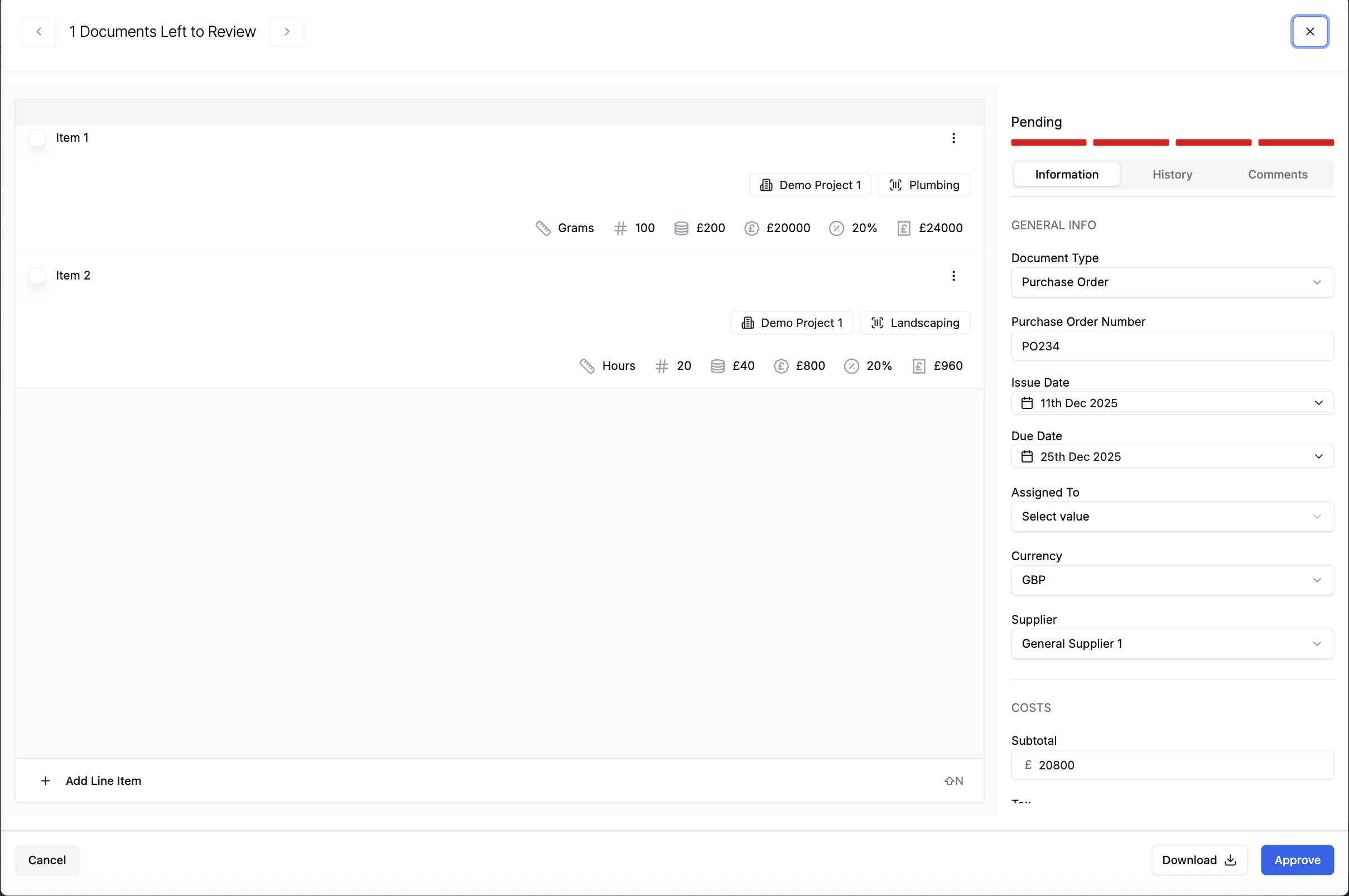
Note: You can split this purchase order and allocate each or several line items to different projects and/or cost codes.
- Update the issue date and due date if needed
- Select the supplier you want to send this purchase order to.
Set Delivery Details
To set a delivery address and details
- Navigate to the bottom of the page
- Click on set delivery Delivery Address
- Select from one of your saved addresses
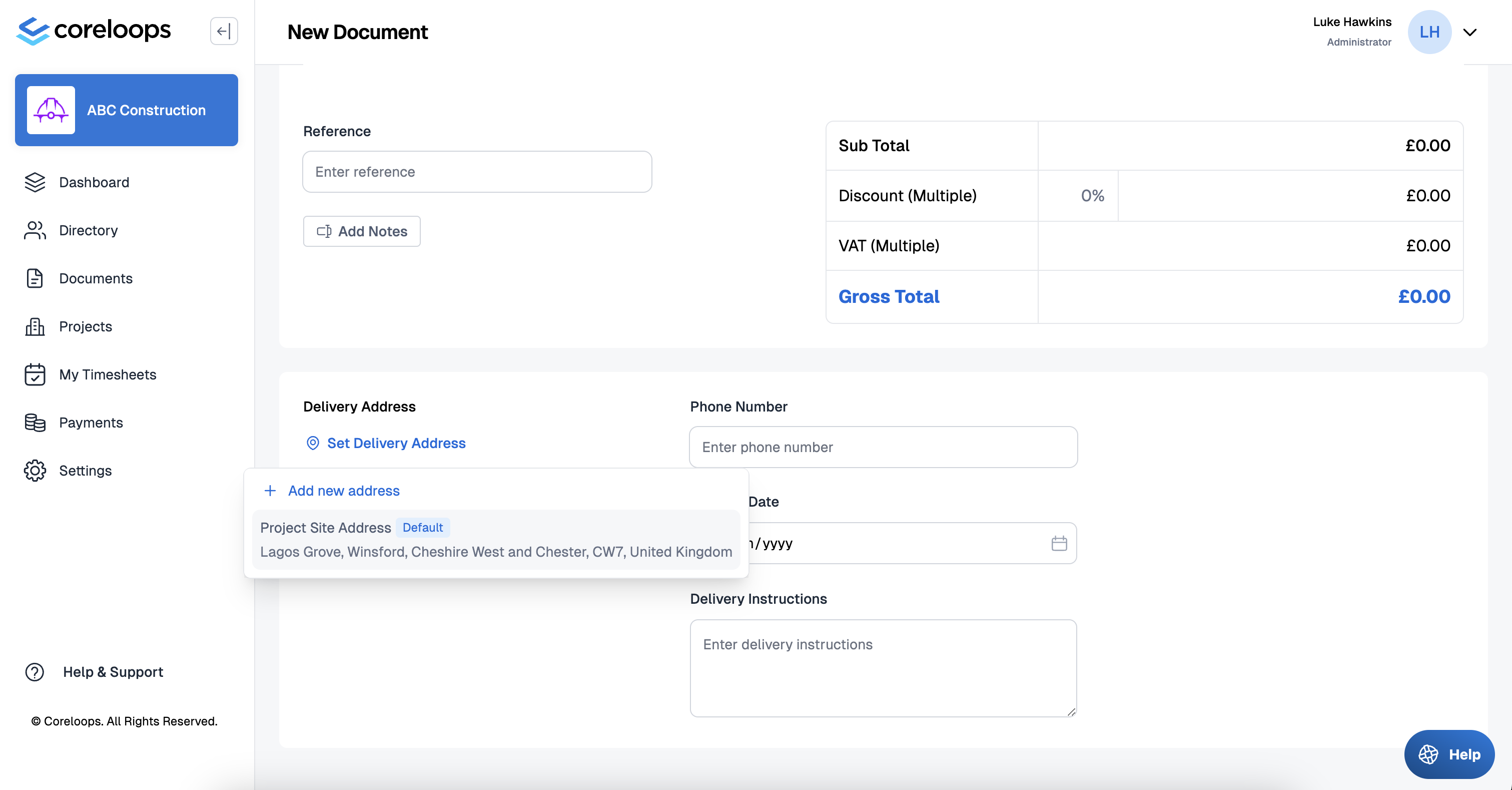
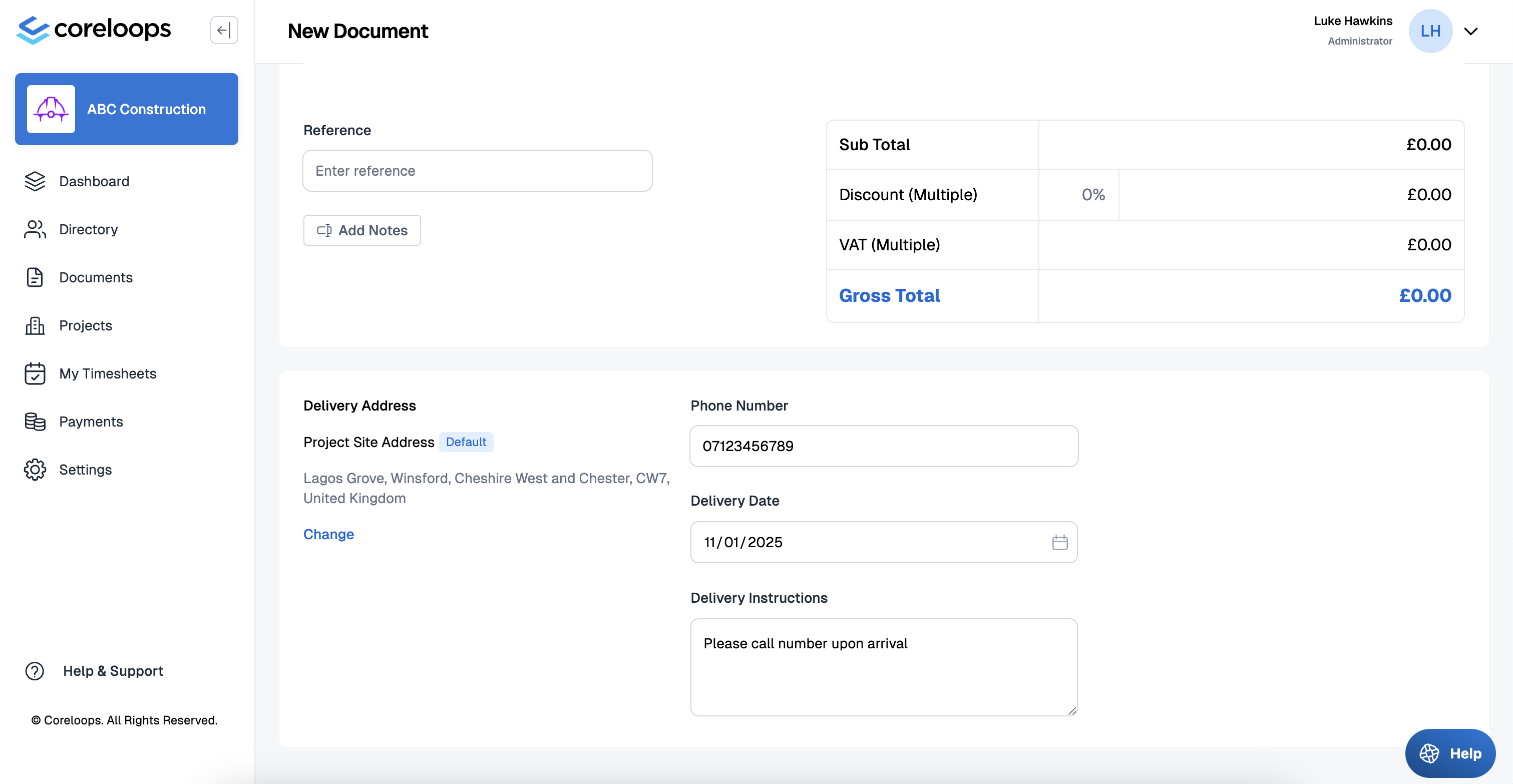
- Enter contact details & delivery instructions
Approve & Send Purchase Order
Finally, once you've completed the purchase order and it's ready to send to your supplier
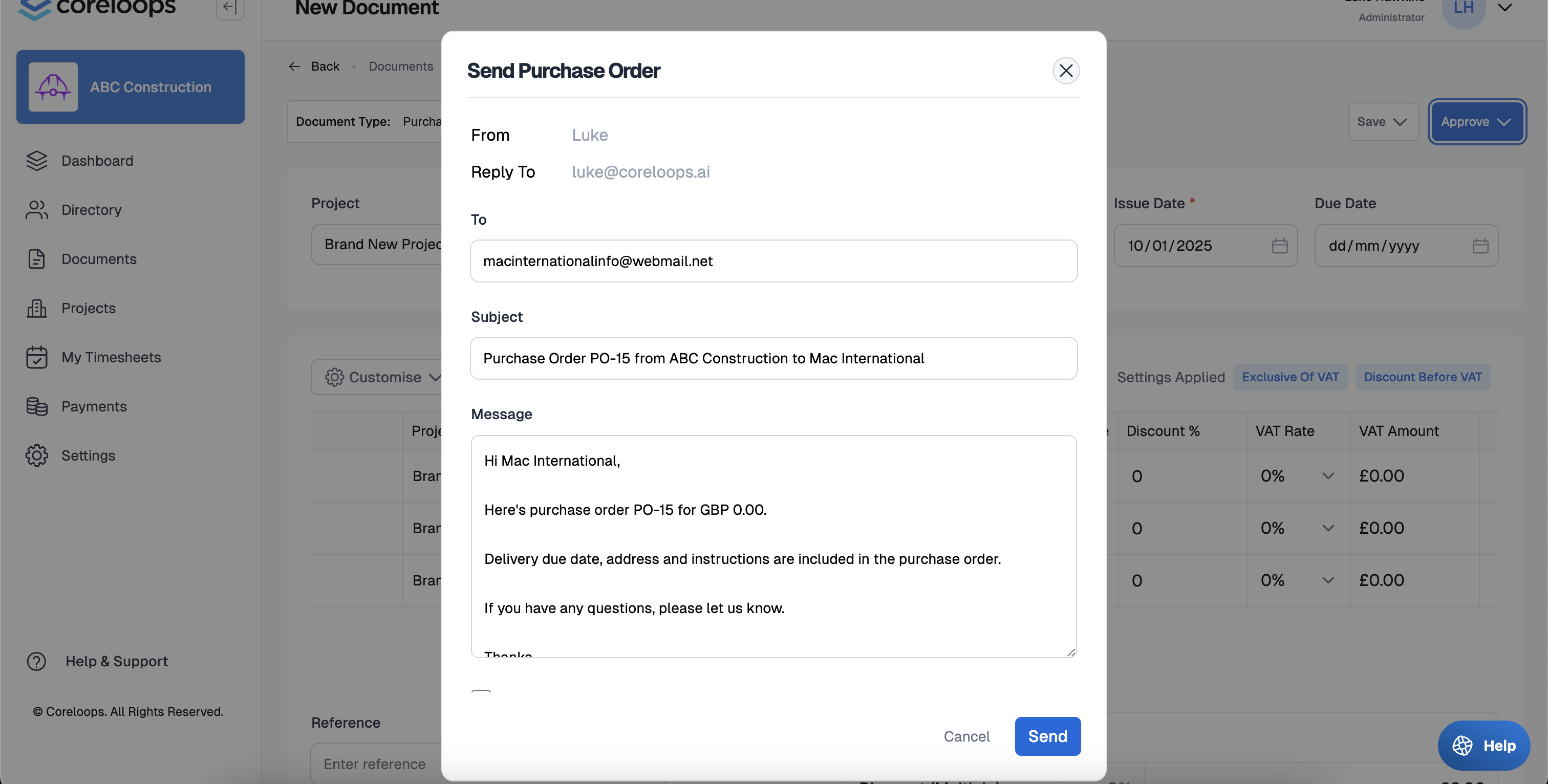
- Click on the approve button then click "Approve & Send"
- Review or update the message to your supplier
- You can choose to send a copy to yourself by checking the option.