
How to Setup Auto-Forwarding Supplier Invoices
If you have a dedicated inbox for supplier invoices and bills. You can set up your Outlook or Gmail to automatically forward these invoices to Coreloops.
Outlook
1. Click on the settings cog in the right-hand corner
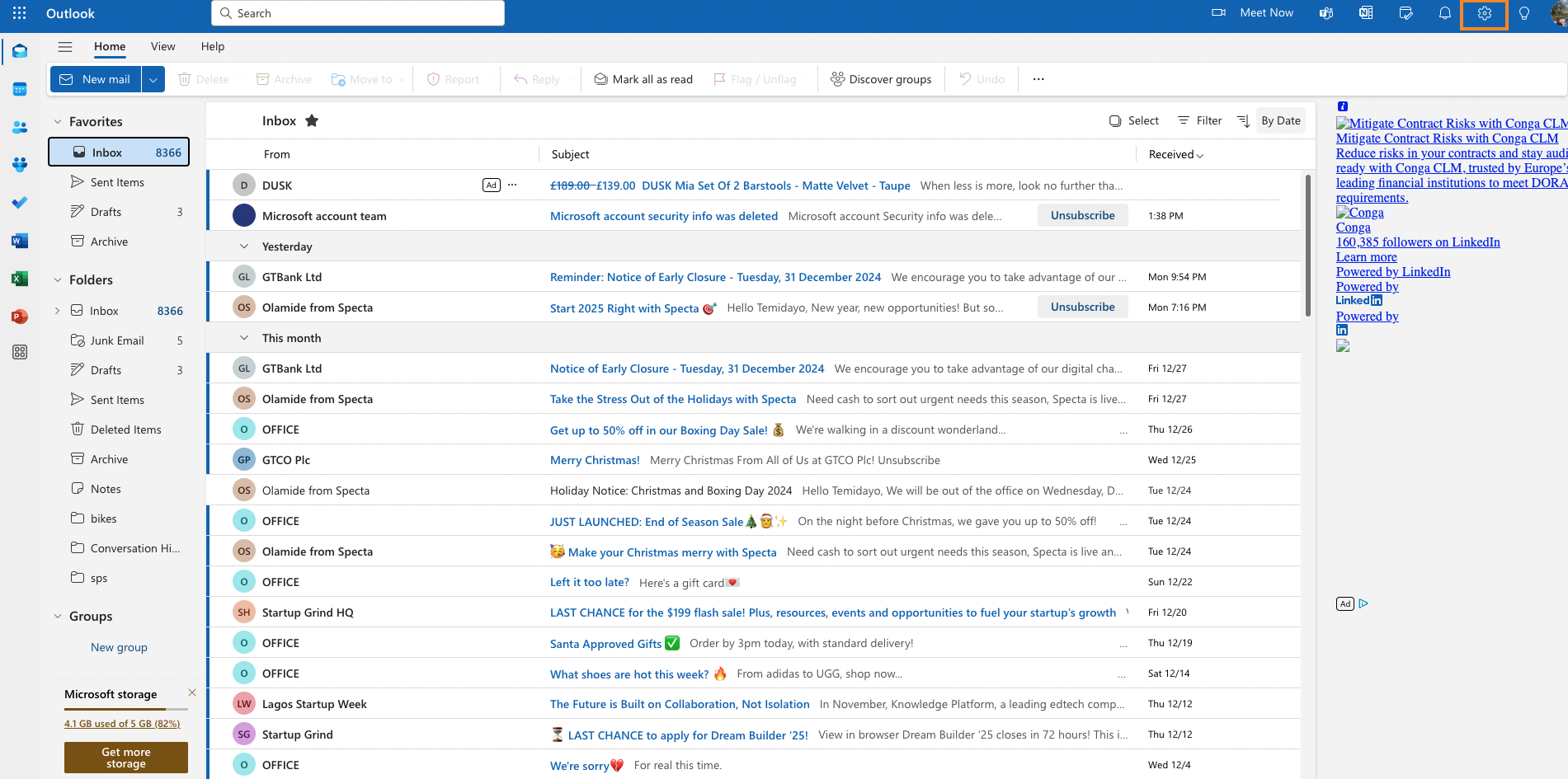
2. Click on Rules in the settings menu and select add new rules
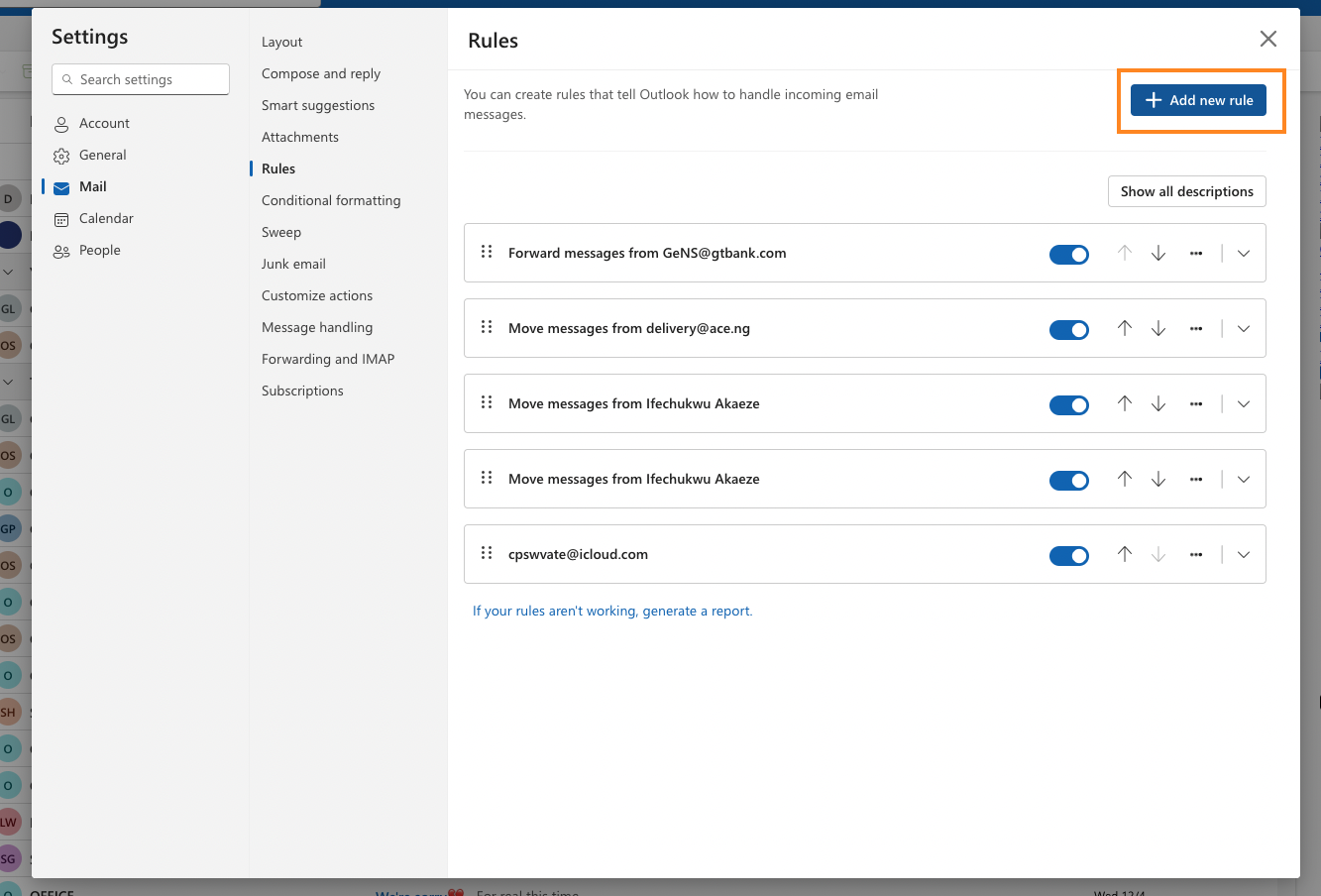
3. Complete the floowing steps
Enter the title e.g. Auto-forward lawsons invoices
Select the supplier email address that you want to set up forwarding for
Add a condition that the email should have an attachment
Add an action to forward any email from Lawsons ([email protected] ) that has an attachment to your Coreloops inbox email e.g. ([email protected]).
Click Save

Gmail
- Click on the settings cog in the right-hand corner and then click "See All Settings"
- Click into the "Forwarding and POP/IMAP tab

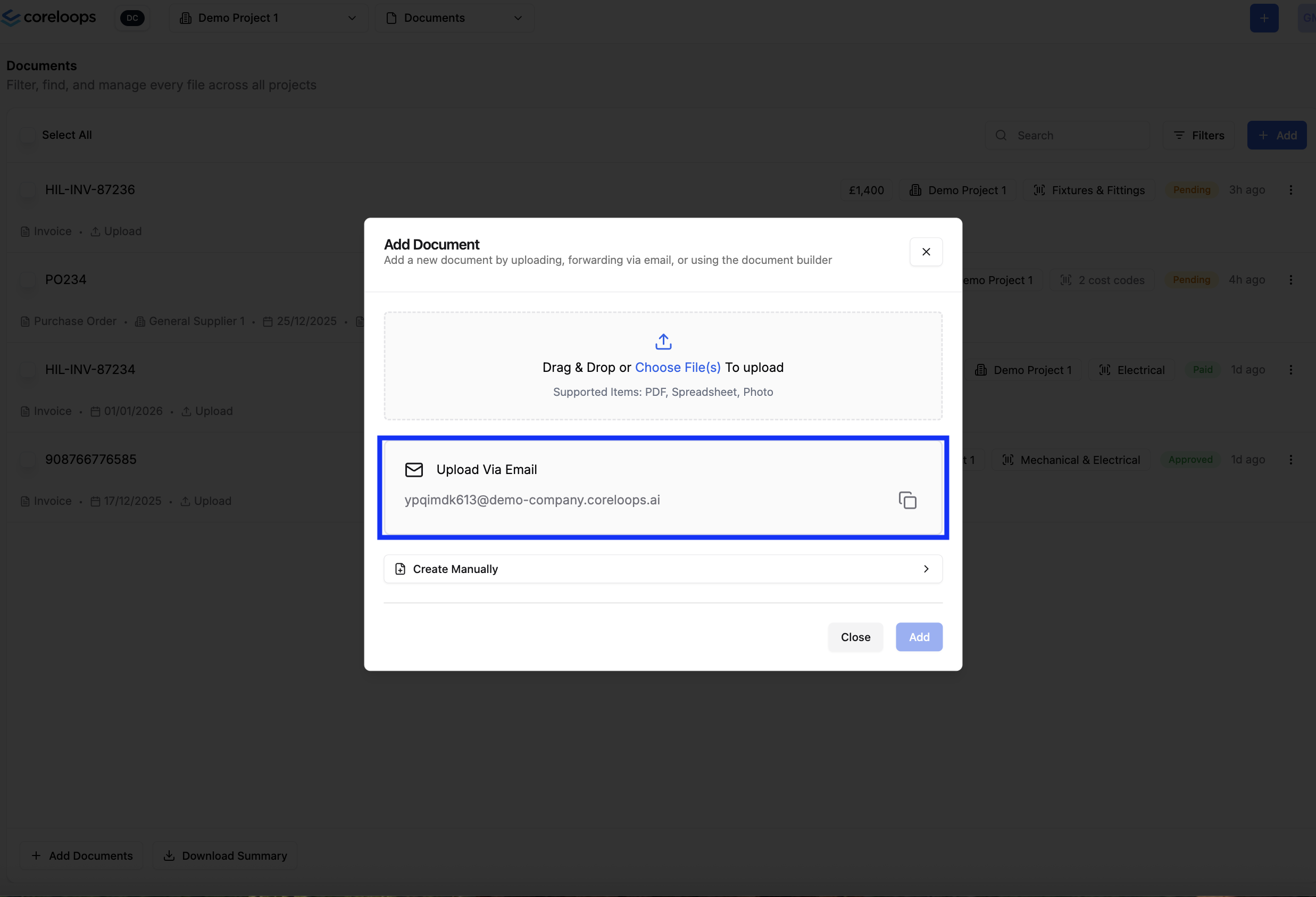
Click on Add a forwarding address and follow the steps to add the email address for the Add documents prompt in Coreloops.
Once you've added this email address as one of your forwarding addresses. Click on "Forward a copy of incoming mail to:" and select the Coreloosp email address.
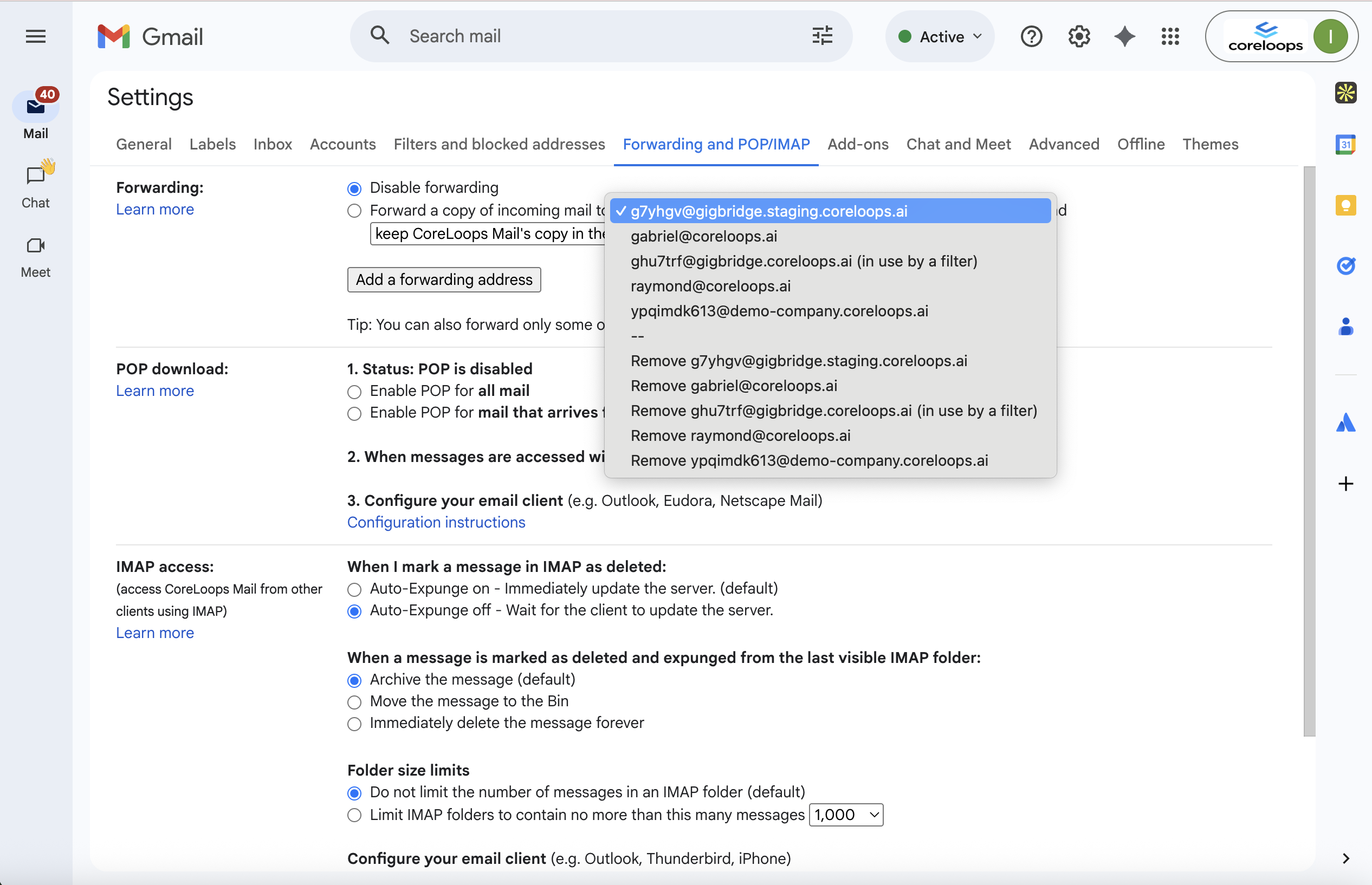
Note: All emails that are received to this inbox will now come into Coreloops. Ensure this an inbox solely used for suupler invoices to ensure any confidential or irrelevant emails are not forwarded in.