
Connect your BOQ to cost codes
Linking line items to cost codes
To link your project's bill of quantities to the reporting and analytics, you need to link each line item to a cost code.
You can do this by selecting the project you'd like to link and then clicking to the "Bill of quantities".
You can link a whole section, sub-section or individual line items to a cost code.
- Connect a whole section to a cost code: To connect a section to a cost code naviagte to the section you'd like to update and click on the cost code button beside the sell price. /
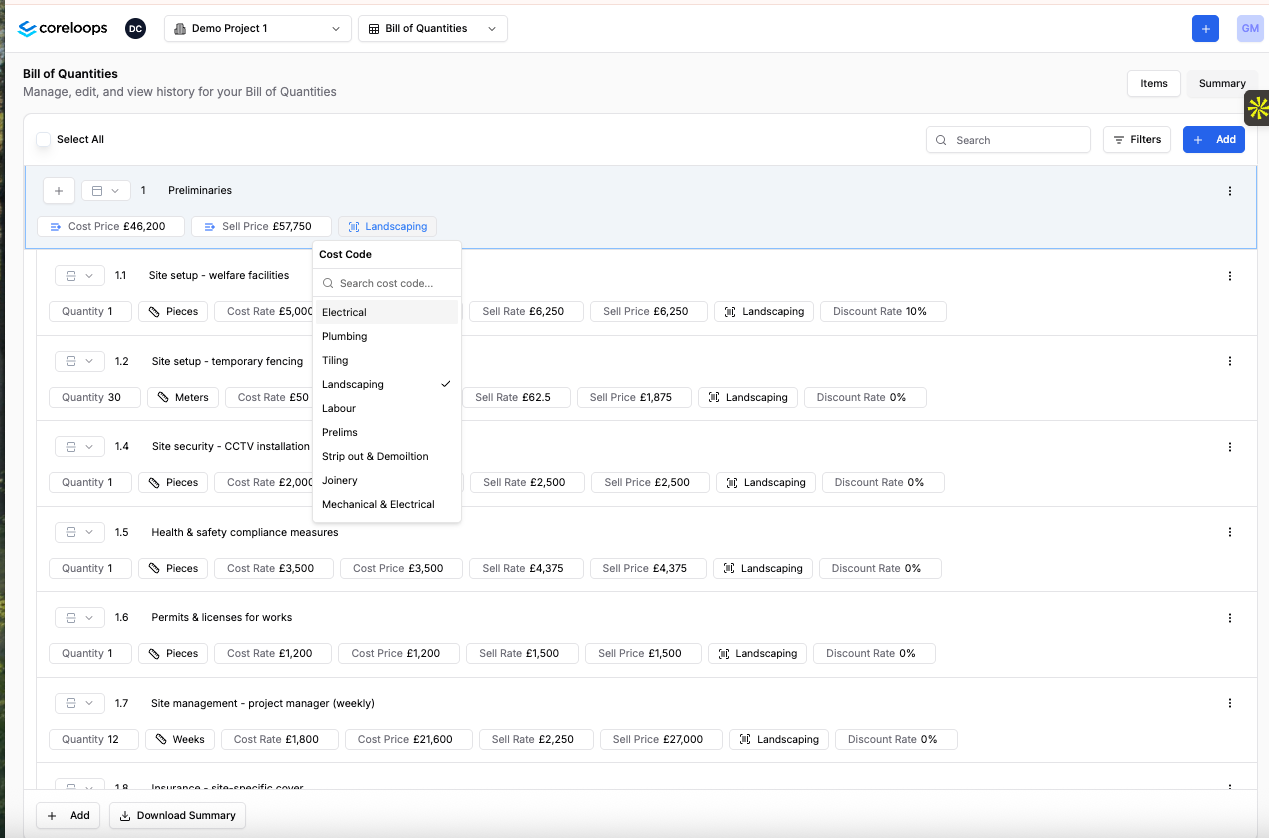
- Once you select a cost code for a section, it will update all sub-sections and line items in that section and link them to that cost code.
You can repeat the same steps for connecting a sub-section or line item to a cost code.
What happens when you link line items to cost codes:
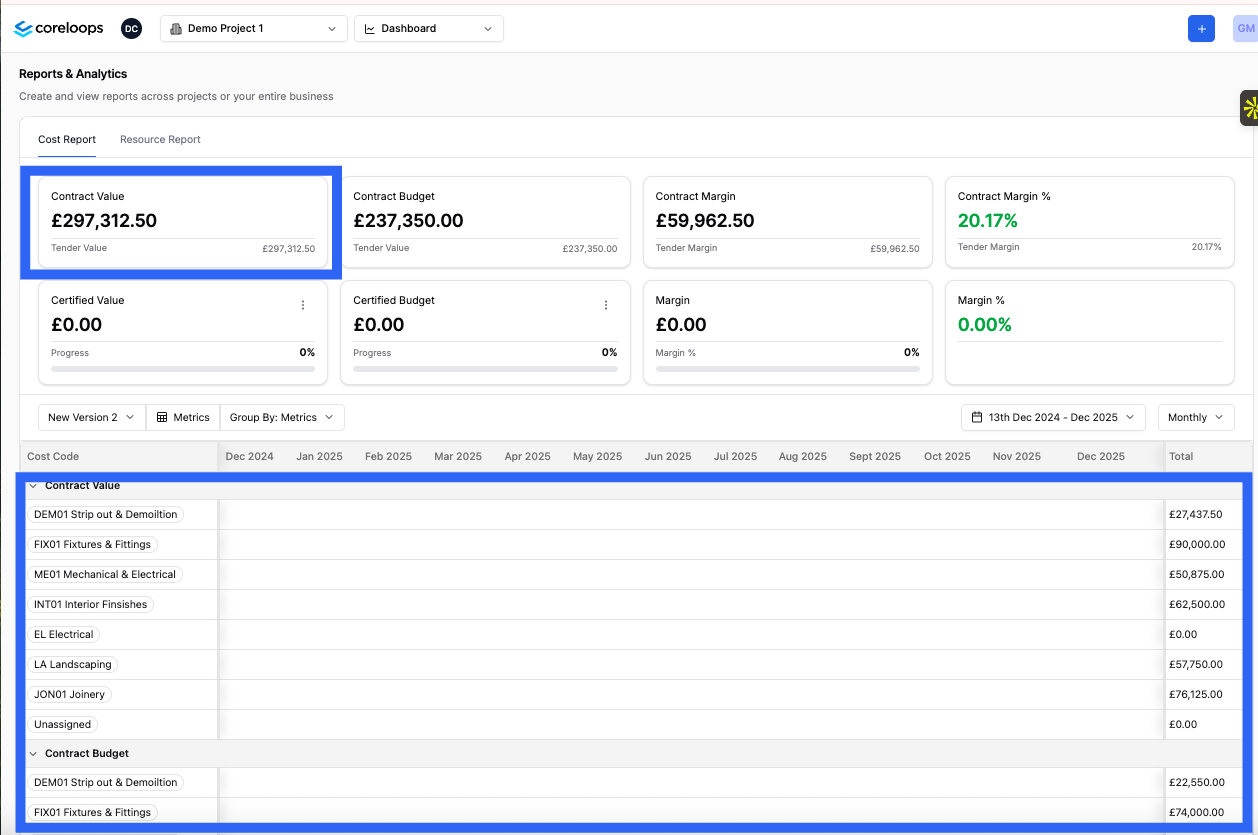
Once line items are linked this updates the following metrics in your project reports
Forecast Value & Budget
Applied Value & Budget
Your applied value & budget is how much you've applied for against each cost code and then how much you budgeted based the amount of progress you've made on this specific cost code. e.g. if you've applied for 70% of the work on your demolition cost code then this will show 70% of your budget for that cost code. You can can compare your budget with actual costs to check if you're on trac or overspending in this area vs progresss.

Certified Value & Budget
Your certified value & budget is how much your client has certified against each cost code and then how much you budgeted based the amount of progress the client has certified on this specific cost code. e.g. if you've applied for 70% of the work on your demolition cost code then this will show 70% of your budget for that cost code. You can compare your certfieid budget with actual costs to check if you're on track or overspending in this area vs progress.
