How to invite team members
With Coreloops you can collaborate with your colleagues by sharing access to projects, reports and documents. Admin users can add team members at any time.
Written By Gabriel Makinwa
Last updated 6 days ago
Note: inviting additional users will count towards your licenses and may increase your monthly bill.
How to invite team members
Head to Settings, Company tab, then Team Members
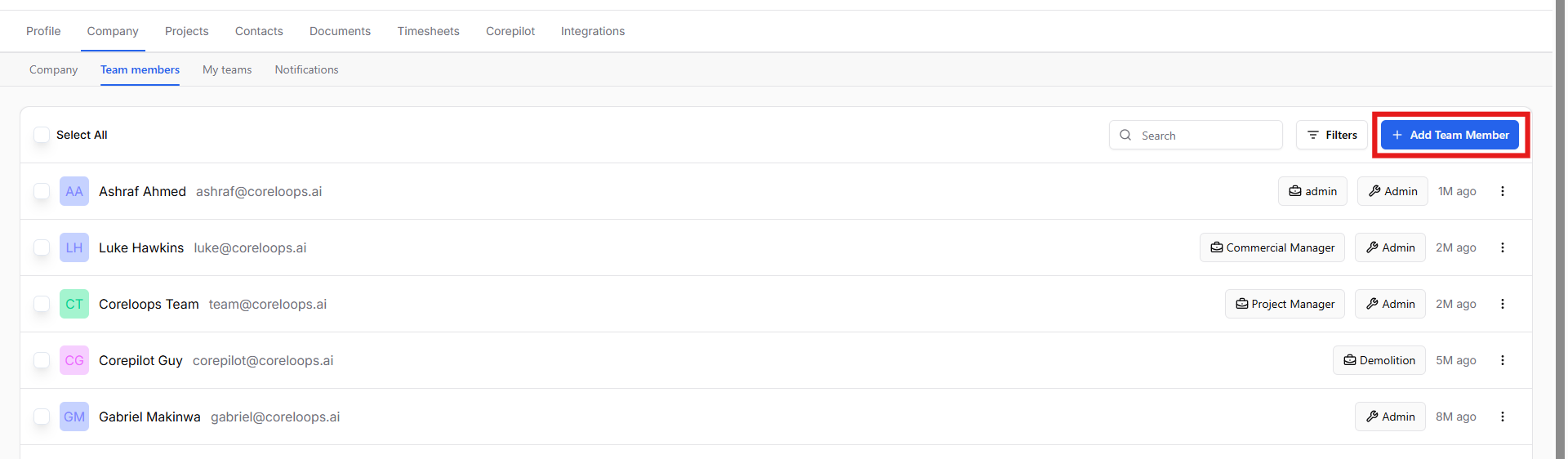
Here you can see your active team members
Click Add Team Member
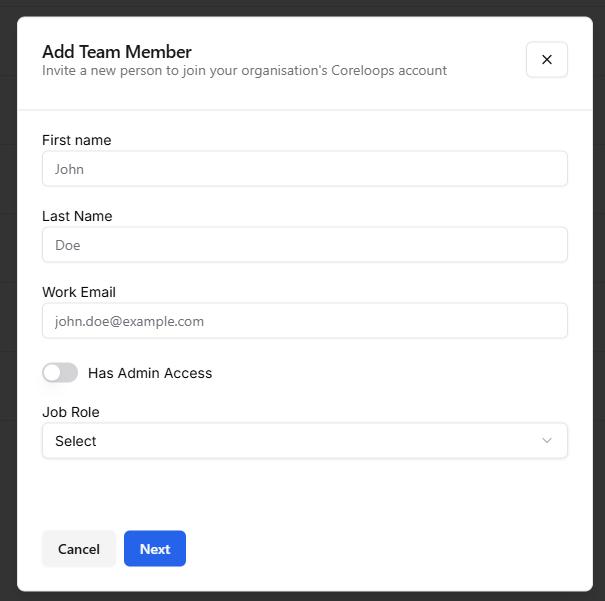
Fill in the details of the team member you wish to add and click Invite Member. You can also select which access level they have to the platform.
Admin: Can access all projects and configure company settings
Member: Can only access the projects they’ve created or have access to.
They will receive an invitation to join via email. When they accept the invitation, they will create their password and can log in and view your company’s projects.
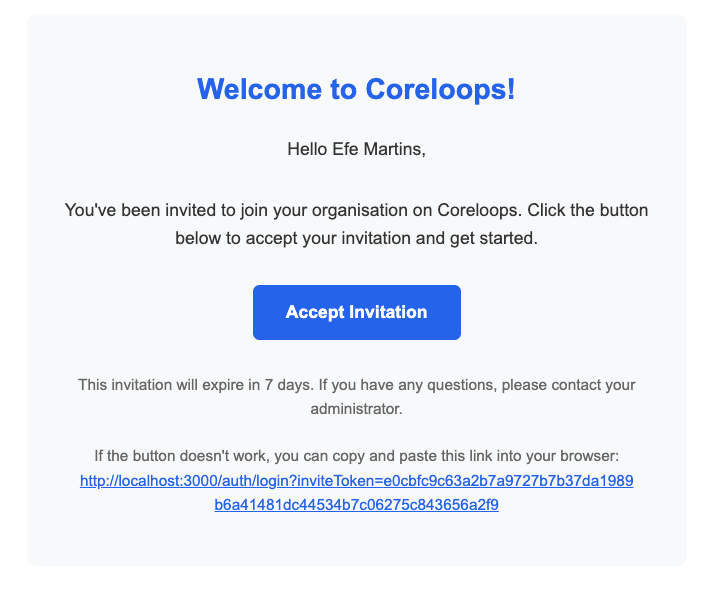
By clicking on Accept invite, they'll be directed to the Coreloops platform to sign up and create an account. As soon as they've signed up, they'll be able to access your team's accounts and any projects you've added them to.
Note: Only admin team members will be able to see all of the projects in the system.
Inviting operatives
Operatives are site workers who log in to submit their own timesheets. They're managed on a separate Operatives tab, so they don't clutter your Team Members list, and you don't need to set up project access for them.
Go to Settings › Team and open the Operatives tab (next to Team Members and My Teams).
Click Add Operative.
Enter their first name, last name and email address.
Search for and select the directory contact this operative should be linked to. Their timesheets and rates are recorded against this contact.
Click Invite. The operative receives an email invitation to set up their account.
Managing operatives
From the Operatives tab, you can search, edit or remove operatives, and change or remove the contact an operative is linked to, using the actions menu on each row.
To control which projects, cost codes and weekend days an operative can log time against, edit their linked contact in the Directory. For what operatives see when they log in, see How to Submit Your Timesheet [Operative View].
Setting Up Teams
You can set up a group of team members into a team.
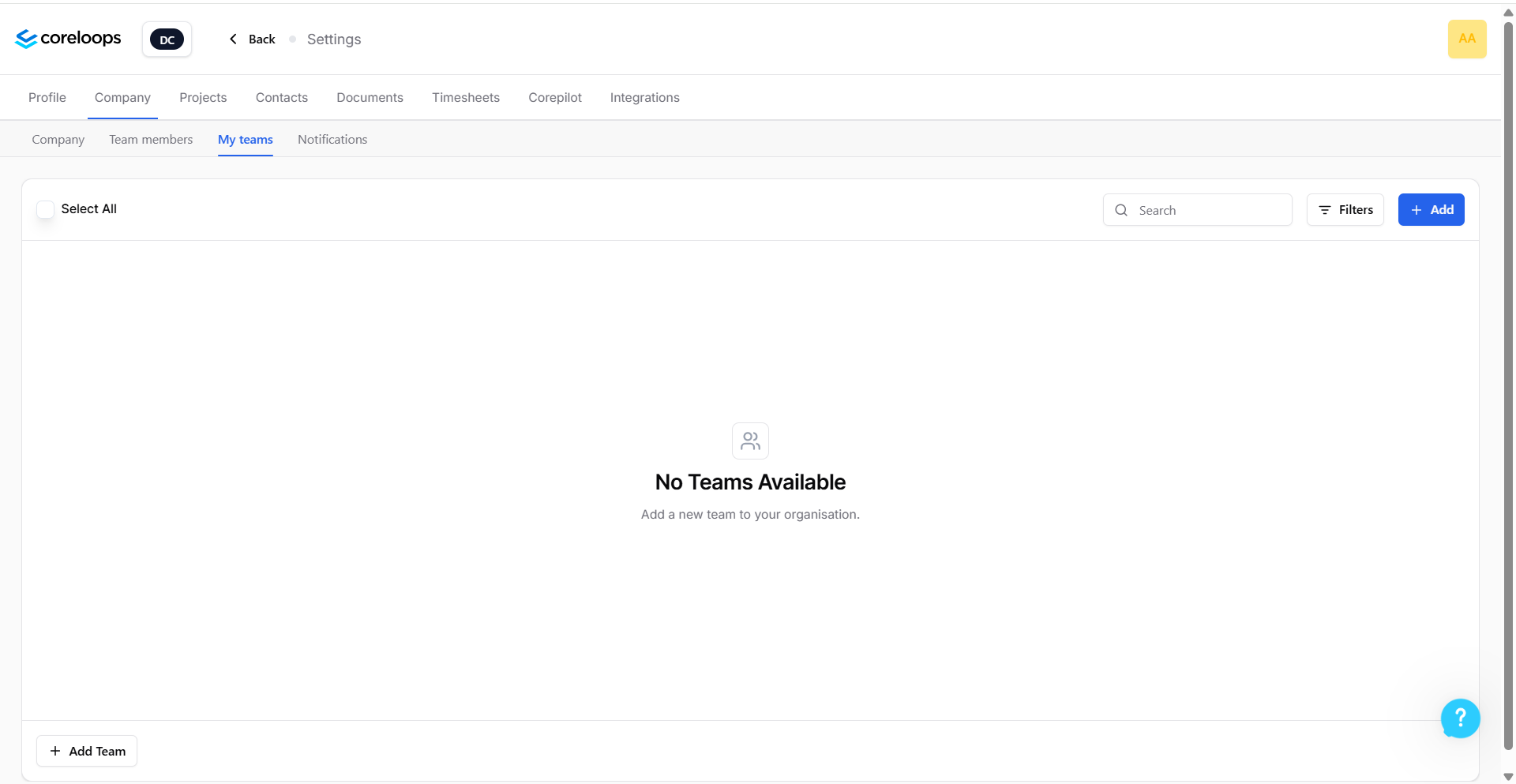
Go to Settings > Companies > My teams tab
Select Add
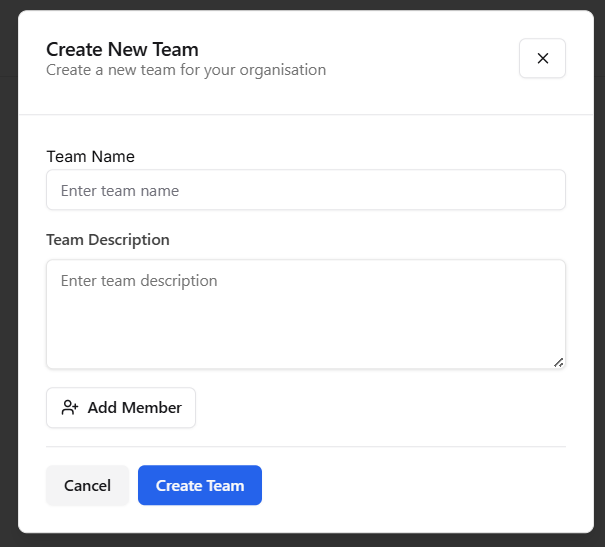
Enter Team Name & Description
Add the team members you want as part of the team and then create your team
Was this helpful?
Still need help? Ask the team