How to Submit Your Timesheet [Operative View]
This article walks associates through submitting their weekly timesheet as an operative.
Written By Gabriel Makinwa
Last updated 3 days ago
Before You Start
Ensure you have your login credentials for the old platform
Have a record of the hours worked for the week ready
Timesheets must be submitted by the end of each week
Step-by-Step Guide
1. Logging In
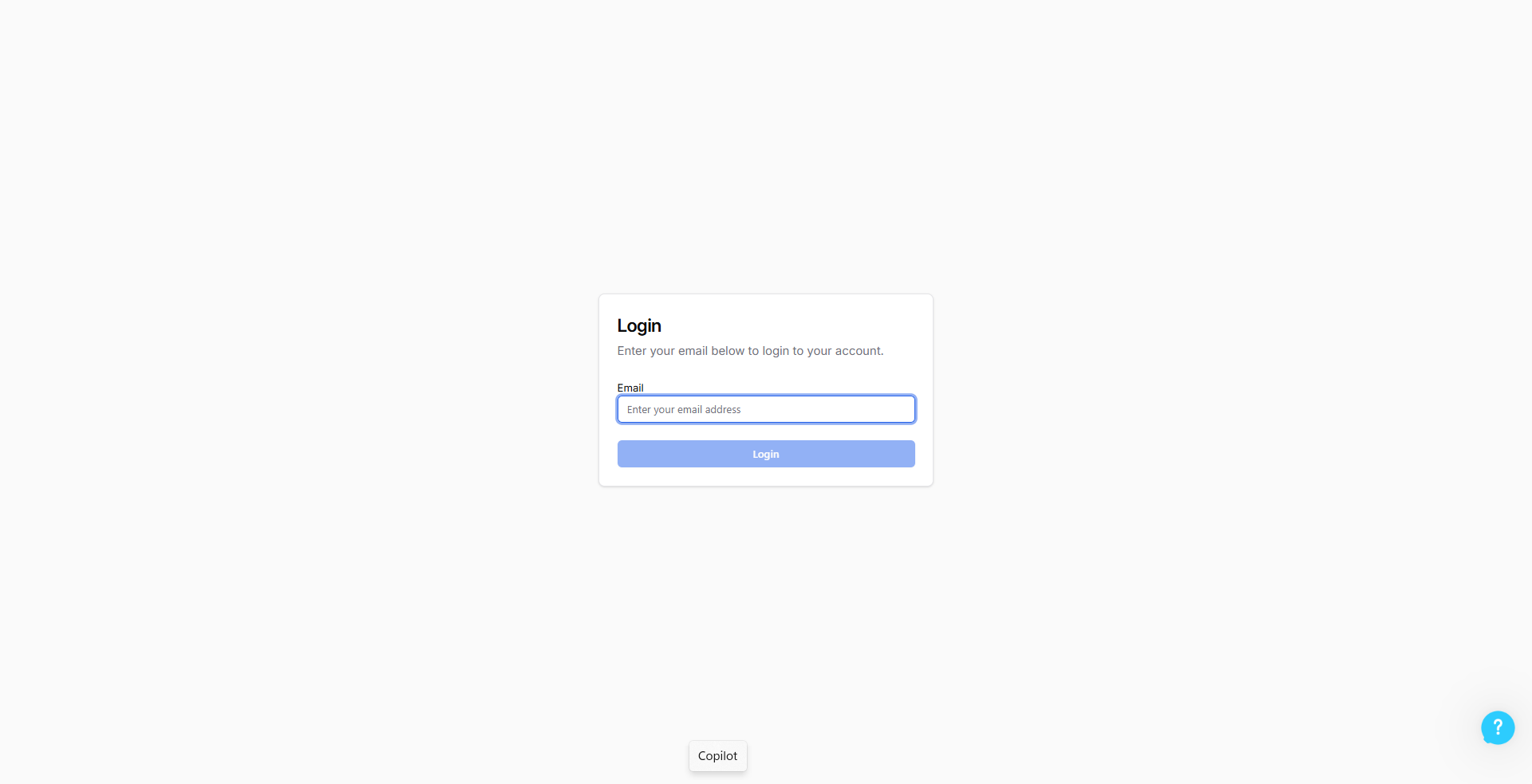
Go to portal.coreloops.ai
Enter your email address.
Click Log In
You can either log in with your password or use the 6-digit code emailed to you
If you've forgotten your password, click Forgot Password on the login page and follow the reset instructions.
2. Adding Timesheets
Desktop Users:
When you log in, depending on the device you use, you will land on your timesheet for the current week
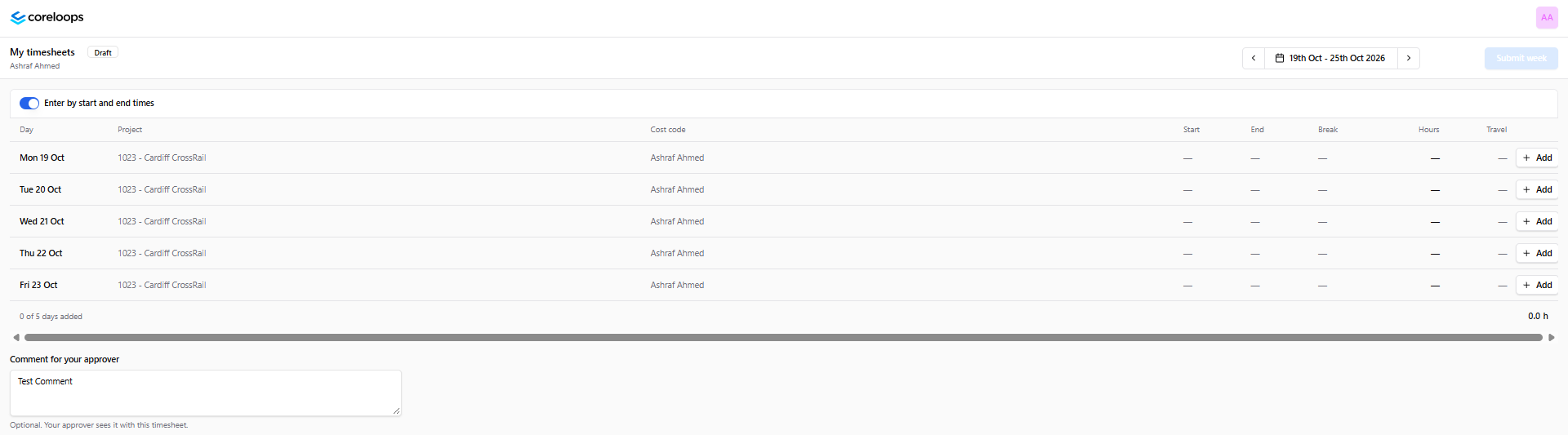
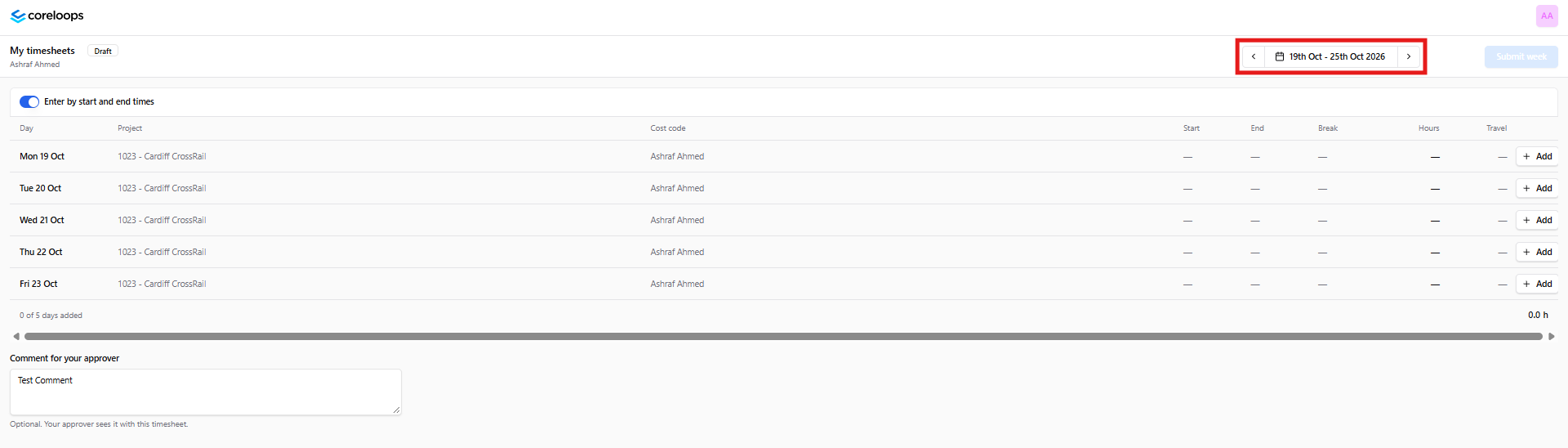
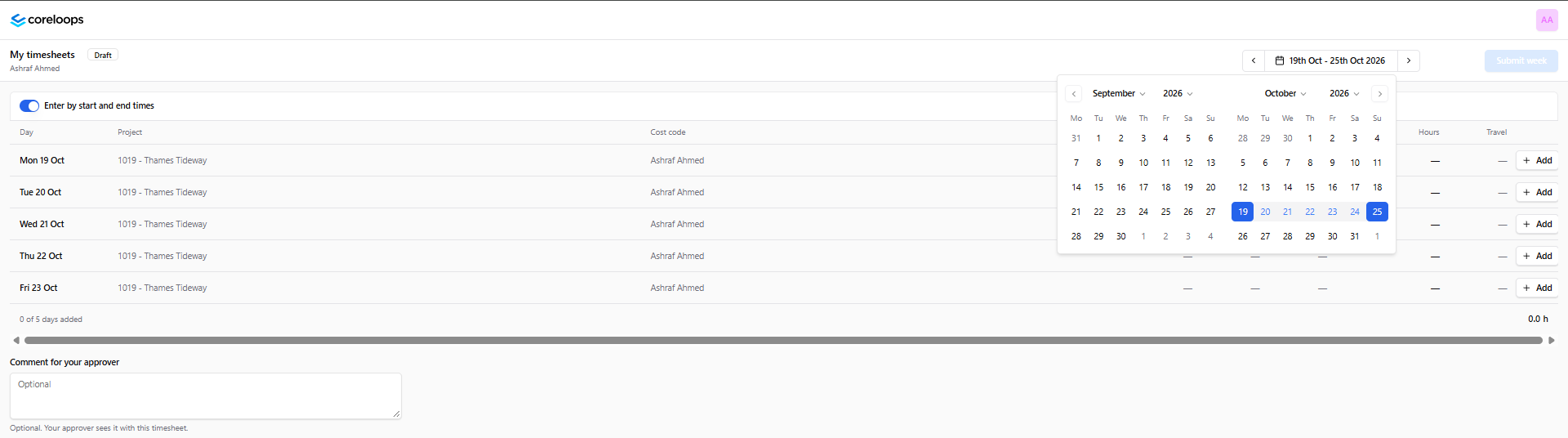
To add timesheets for other weeks, use the date picker in the top right of your page
Mobile Users:
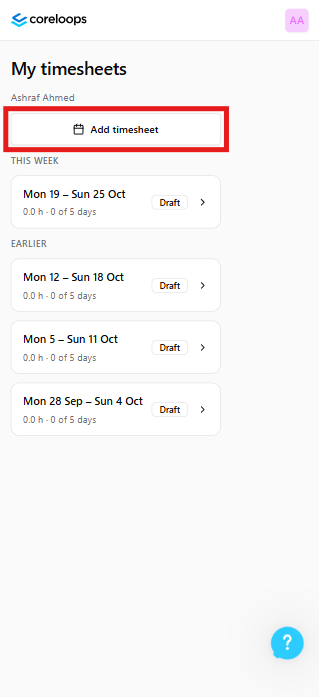
When you log in, depending on the device you use, you will land on a page to view all your timesheets
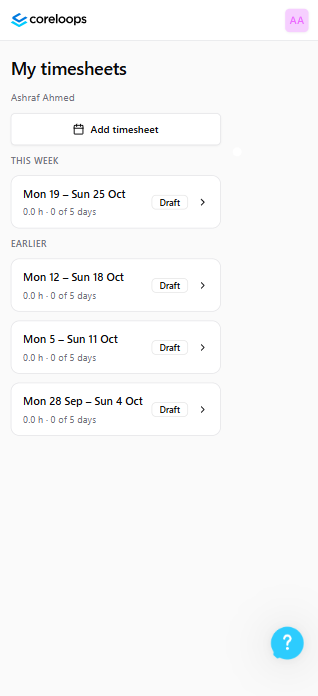
Select Add Timesheets
3. Select the Correct Week
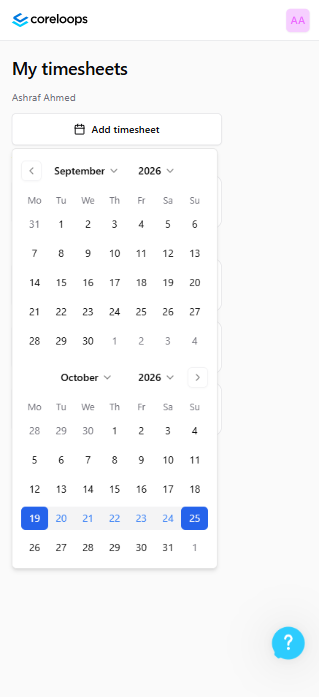
Use the week picker at the top of the page to select the week you want to submit a timesheet for. Once you have done that, before you start entering your timesheet details, confirm the date range displayed matches the week you're submitting for
4. Filling in your Timesheet
Desktop Users:
When you have confirmed that you are in the correct week, you can start filling in your timesheet.
Select a day, and ensure you have selected the correct entry (if you want to enter your start & end times, stay on the current selection; otherwise, switch to hours)
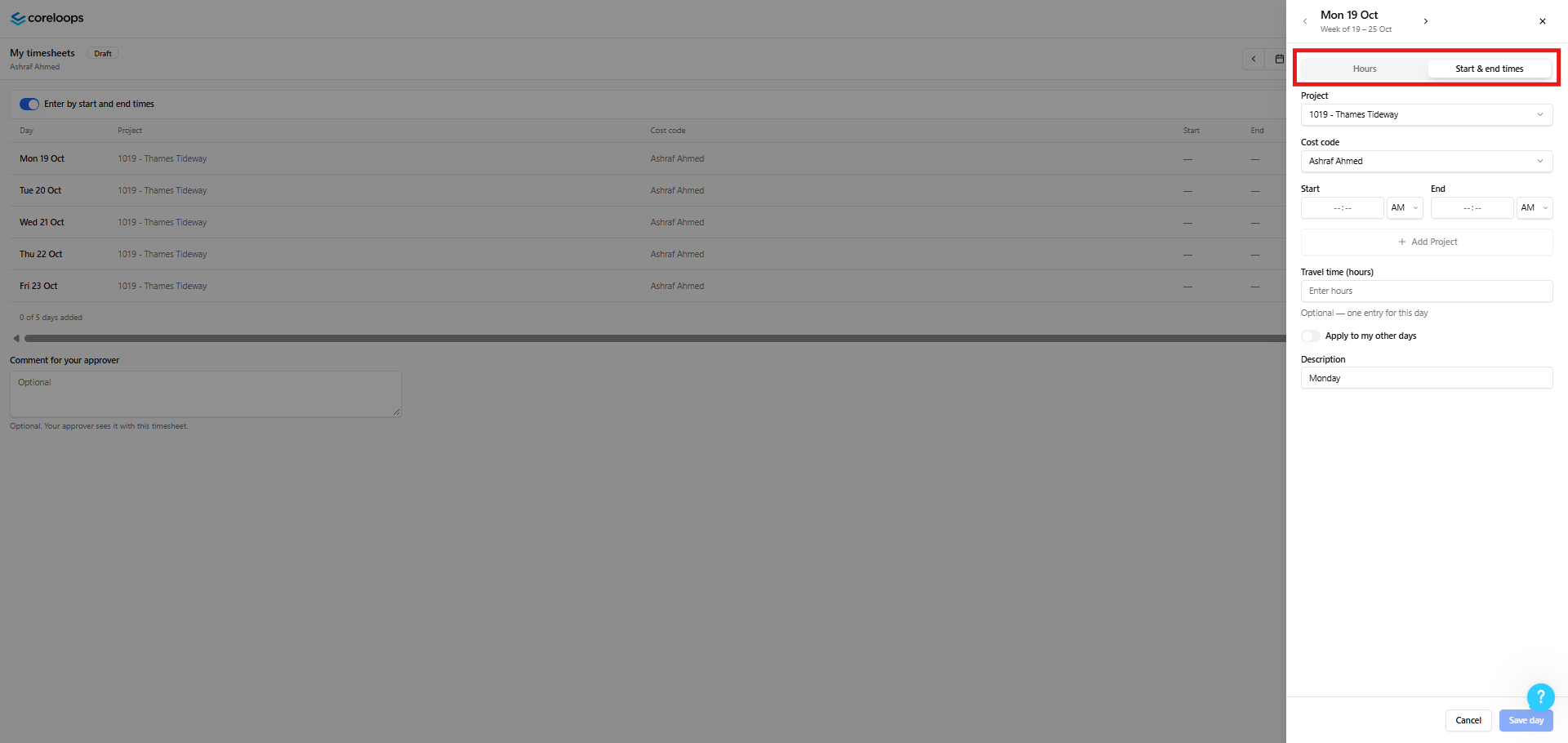
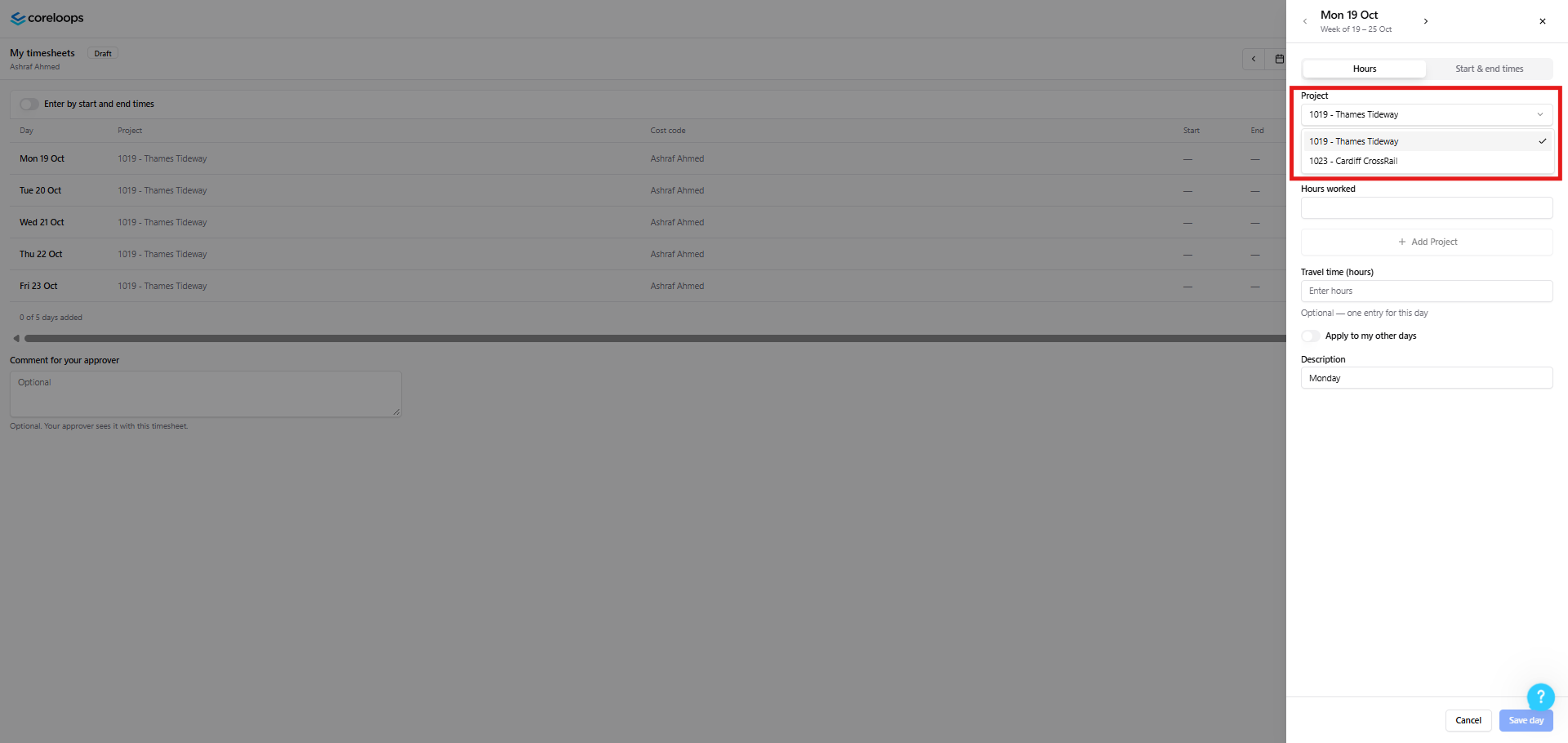
Select the project you are submitting your hours for (Note: you may already have a project filled in; if this is correct, no need to change it)
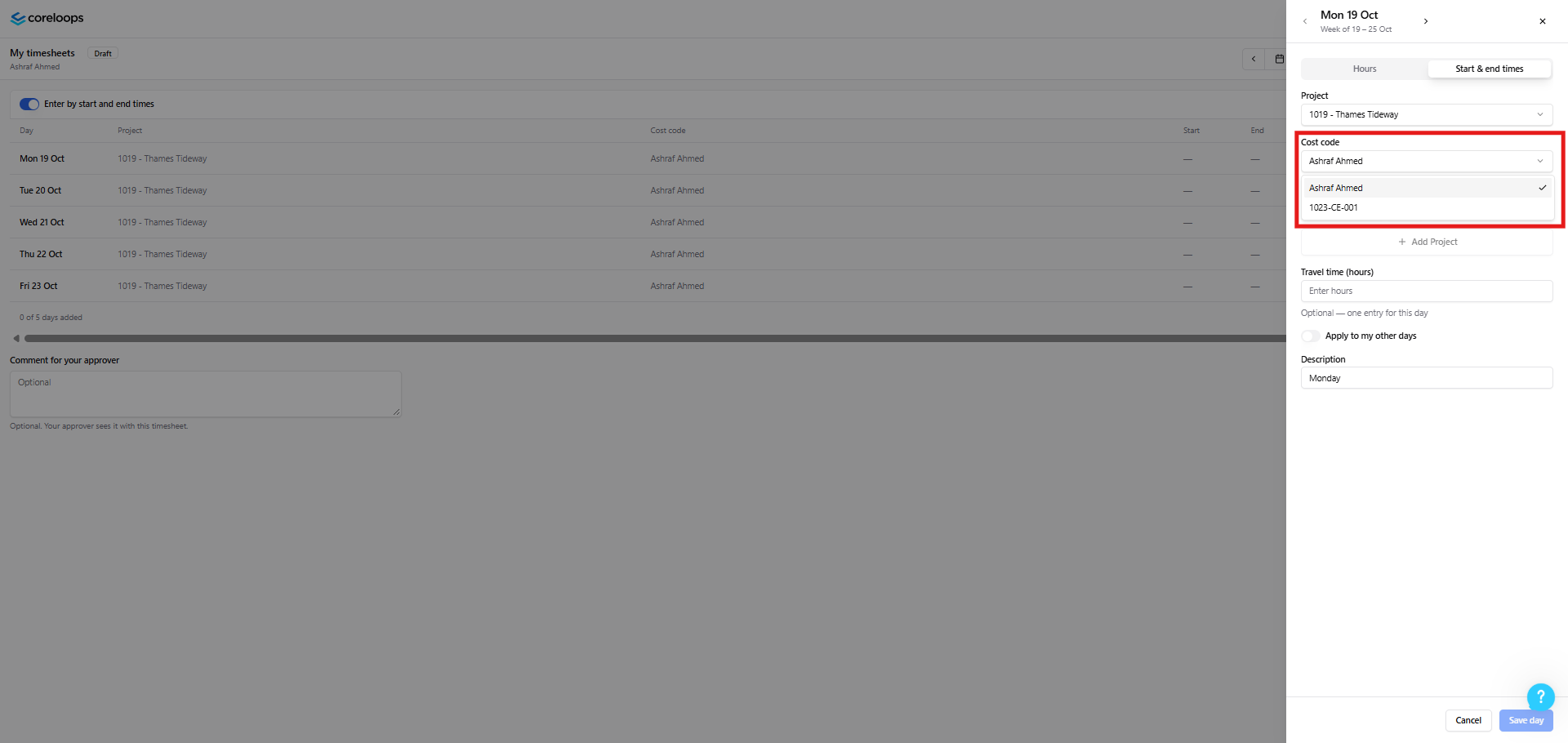
Select the correct Cost Code. (Note: You may already have a Cost Code filled in; if this is correct, no need to change it)
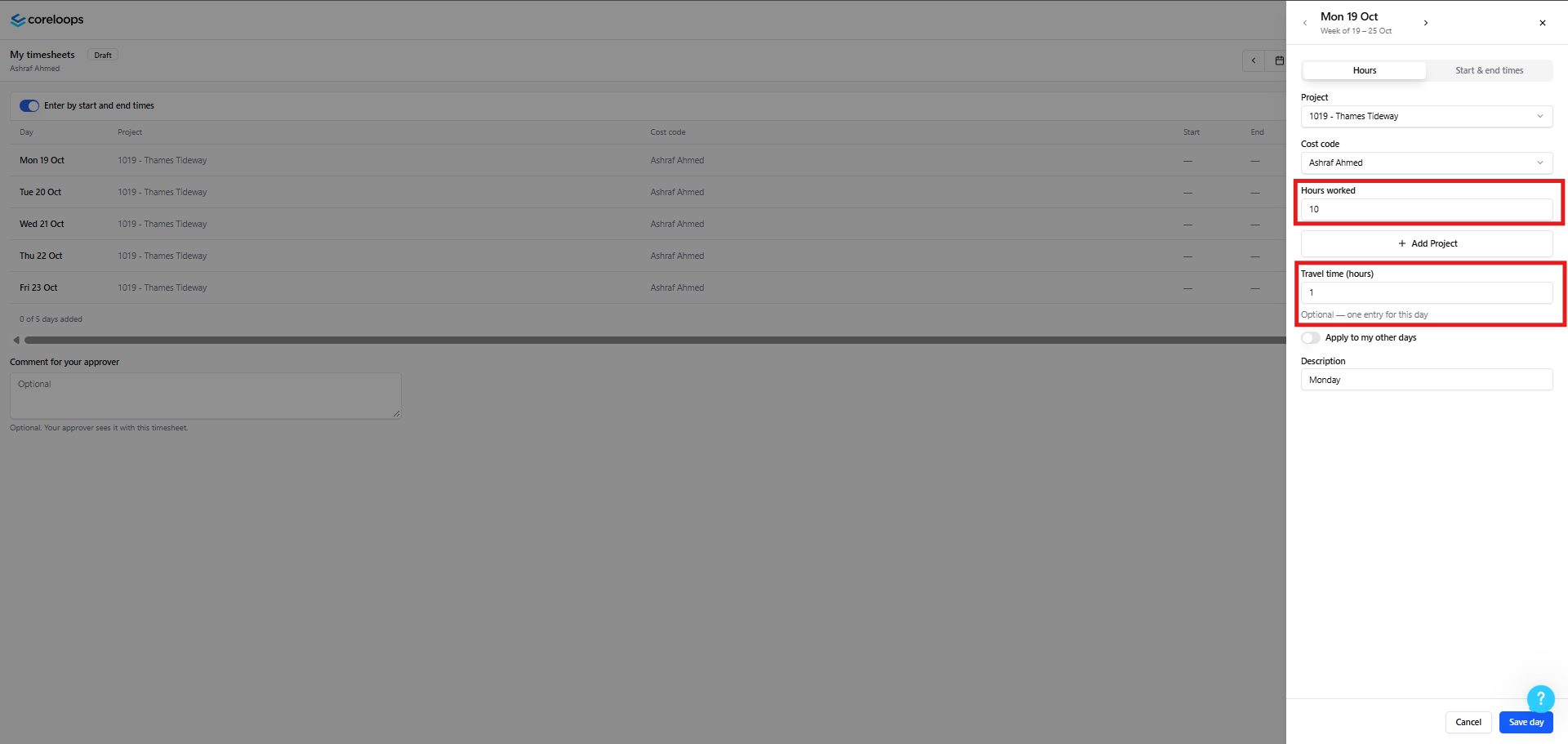
Enter the hours you have worked and travelled
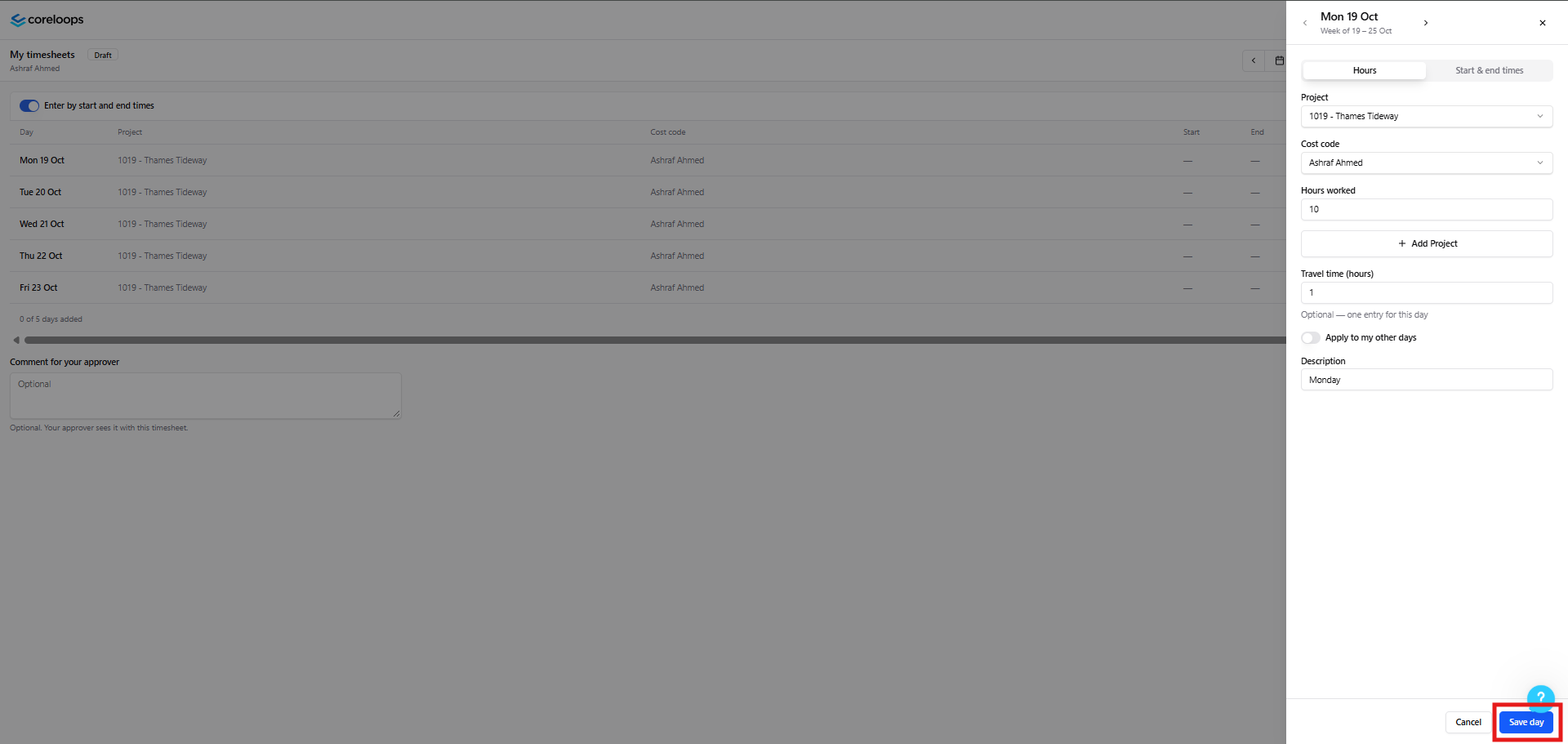
Review the entry for that day, then select Save Day. Now repeat these steps for the rest of the week.
Want to apply the same hours across other days during the week? Then select Apply to my other days
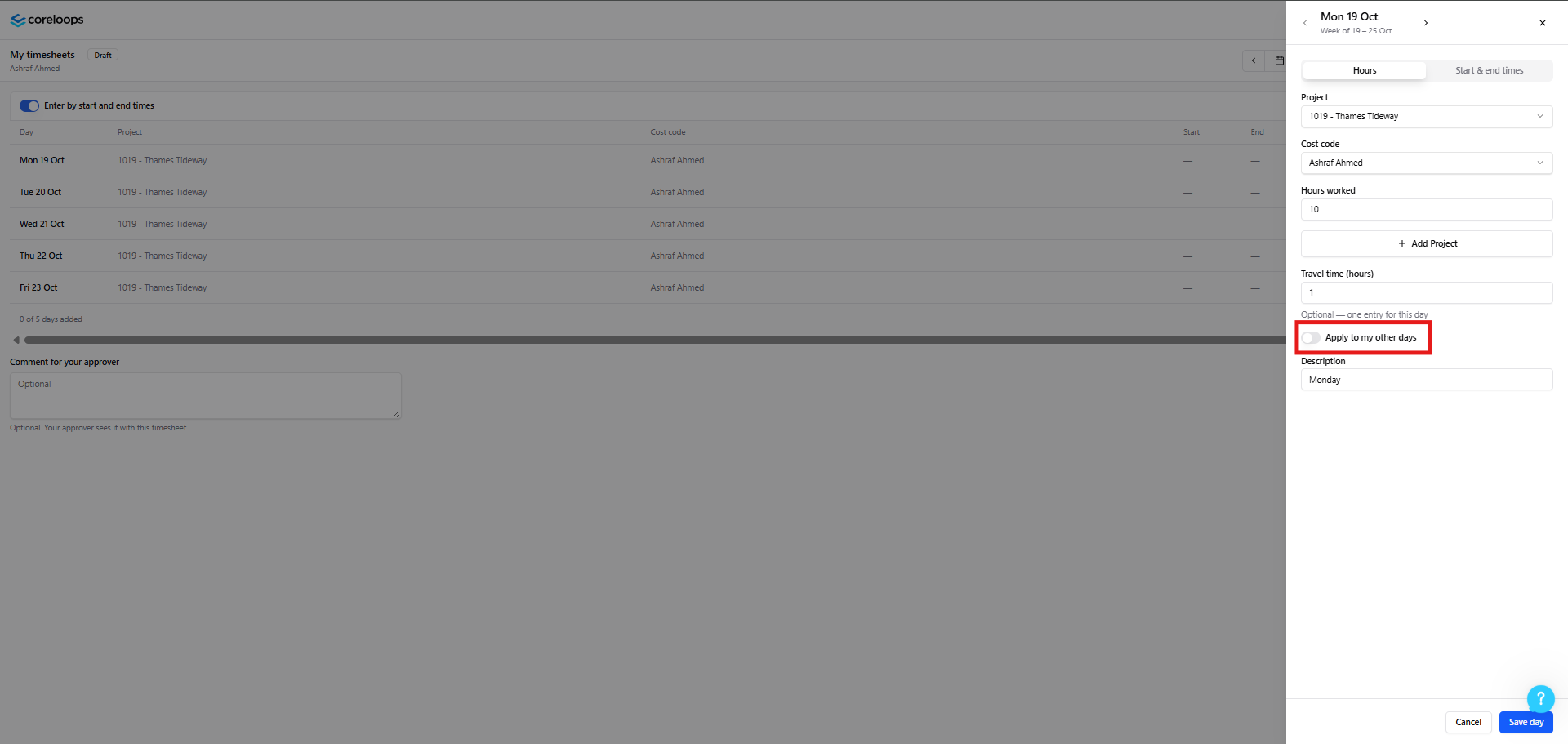
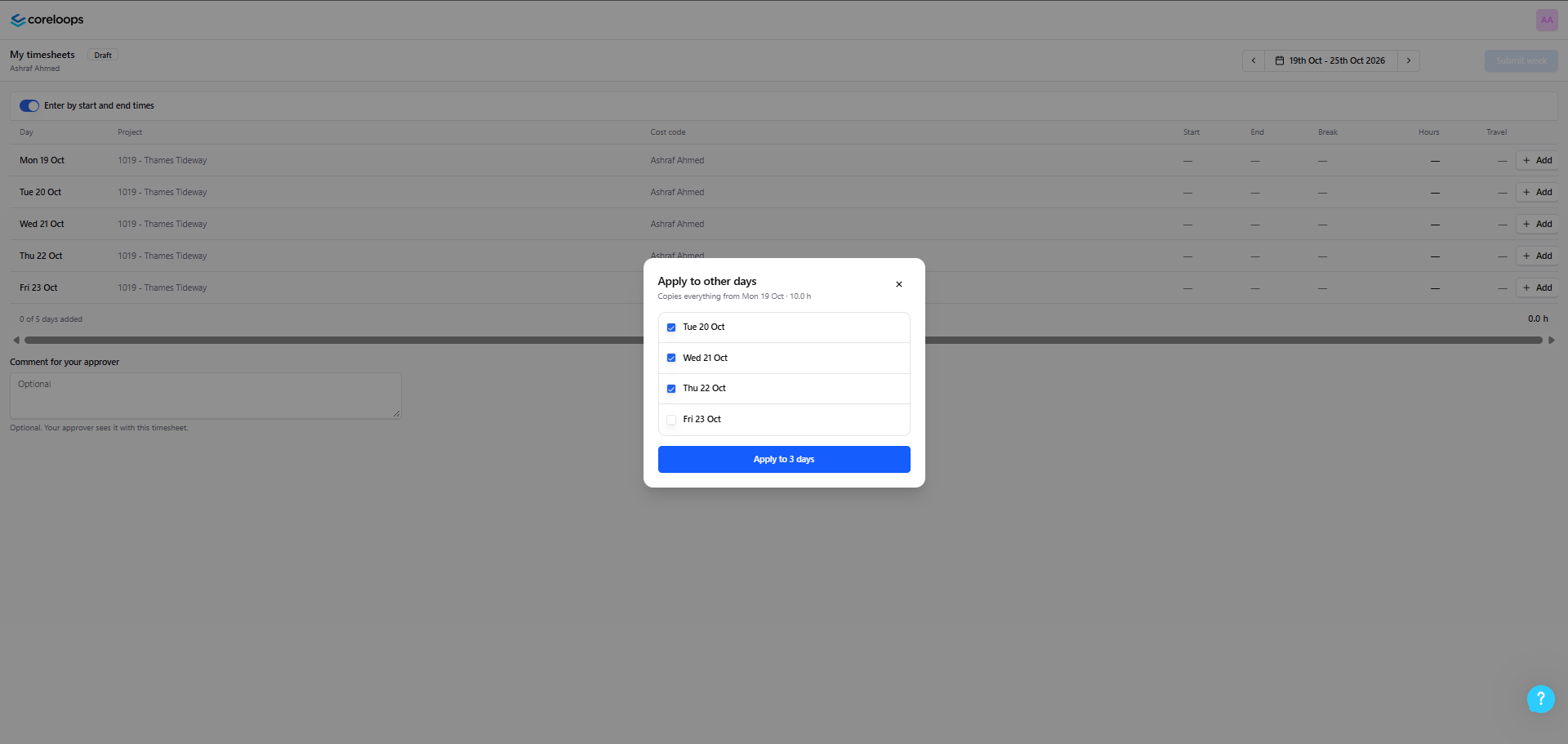
You will be asked which days you want to apply these hours to. Select the days, then hit Apply to days
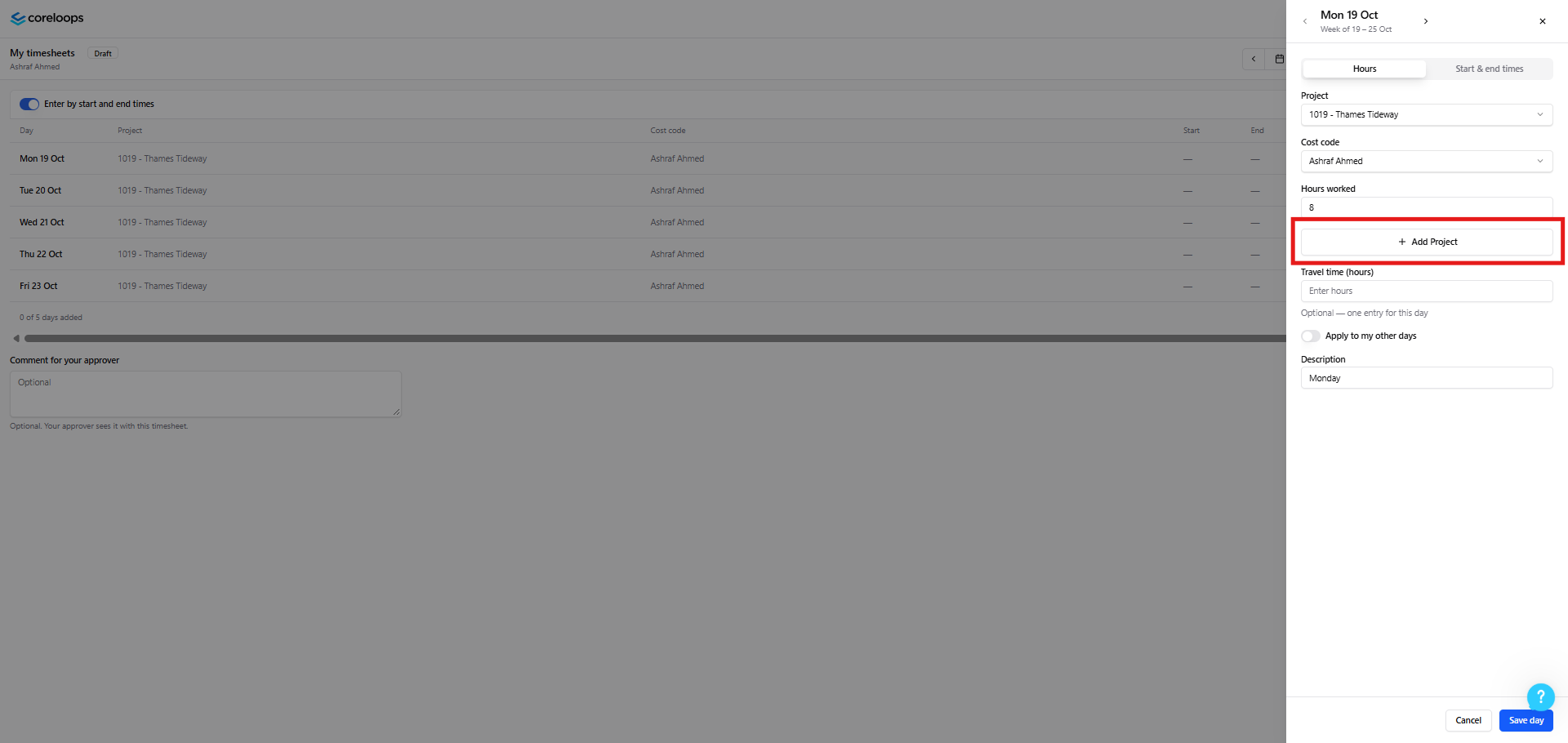
Worked on multiple projects in one day? After you have entered the hours you have worked, select the Add Project button. (Note: If you worked two shifts on the same project, you will need to reach out to the admin team for them to add this in for you, as you can't add two shifts for the same project on any day.)
You can now select another project and enter the hours you have worked on that project.
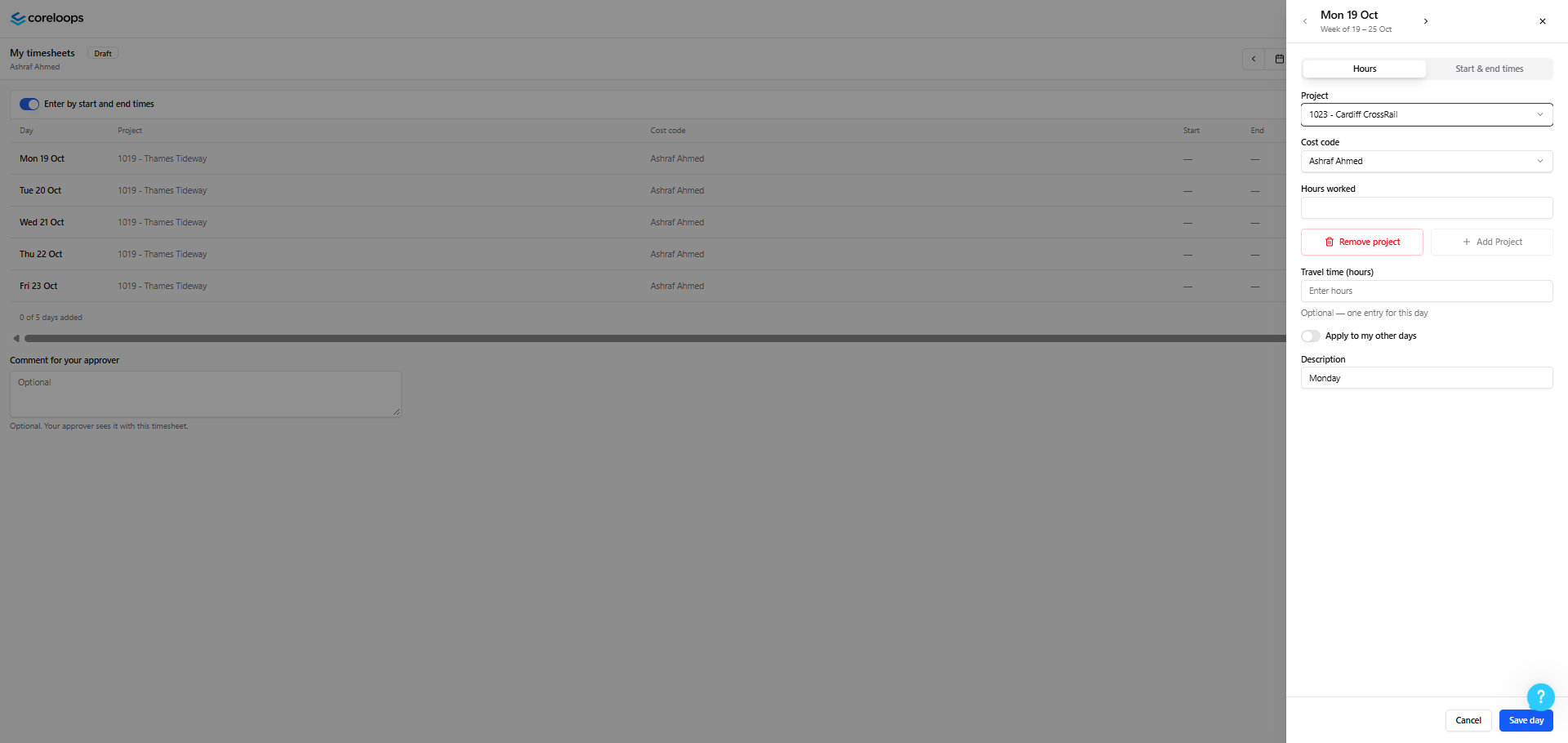
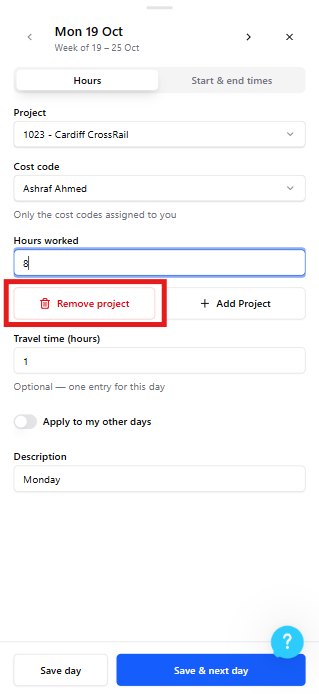
If you have selected Add Project by accident, hit Remove Project.
Mobile Users:
When you have confirmed that you are in the correct week, you can start filling in your timesheet.
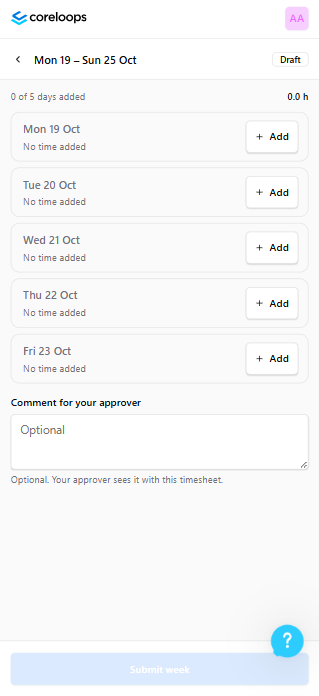
Select a day, and ensure you have selected the correct entry (if you want to enter your hours, stay on the current selection; otherwise, switch to Start & end times)
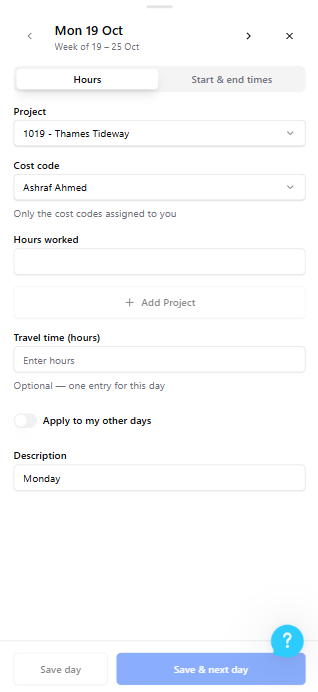
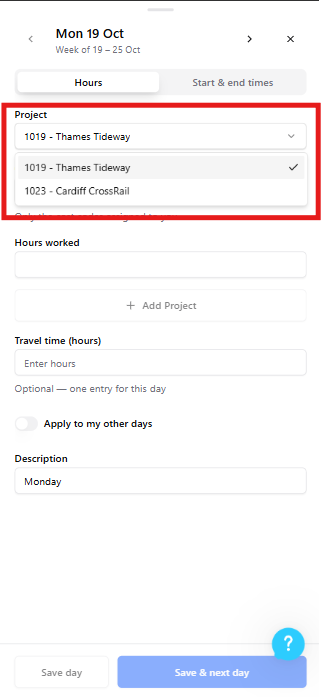
Select the project you are submitting your hours for (Note: you may already have a project filled in; if this is correct, no need to change it)
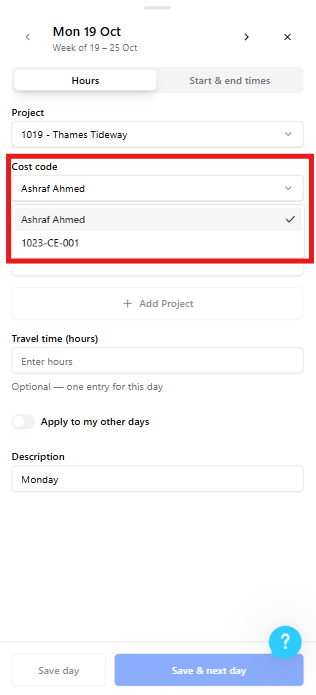
Select the correct Cost Code. (Note: You may already have a Cost Code filled in; if this is correct, no need to change it)
Enter the hours you have worked and travelled
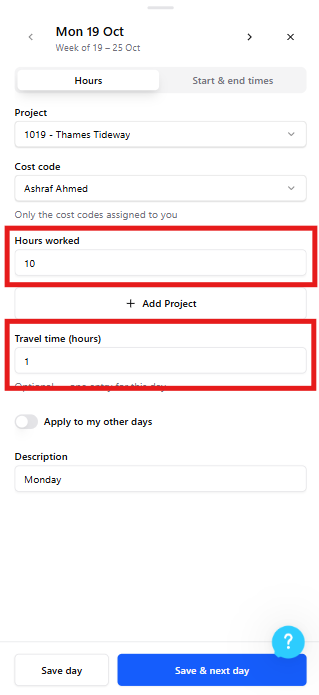
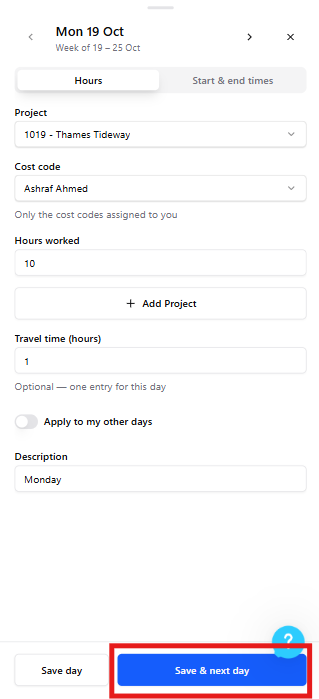
Review the entry for that day, then select Save Day. Now repeat these steps for the rest of the week.
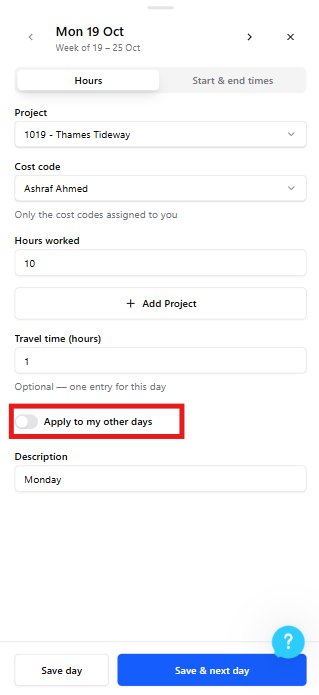
Want to apply the same hours across other days during the week? Then select Apply to my other days
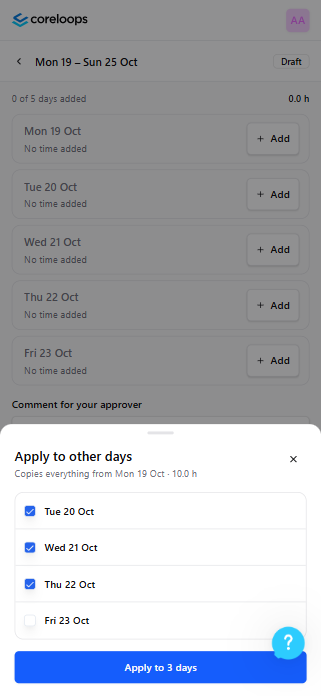
You will be asked which days you want to apply these hours to. Select the days, then hit Apply to days
Worked on multiple projects in one day? After you have entered the hours you have worked, select the Add Project button. (Note: If you worked two shifts on the same project, you will need to reach out to the admin team for them to add this in for you, as you can't add two shifts for the same project on any day.)
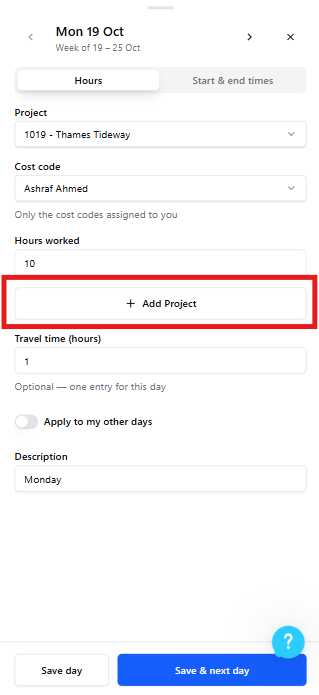
You can now select another project and enter the hours you have worked on that project.
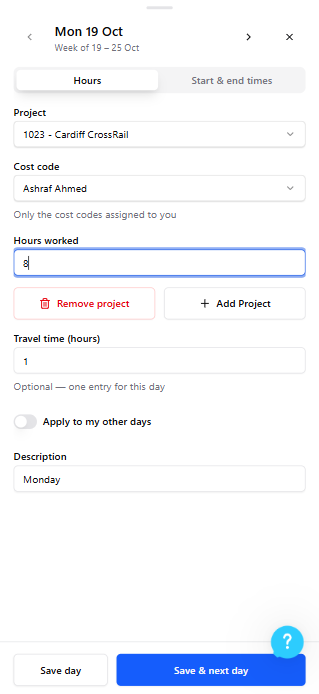
If you have selected Add Project by accident, hit Remove Project.
Weekend work: If weekend days are enabled for your project, they will appear at the bottom of your timesheet. For weekends, follow the same steps as shown above
Wrong project for a day? Remove the existing project assignment and add the correct one.
5. Review and Save Your Entries
Double-check that all hours are correct and the total matches your expected hours for the week
Ensure no days are left blank unless you were on leave or not working
6. Submit Your Timesheet
Once all entries are complete, click the Submit Week button
Your timesheet will be sent to the team for review
The status of your timesheet will be updated from draft to pending
Once your timesheet has been approved, it will be updated to Approved.
Frequently Asked Questions
What if I make a mistake after submitting?
Contact the team to request an amendment.
How do I track my approval status?
After submitting, your timesheet will move from Pending to Approved once reviewed.
What if I forget to submit?
Late submissions must be approved by your manager. Contact them as soon as possible.
I can't log in — what do I do?
Reach out to the support team for access issues.
Need Help?
If you run into any issues not covered here, please contact your admin or [email protected].
Was this helpful?
Still need help? Ask the team