Auto-categorise BOQ Line items
Coreloops AI can automatically suggest cost codes and custom tags for line items in your Bill of Quantities and Variation Orders, saving time on manual classification and improving consistency.
Written By Gabriel Makinwa
Last updated 6 days ago
Triggering AI classification
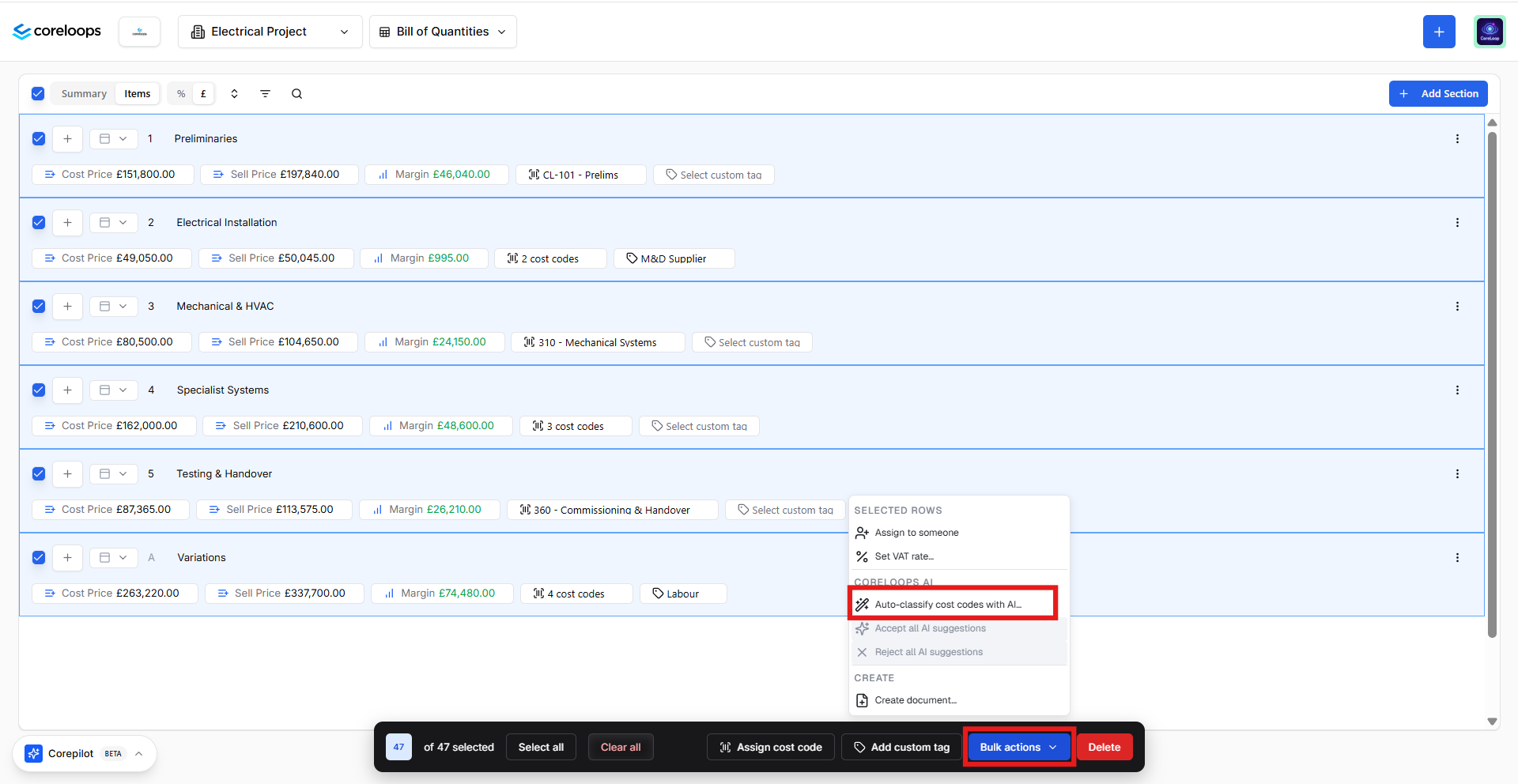
On the BOQ page, open the actions sub-menu in the toolbar, select Bulk actions and choose Auto-classify cost codes with AI.
Choose the scope:
Entire BOQ — Classifies all line items
Selected items only — Classifies only the highlighted line items
Unassigned Items - Classify Line items which currently do not have cost codes
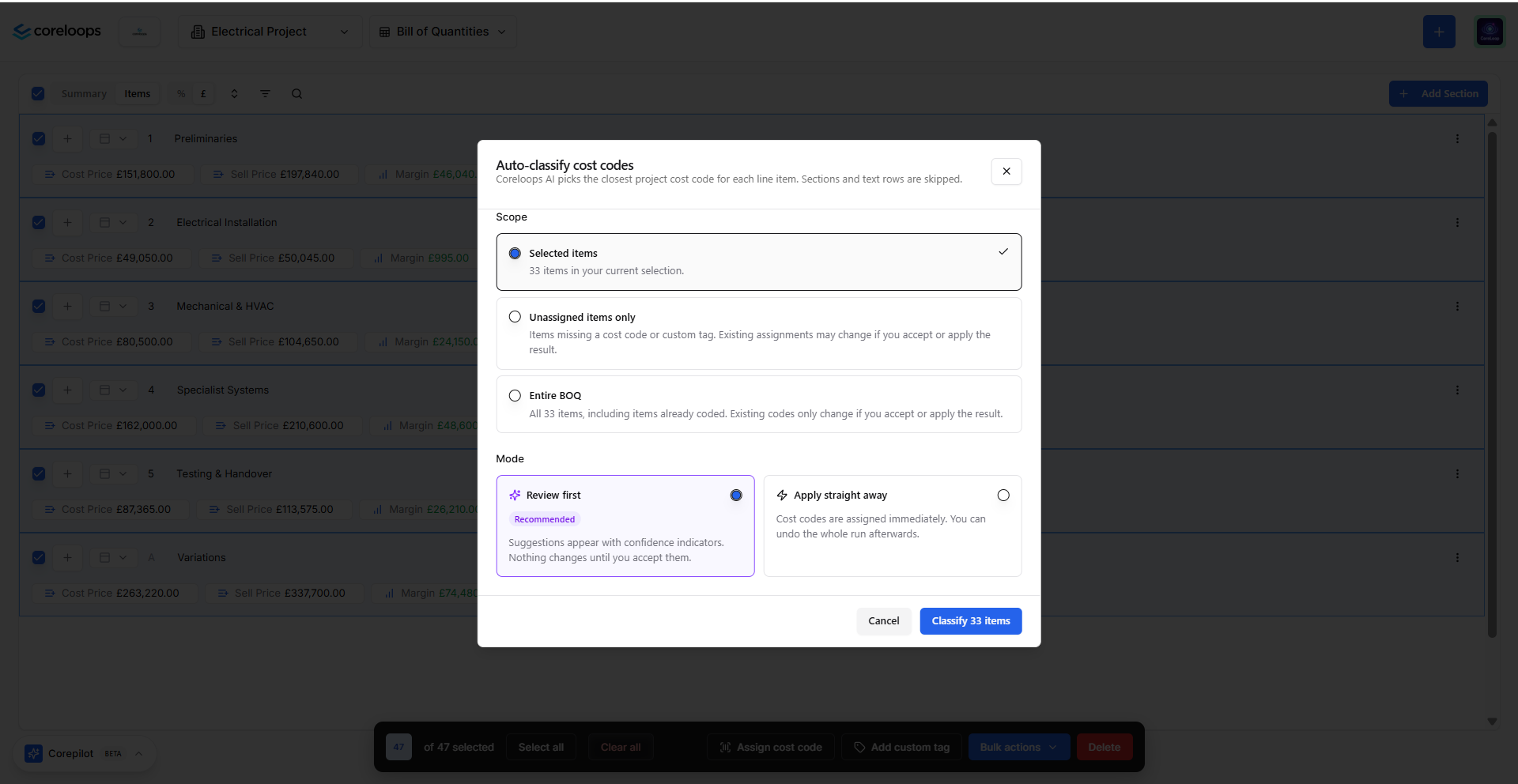
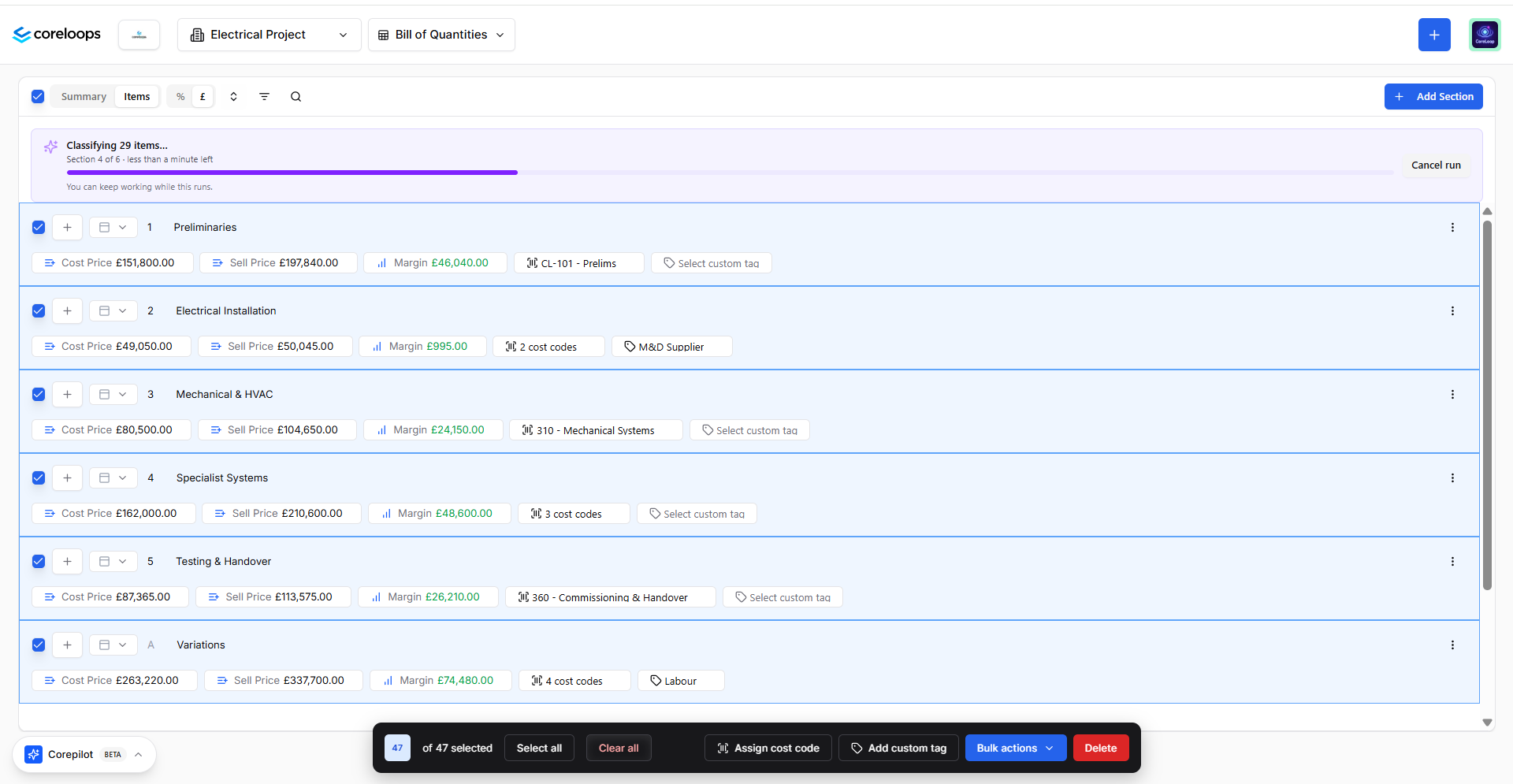
You can either choose to review the changes before accepting or apply the changes that Corepilot will assign to each line item. When waiting for the line items to be assigned to a cost code, you will see the following at the top of your BoQ screen.
Reviewing suggestions
When the AI has classified the line items, you can see the suggestions by toggling on Only show suggestions.
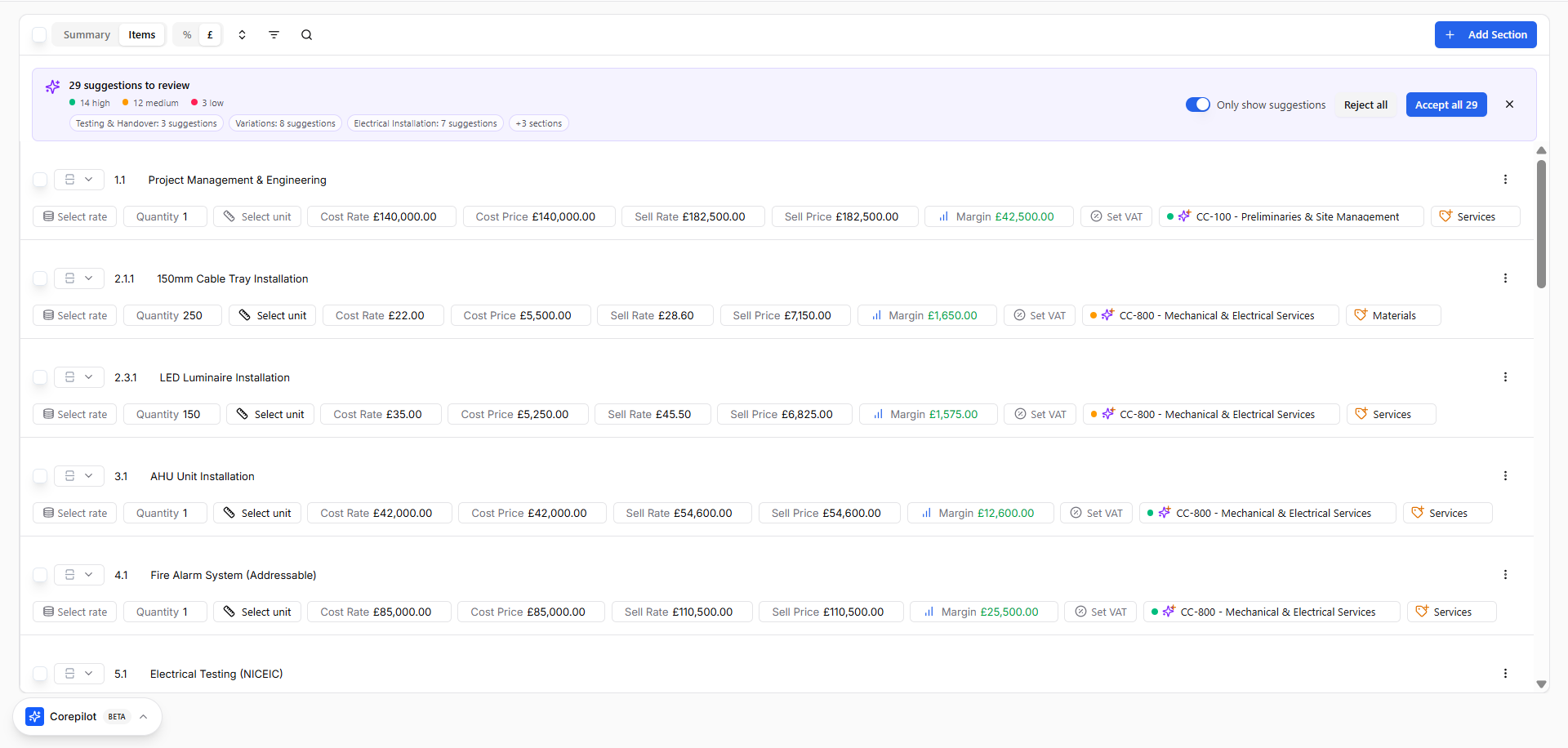
Once classification runs, each line item shows an AI-suggested cost code and/or custom tag inline. You can:
Accept — Confirm the suggestion for that line item
Reject — Dismiss the suggestion; the field is unchanged
Accept All / Reject All — Bulk action from the toolbar
What influences suggestion quality
The AI draws on:
The line item description and surrounding context
Historical cost code assignments approved for similar line items
Project-specific cost codes and custom tags
Any custom AI prompts configured for the supplier or tag group
If no confident match is found, no suggestion is made for that line item.
Was this helpful?
Still need help? Ask the team