How to Submit Your Timesheet [Operative View]
This article walks associates through submitting their weekly timesheet as an operative.
Written By Gabriel Makinwa
Last updated About 2 months ago
Before You Start
Ensure you have your login credentials for the old platform
Have a record of the hours worked for the week ready
Timesheets must be submitted by the end of each week
Step-by-Step Guide
1. Log In
Go to app.coreloops.ai
Enter your email address and password
Click Log In
If you've forgotten your password, click Forgot Password on the login page and follow the reset instructions.

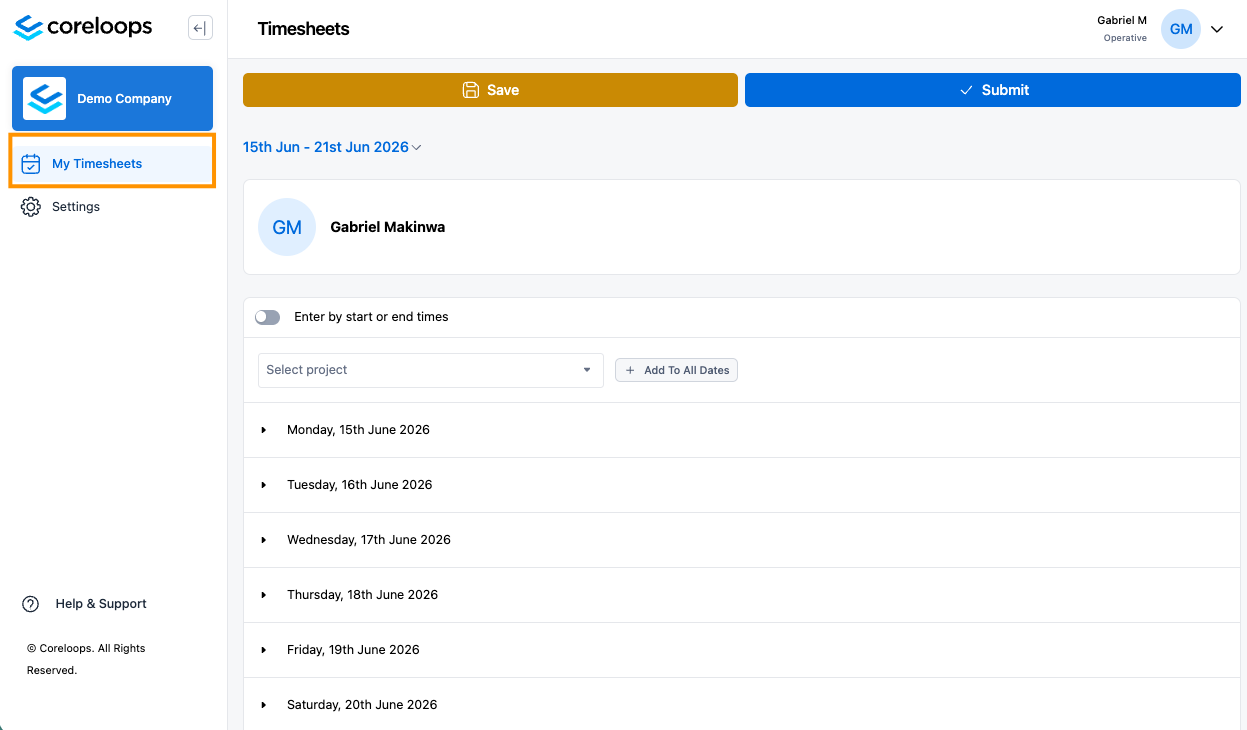
2. Navigate to Timesheets
From the main dashboard, click on Timesheets in the left-hand navigation menu
You'll be taken to your personal timesheet overview
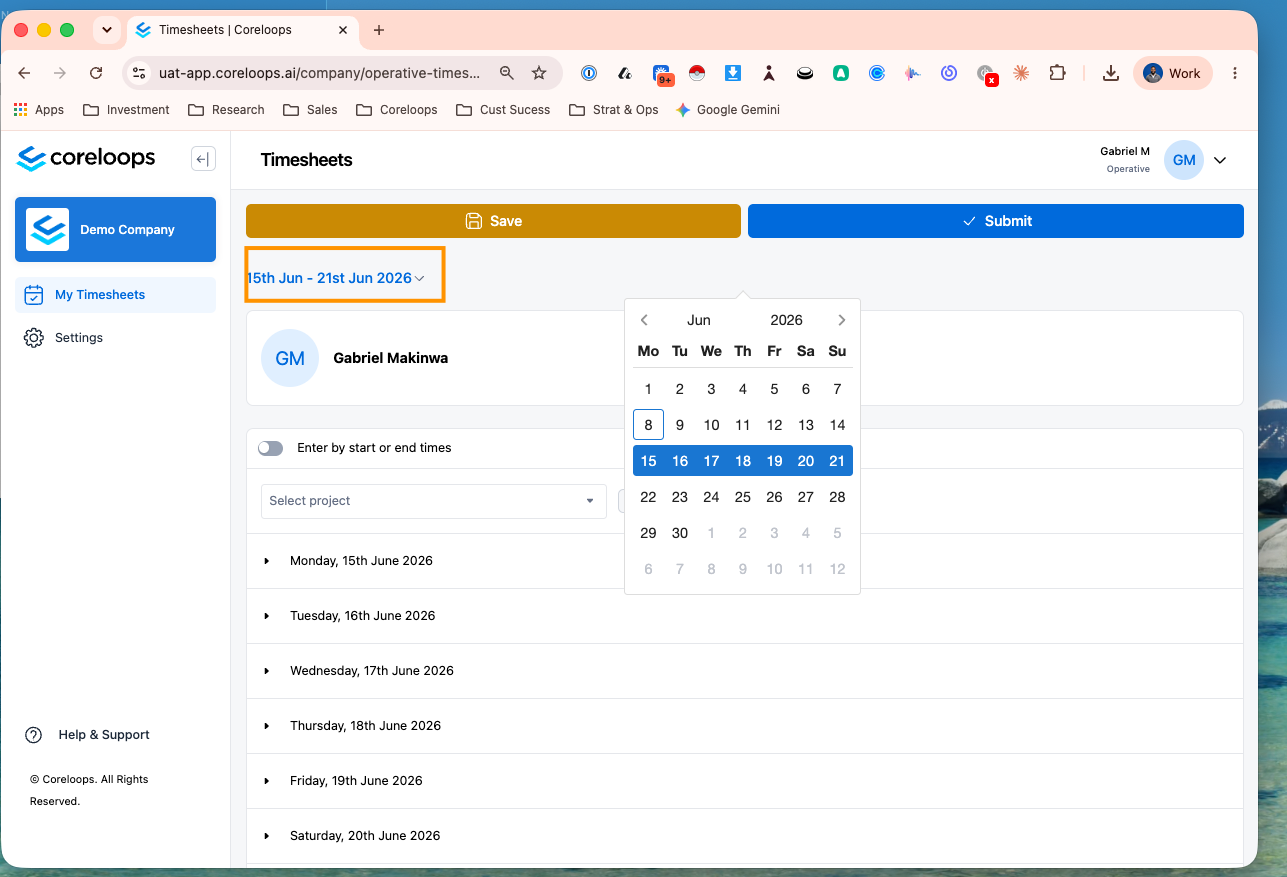
3. Select the Correct Week
Use the week picker at the top of the page to select the current week
Confirm the date range displayed matches the week you're submitting for
4. Select your project
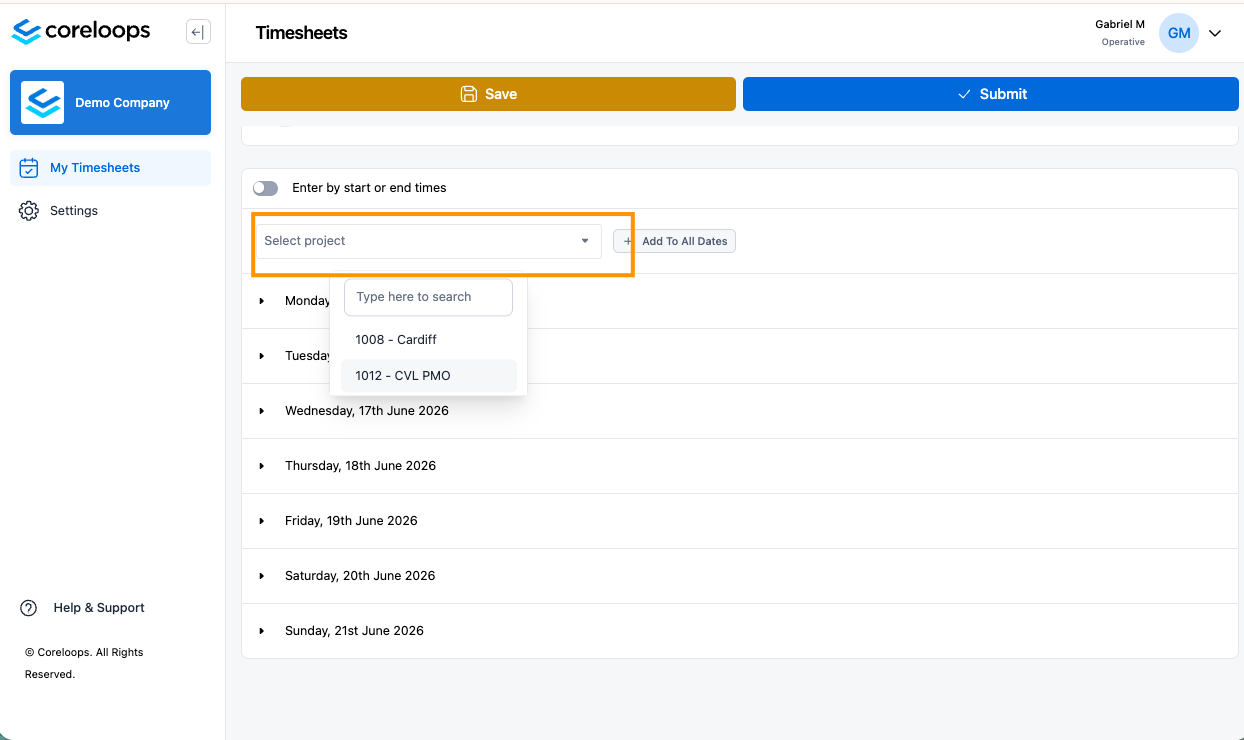
For each day, search and add the project your worked on. You can also add the same project to all dates at the top of the table
Enter horus worked
Enter the number of hours worked in the input field
Repeat for each day and project until all hours are logged
For each day enter your total travel hours (to and from)

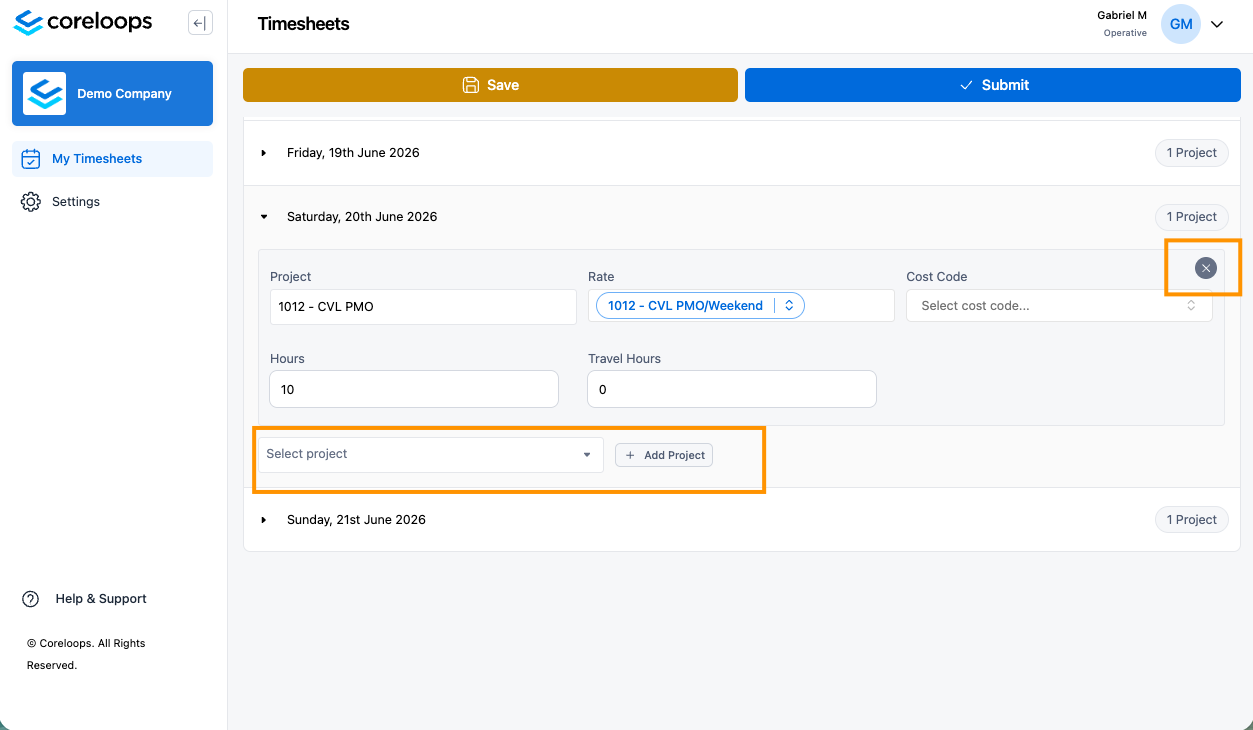
Multiple work types on the same day? If you worked multiple shifts for different projects, you can add this by selecting the second project you worked on and adding another shift.
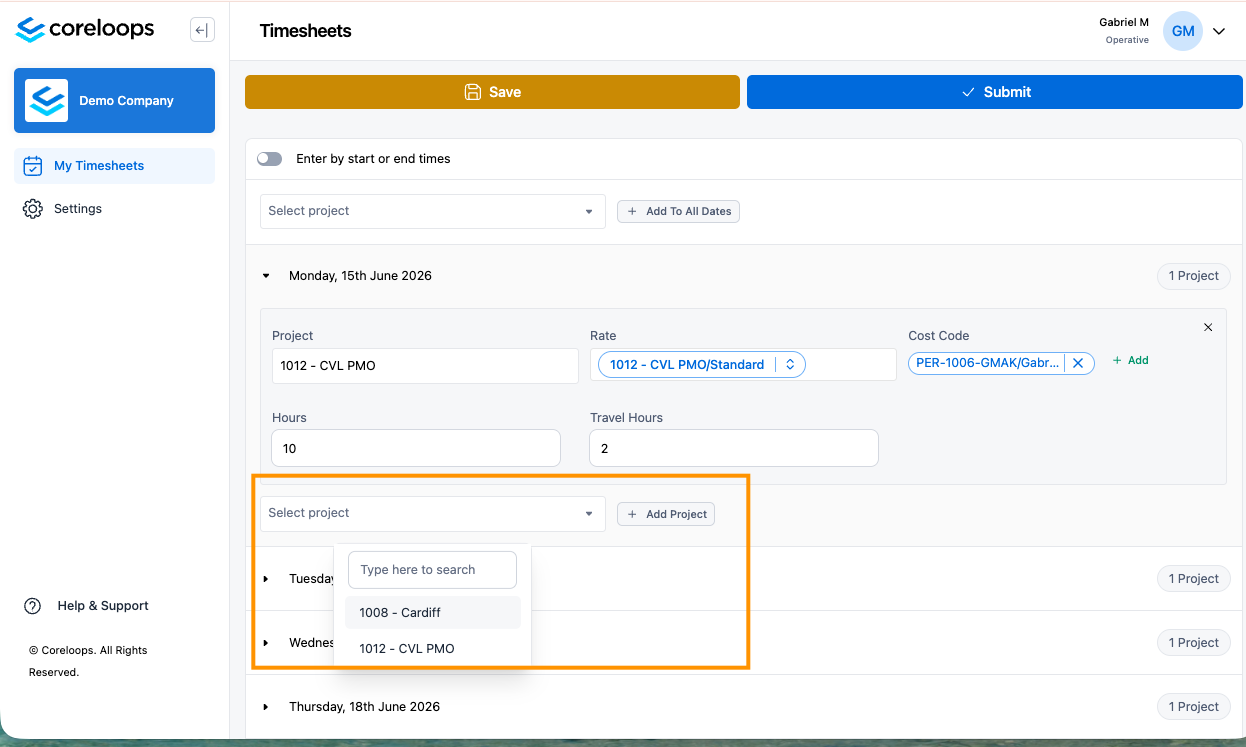
If you worked two shifts on the same project, you will need to reach out to the admin team for them to add this in for you, as you can't add two shifts for the same project on any day.
Rates: Your default pay rate for the slected project will be applied automatically. If you've worked on a different rate, you can update this by clicking on the rate field and selecting a new rate, e.g. weekend, on call, etc.
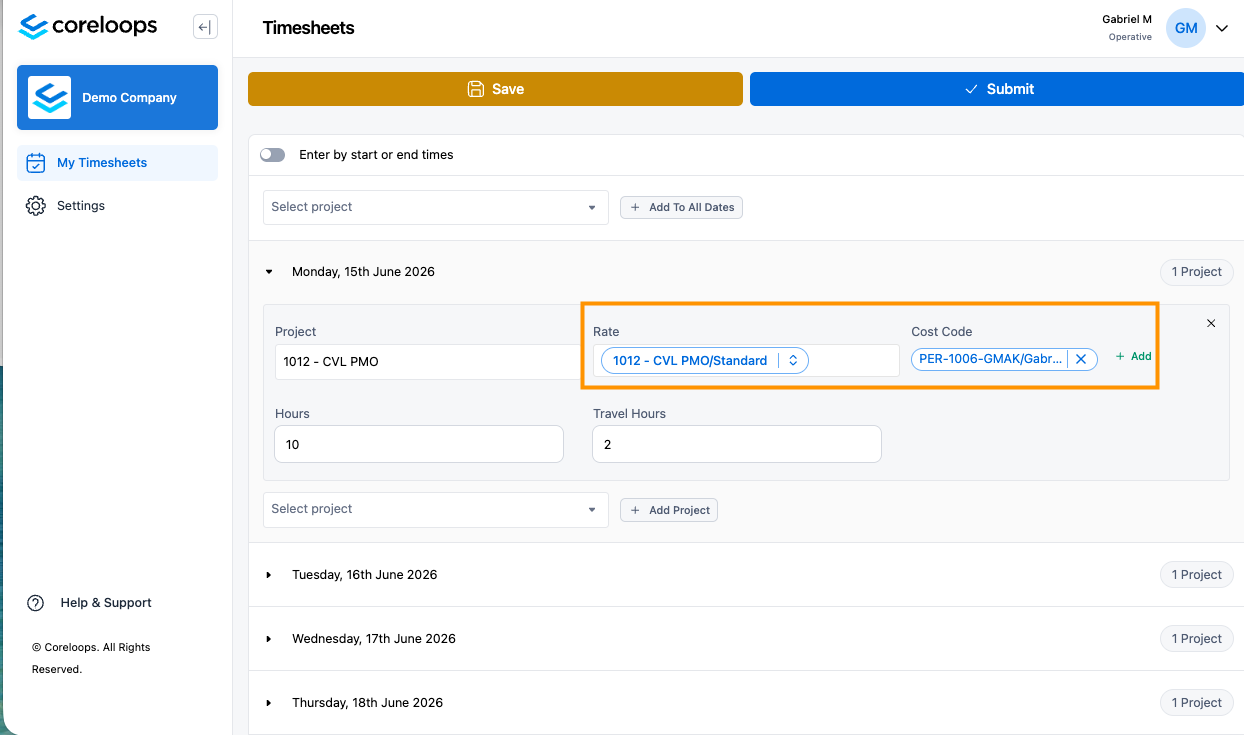
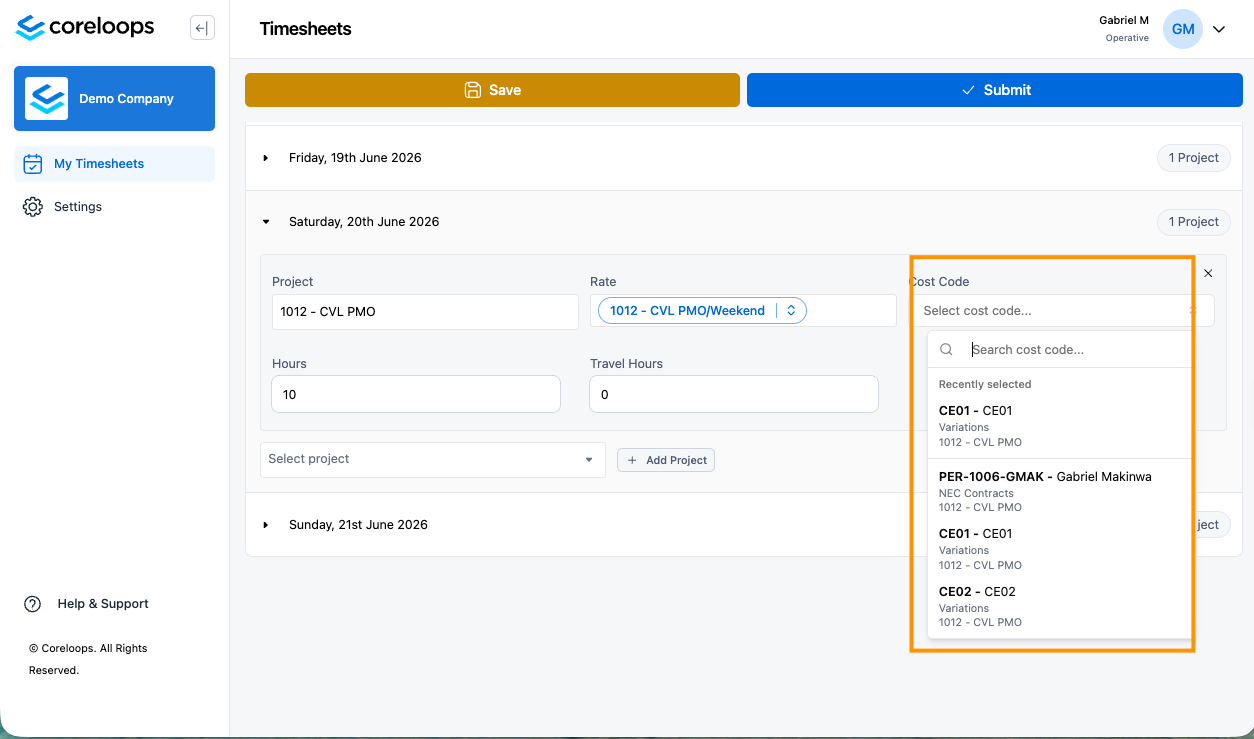
Cost code: Leave the auto-populated cost code unchanged unless specifically instructed otherwise.
Weekend work: If weekend days are enabled for your project, they will appear at the bottom of your timesheet. Add the project, cost code, rate, and hours for any weekend days worked.
Wrong project for a day? Remove the existing project assignment and add the correct one.
5. Review and Save Your Entries
Double-check that all hours are correct and the total matches your expected hours for the week
Ensure no days are left blank unless you were on leave or not working
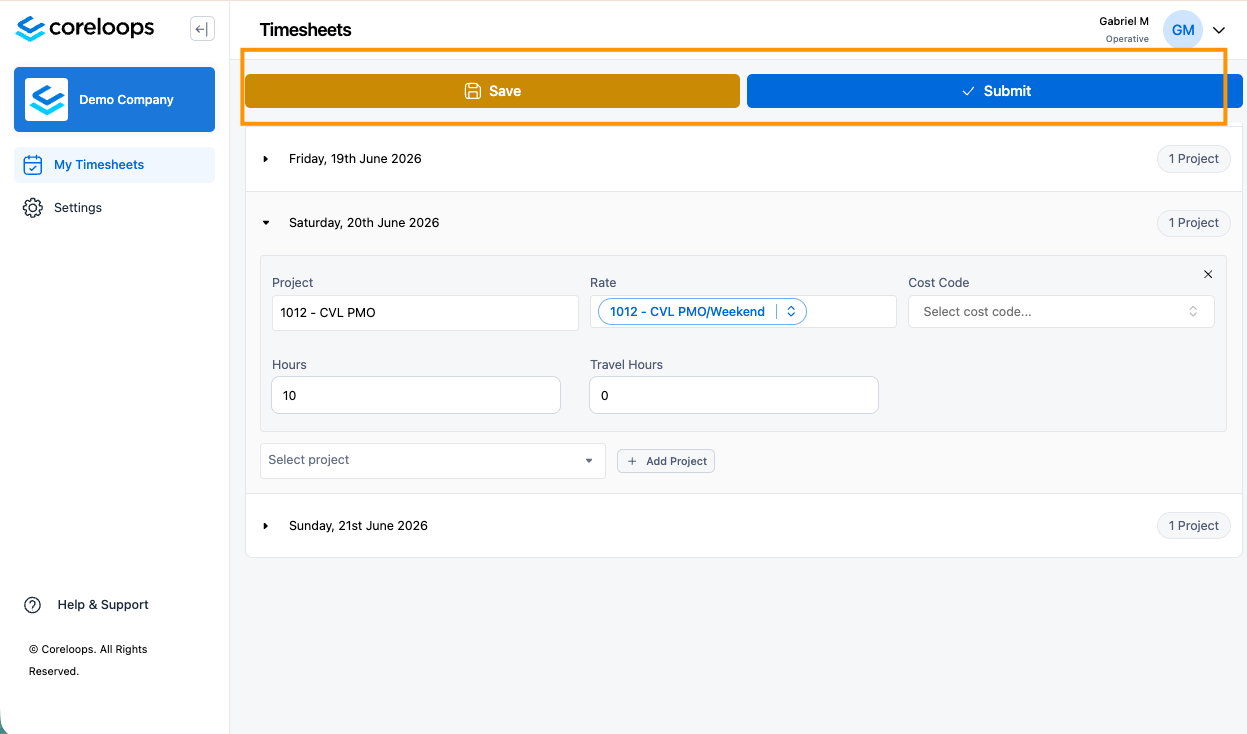
Click Save to preserve your entries before submitting
6. Submit Your Timesheet
Once all entries are complete, click the Submit button
Your timesheet will be sent to the team for review
The status of your timesheet will be updated from draft to pending
Once your timesheet has been approved, it will be updated to Approved.
Frequently Asked Questions
What if I make a mistake after submitting?
Contact the team to request an amendment.
How do I track my approval status?
After submitting, your timesheet will move from Pending to Approved once reviewed.
What if I forget to submit?
Late submissions must be approved by your manager. Contact them as soon as possible.
I can't log in — what do I do?
Reach out to the support team for access issues.
Need Help?
If you run into any issues not covered here, please contact your admin or [email protected].
Was this helpful?
Still need help? Ask the team