Managing Variations
Once a project is live and a Bill of Quantities have been made they are all set. Any changes that occur throughout the period of the contract will be tracked by Variations. You can track the status and financial impact of variations for each project in Coreloops.
Written By Gabriel Makinwa
Last updated 6 days ago
Creating Variations
You can create variations for a project by clicking the Variations tab under your project:
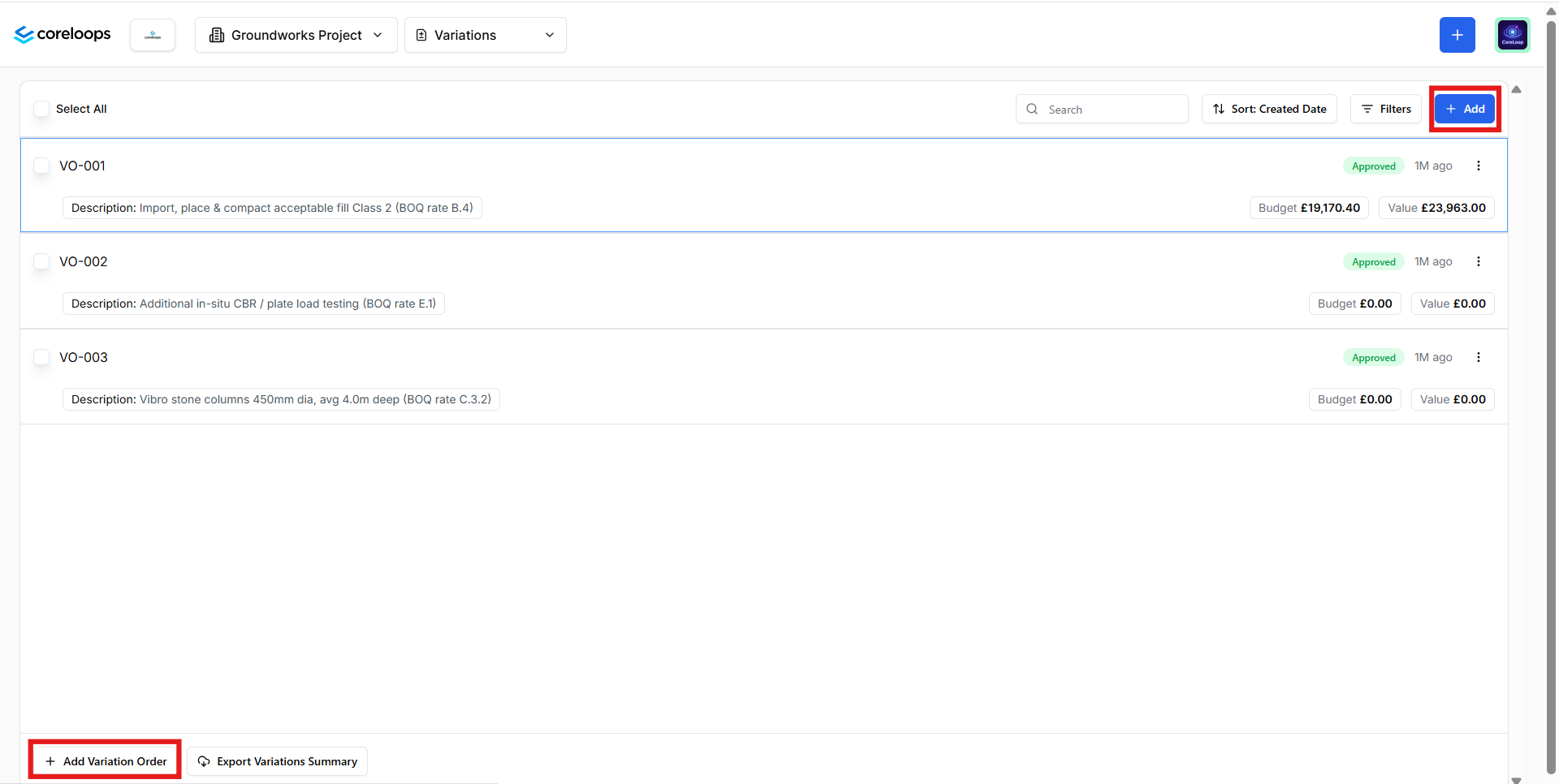
You can add a new variation order by clicking "Add" in the right-hand corner of the variations table. This will create your next variation order, so in this example it will create VO-004.
Alternatively, you can import variations.
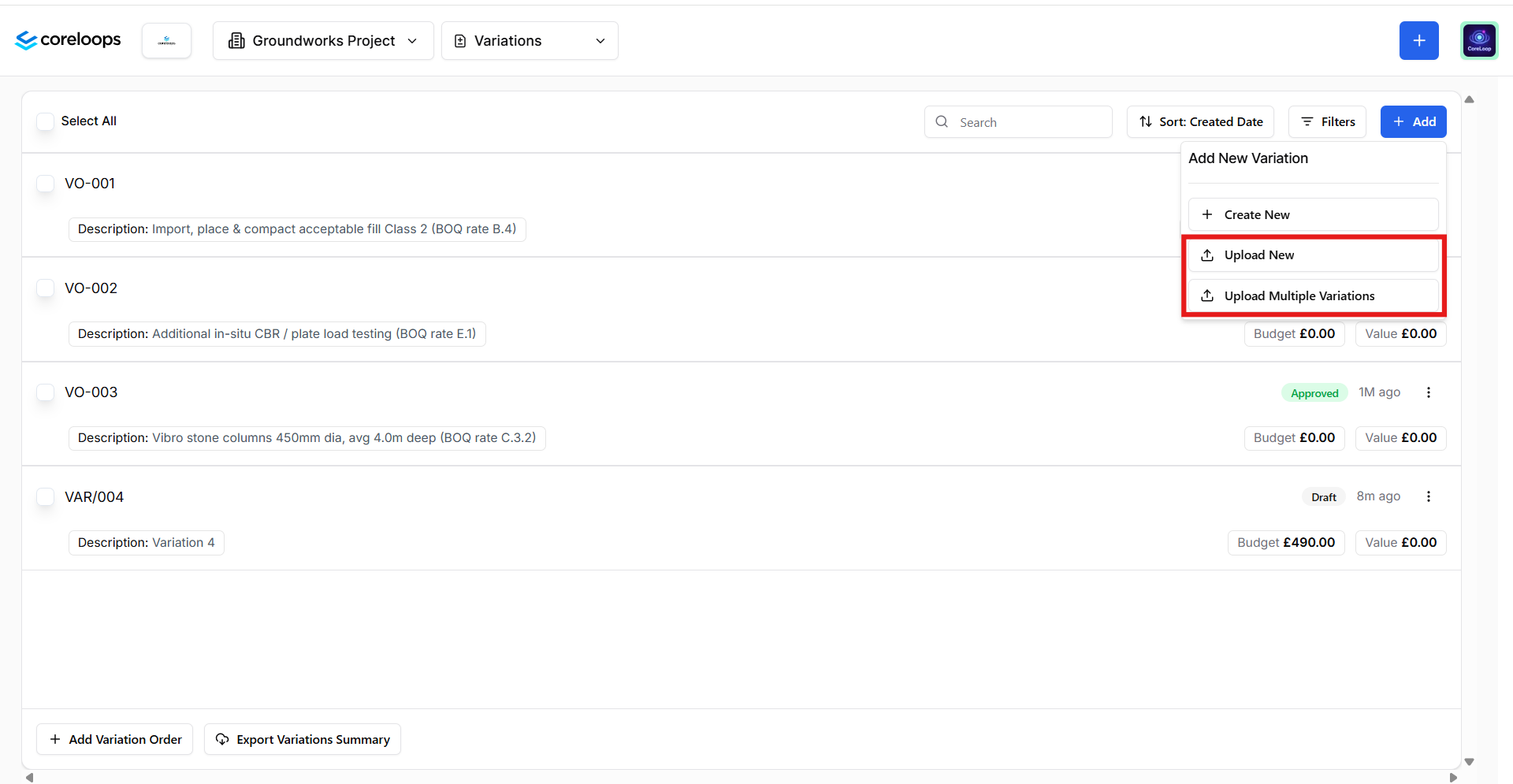
To do this, click Add> Upload New (single variation line) or Upload Multiple Variations (allows you to add multiple variation orders)
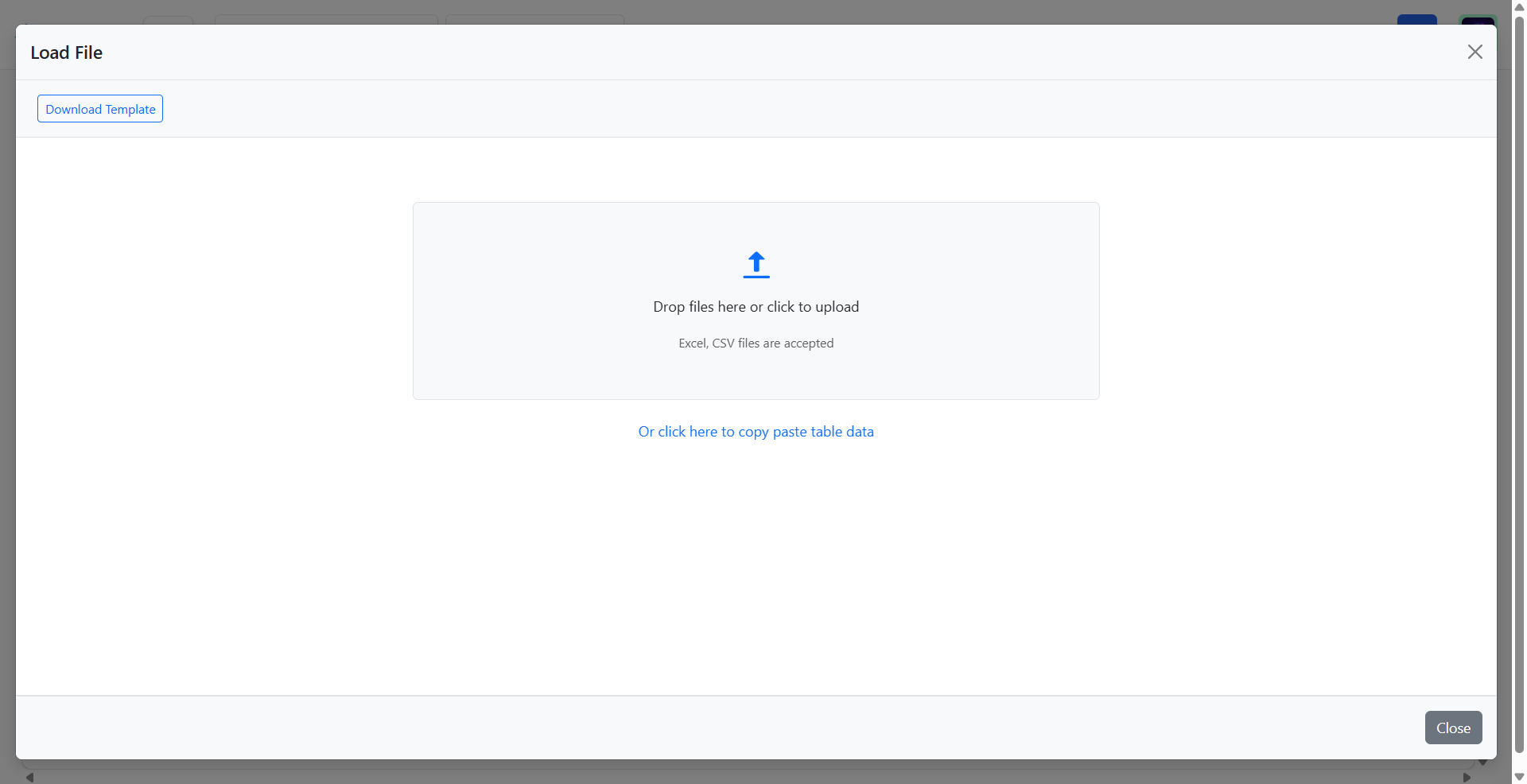
If you have a file with your variations, then upload it here. If not, download the template, fill it in and then upload.
Once you have uploaded, select your header row and map the columns. Then preview your import and save.
For the multiple variation upload, you will need to map the variation references in the upload to variation orders in Coreloops
Removing items: Omissions
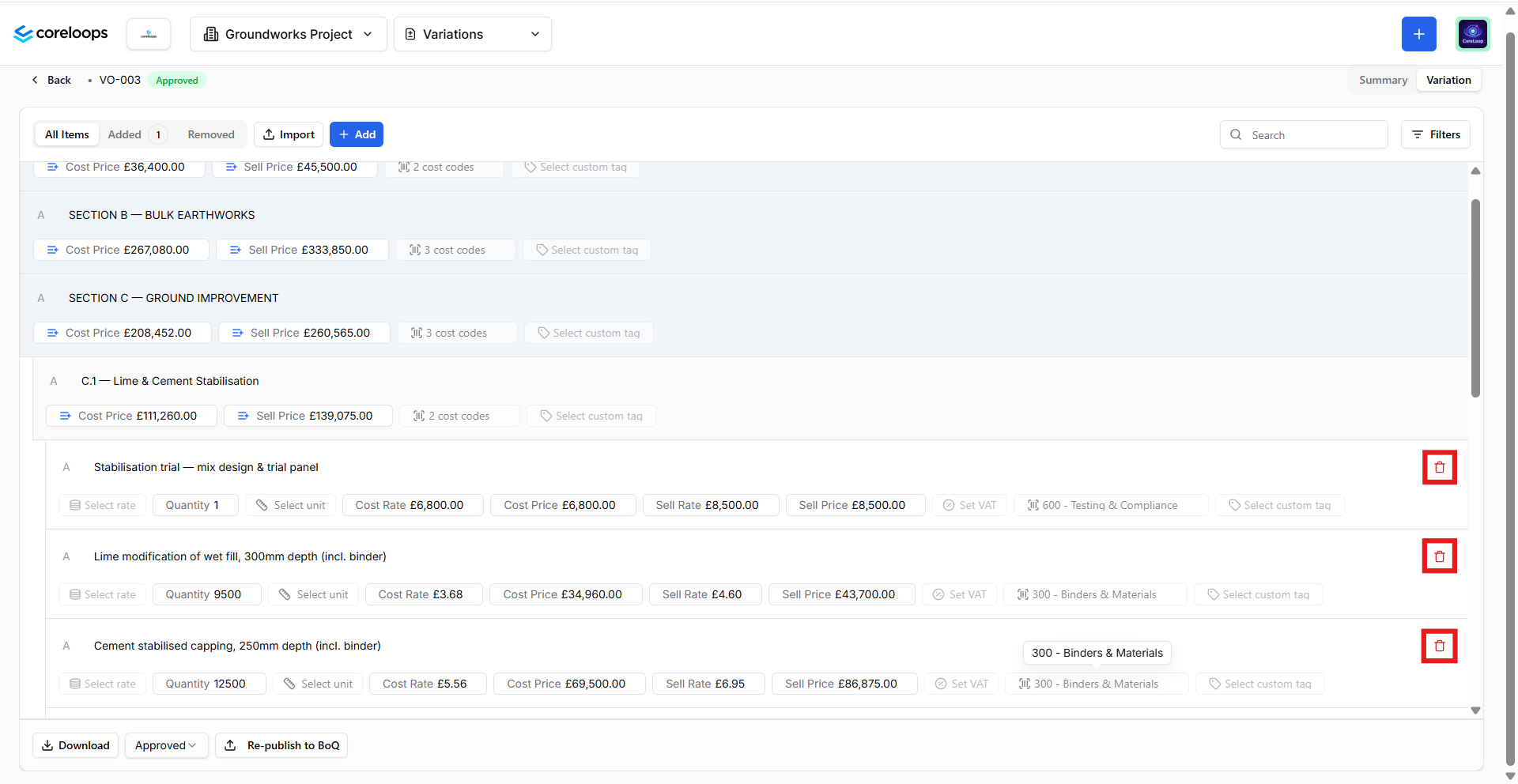
You can remove (omit) existing items from the BOQ from the all items view. Click into the variation, and then navigate to the section. From there, go to the line item that you want to remove and click on the red bin icon on the left-hand side of that line item.
Add new items: Additions
You can add new items to this variation order by clicking on the add item button to the right. A line item will be created under the variation order sub-section. You can also access all added items in the "Added" tab.
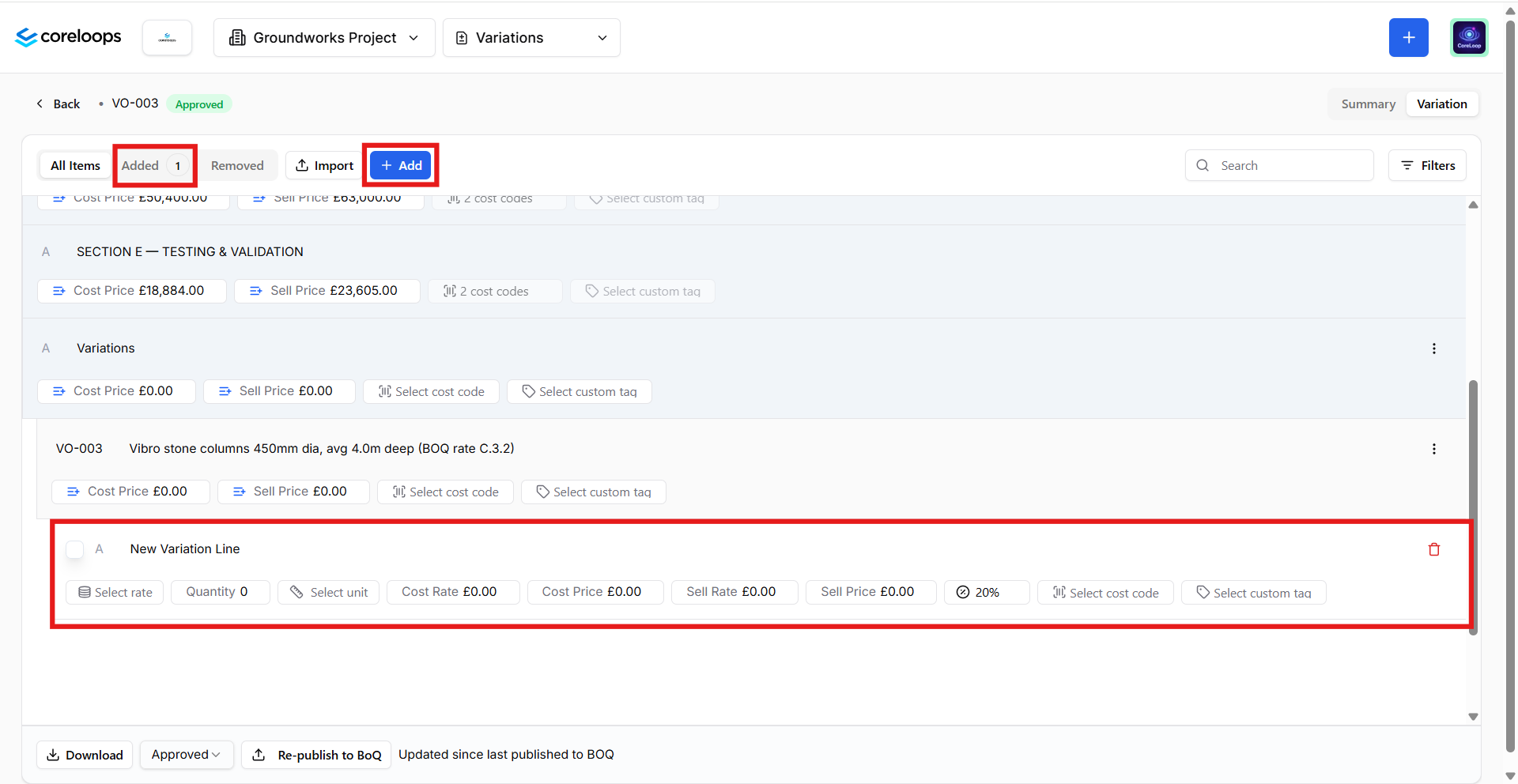
Once you've added a new line item, you can fill in the details for each field, including the cost rate and sell rate. You can also link this new item to a cost code.
Once you have completed your changes, republish these changes to the BOQ
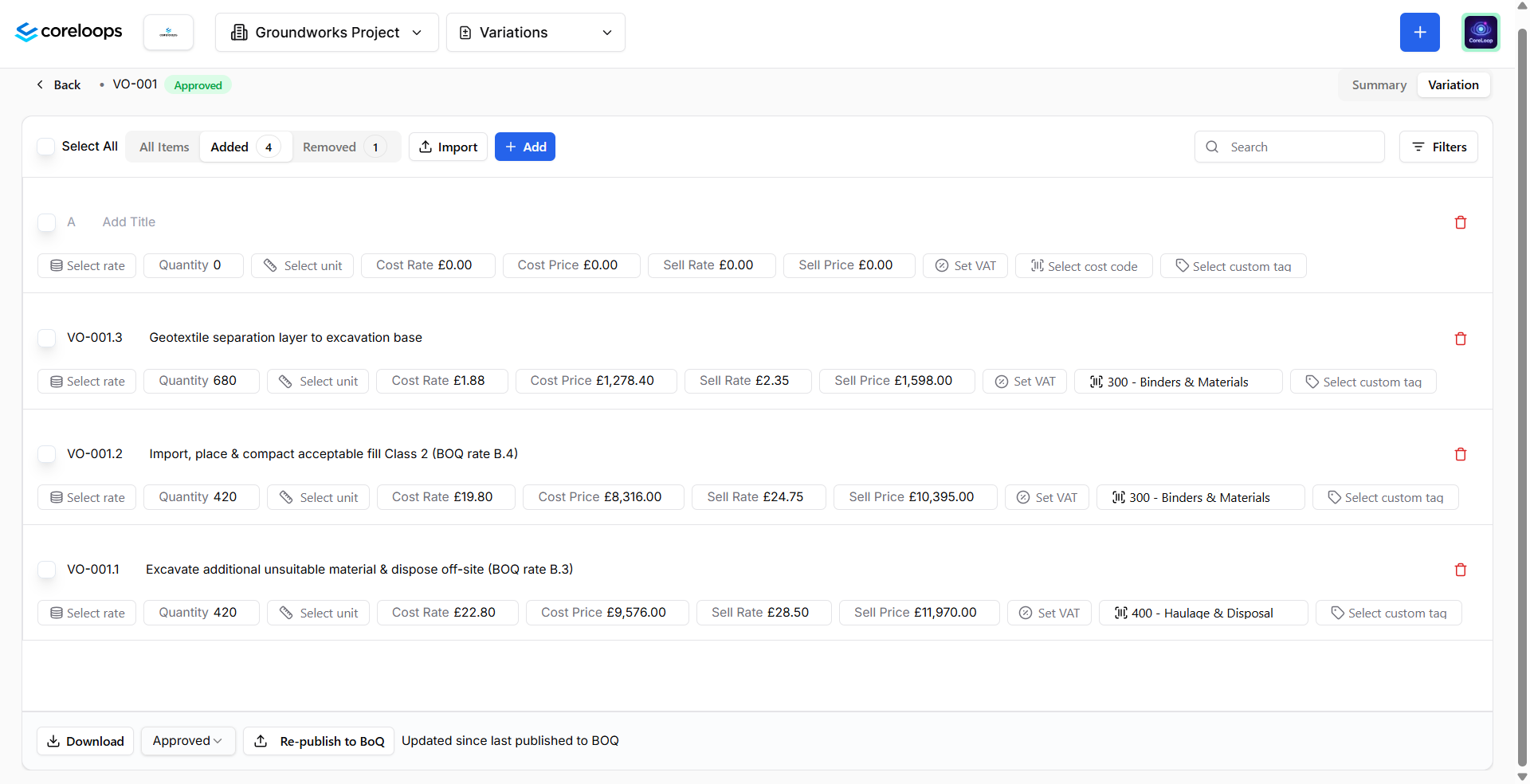
This will update your forecast value and budget in your cost report and update your applied/certified value and budget once you've applied for these variation orders.
Variation Order Summary
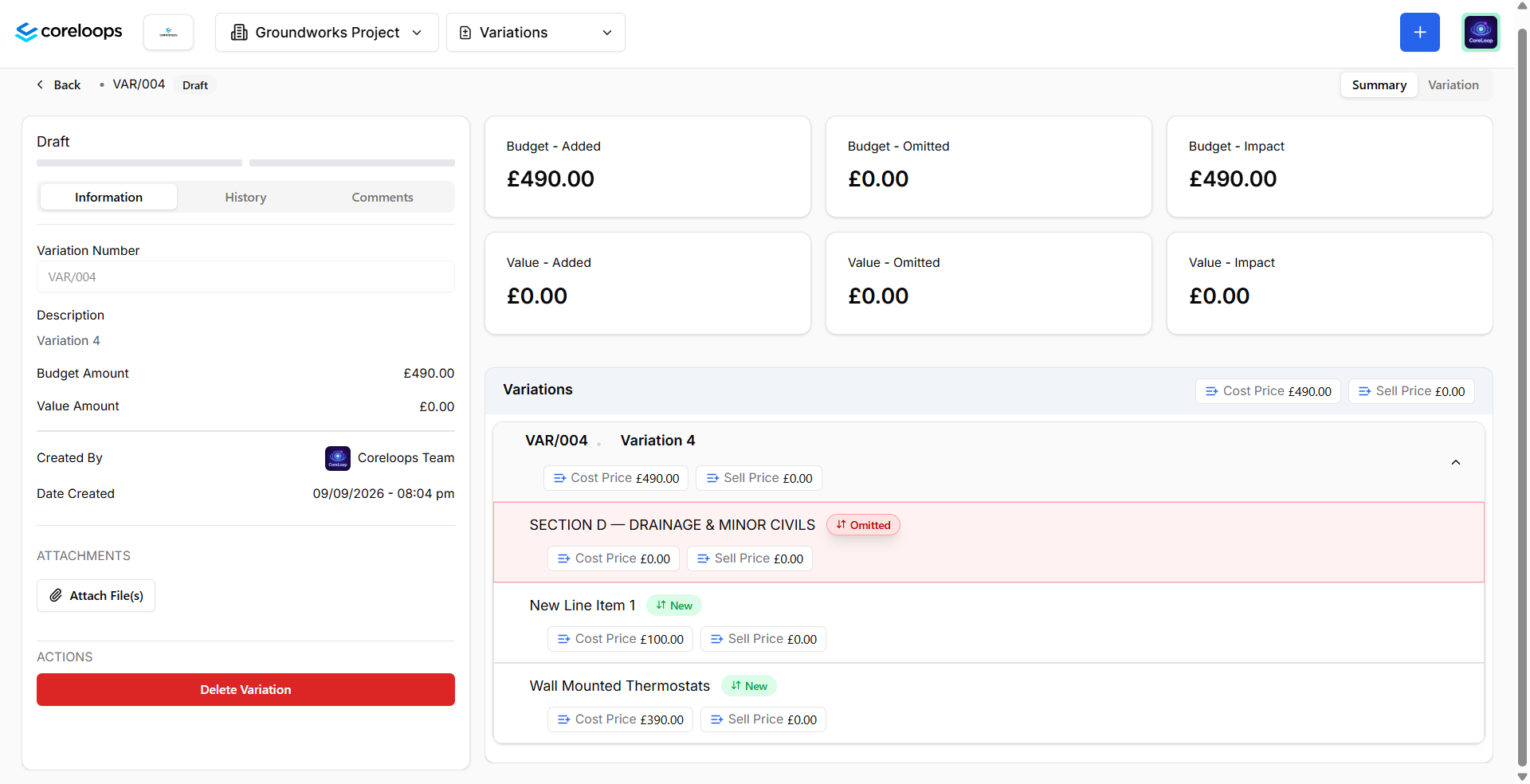
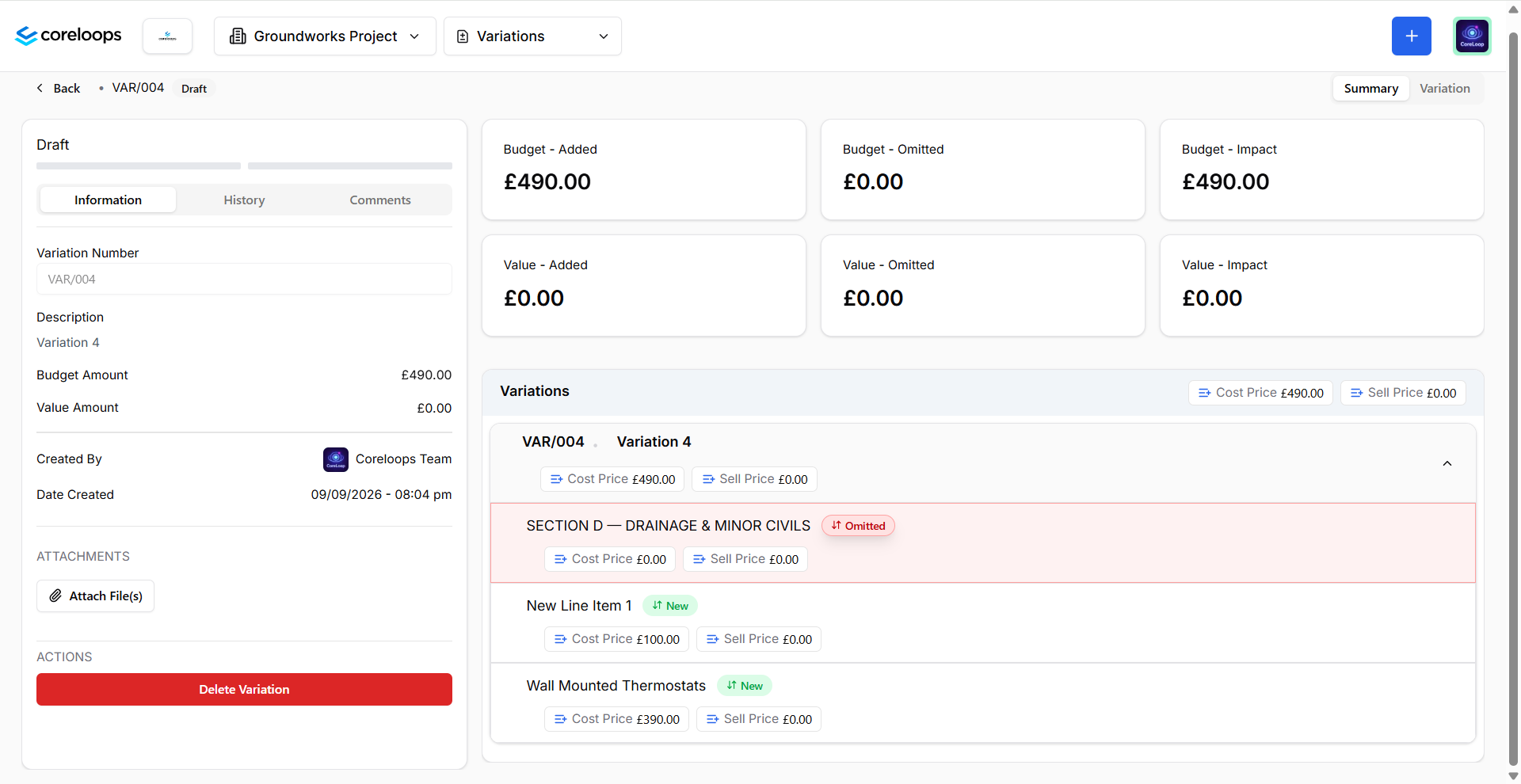
You can review a summary of the variation order and how it will impact your project by clicking into the "Summary" tab.
Attach files to the Variation order
You can attach files (PDF, images and spreadsheets) to a variation order to substantiate the order. You can attach a file to a specifc line item in the variation order or the entire variation order.
You can navigate to the variation order line item you'd like to attach a file and click attach file.
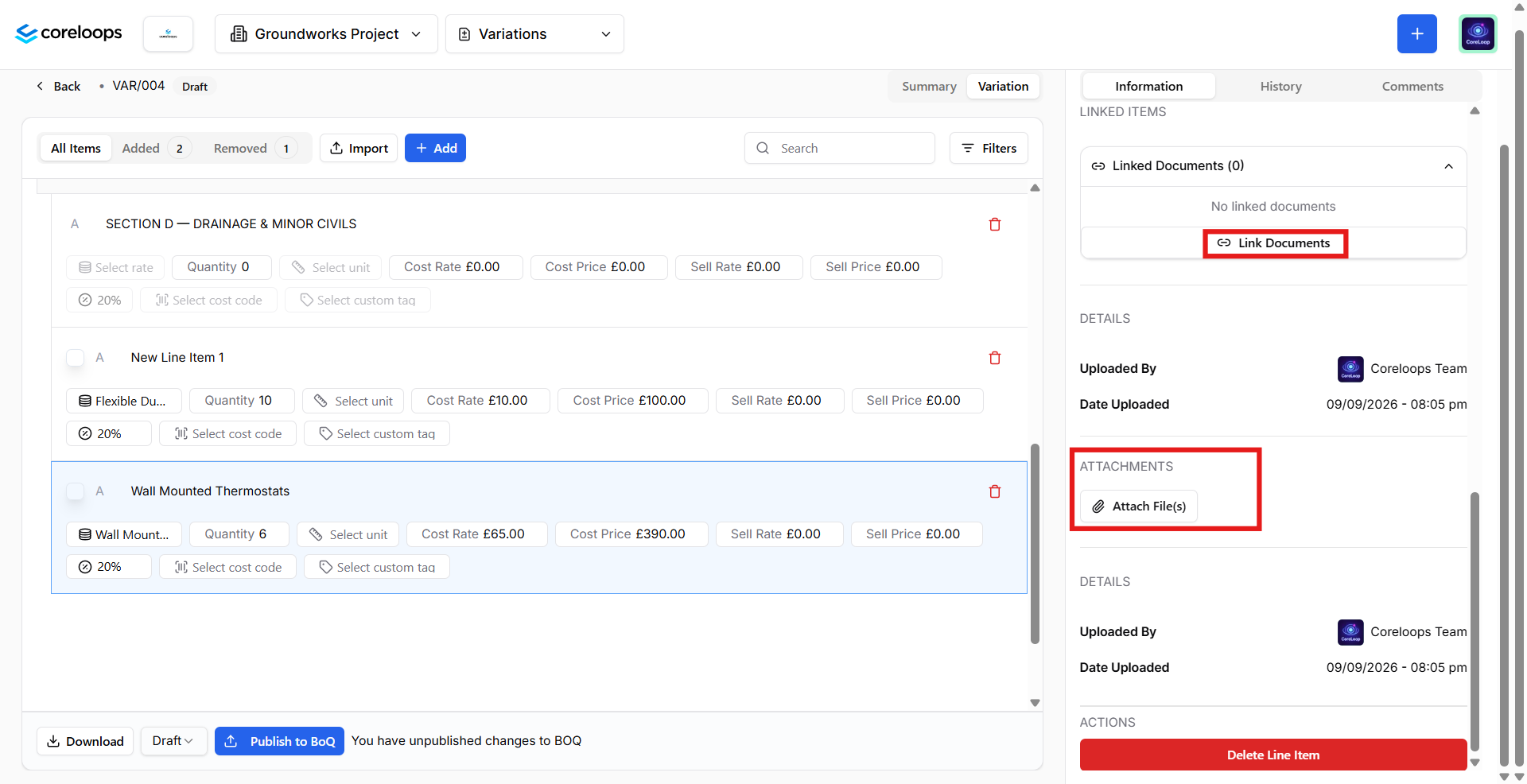
This attachment will appear in the variation order PDF, clearly labelled against the line item.
To attach a file to the variation order. Navigate to the summary page and attach the file by clicking on "Attach file" in the information tab on the right-hand side of the page.
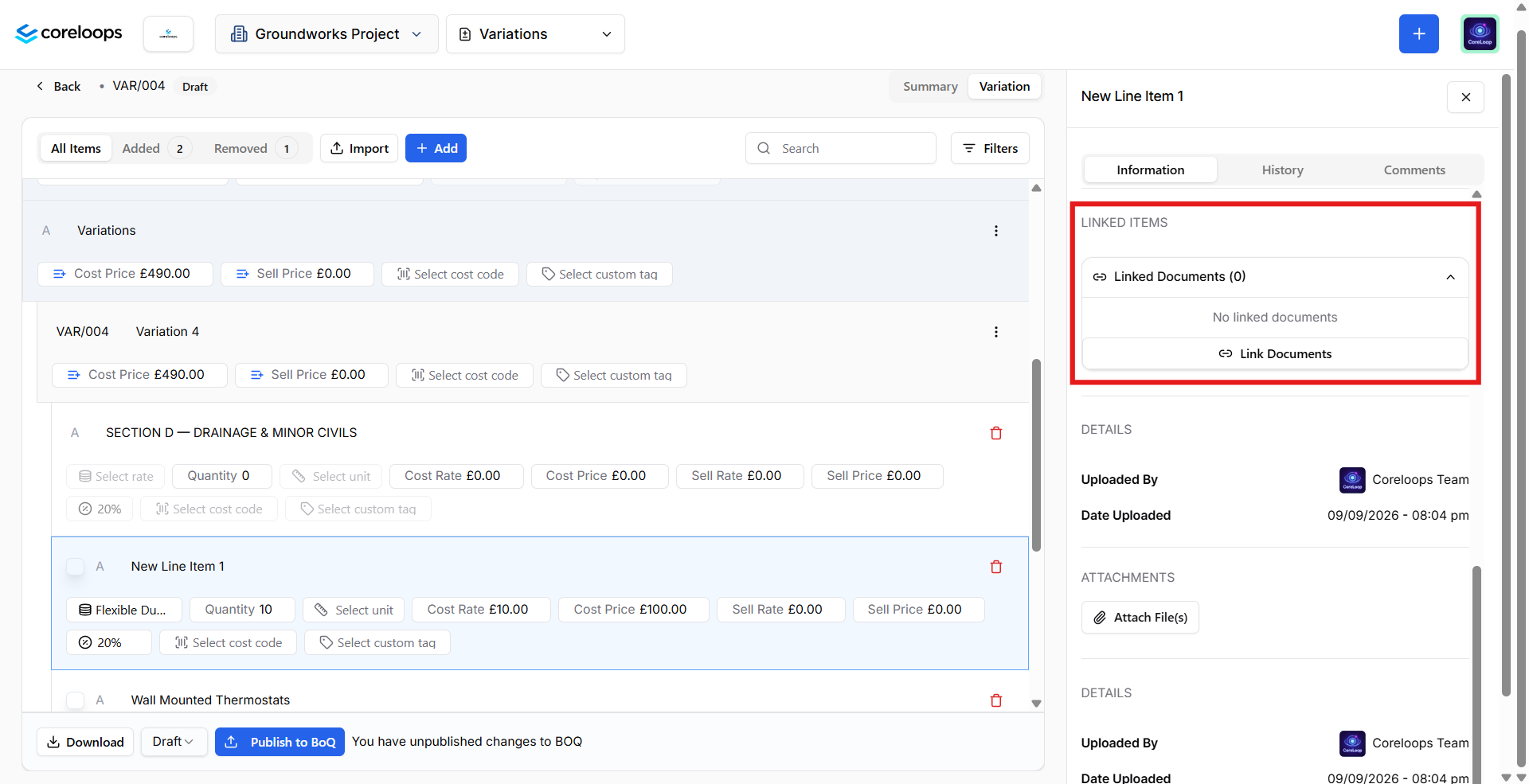
Link existing files to the variation order.
You can link existing files you've already created or processed in Coreloops, such as quotes, purchase orders and invoices, to a specific variation order line item. This will enable you to use values such as the sum of all quotes to estimate how much this should cost to deliver this variation.
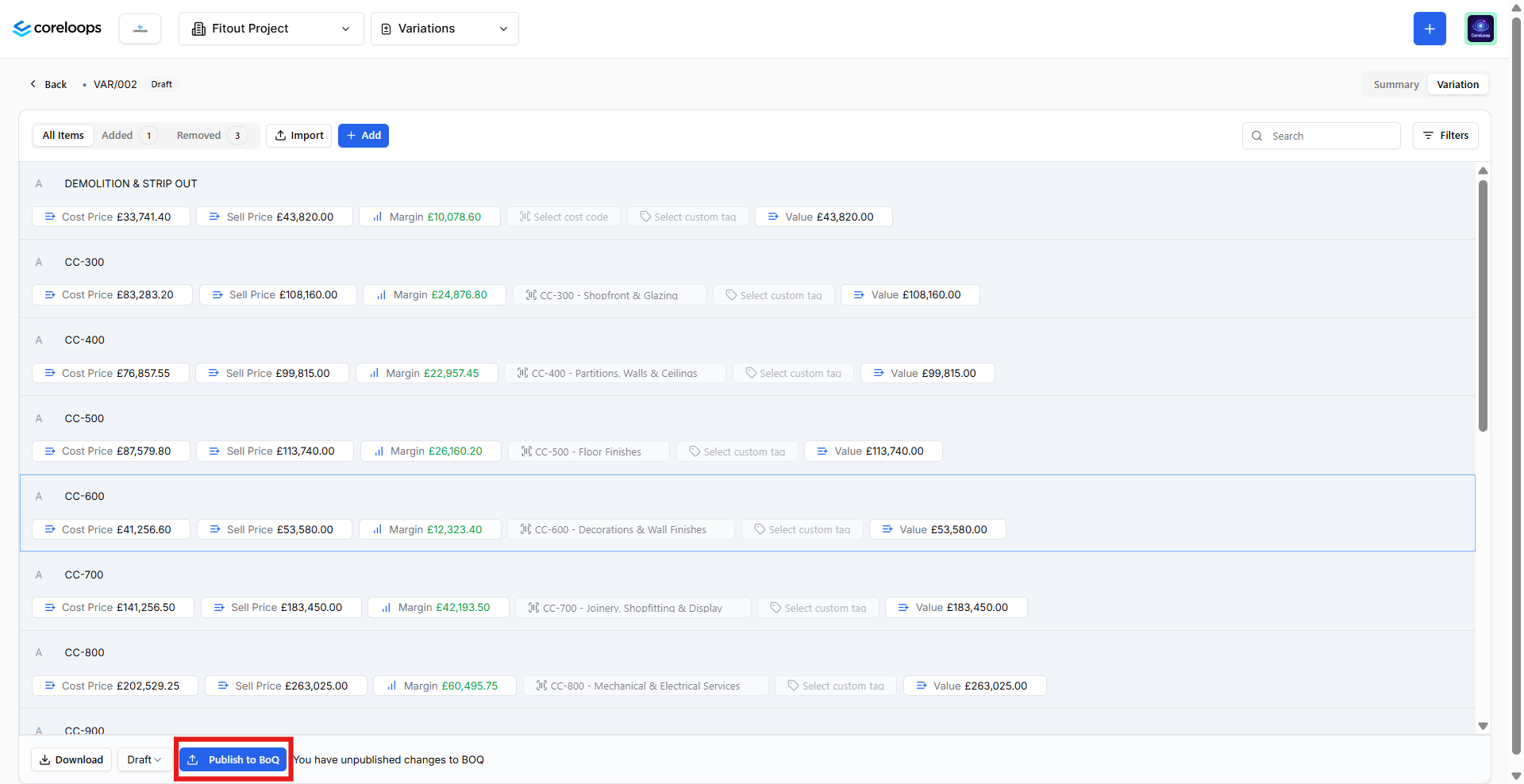
Publish a variation order.
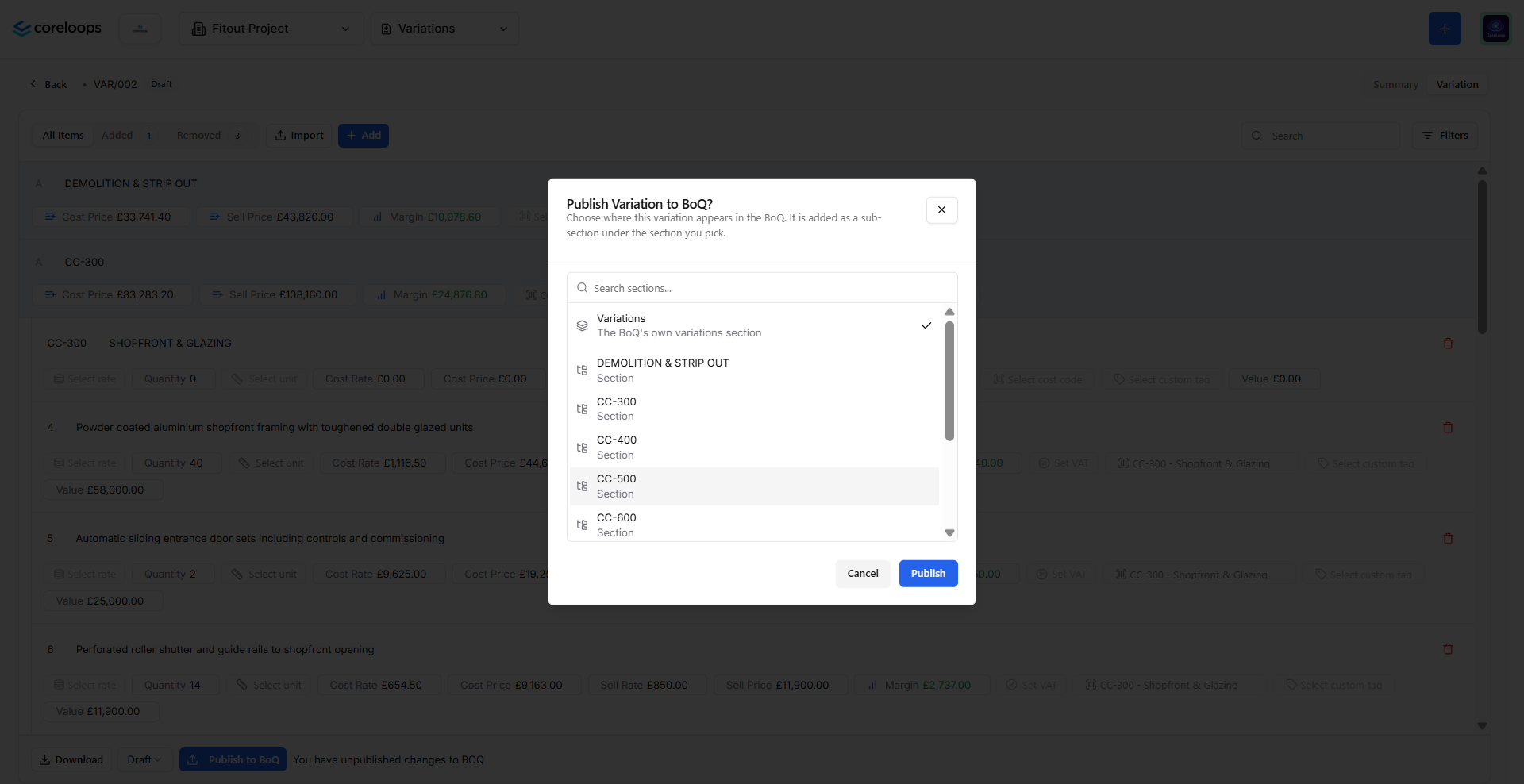
Once you're ready to apply for a variation order, click Publish. You'll be asked which section of the BOQ the variation should be published to:
Pick an existing section from the list, or
Create a new section from the same window. New sections are named Variations by default, and you can rename them.
After publishing, the variation appears in the chosen BOQ section and is available in all pending and future payment applications.
Deleting a variation order
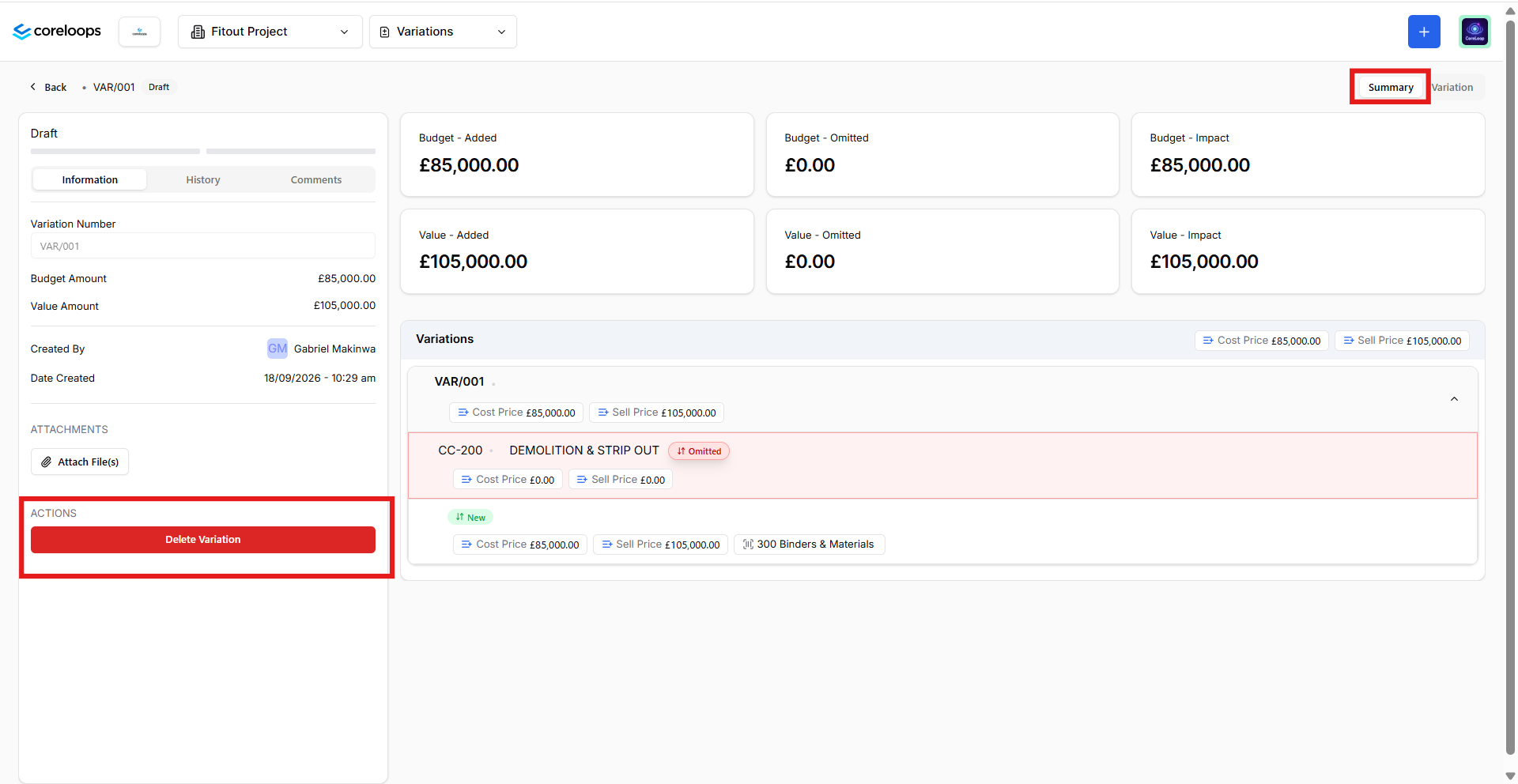
If you want to delete a Variation order, you can delete it by navigating to the summary tab and then clicking on Delete Variation. This will delete the variation order from your BOQ and pending payment applications where it hasn't been applied.
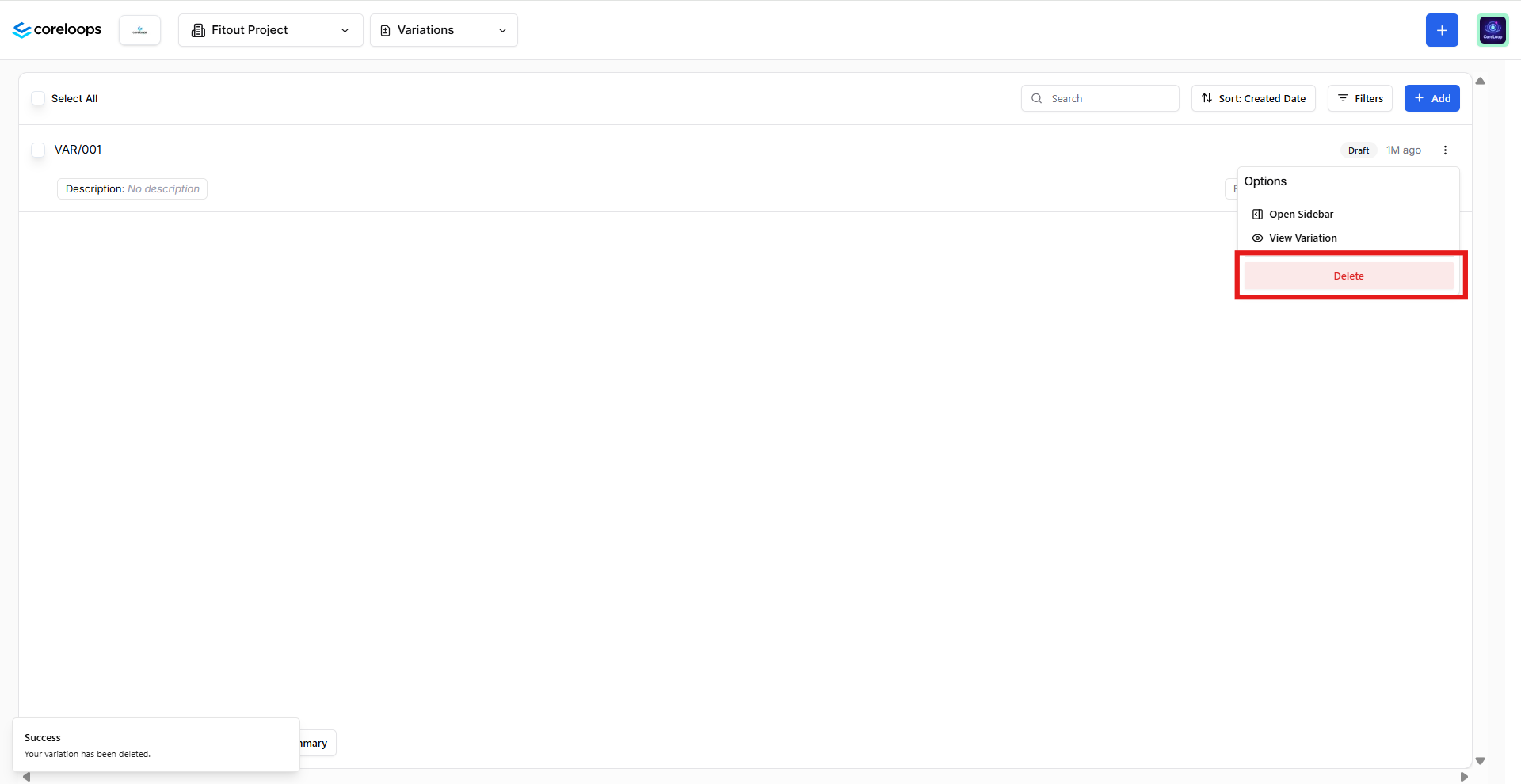
You can also delete Variation orders from the main Variation page. When you are on the main variations page where you can see all your variations listed. Scroll to the variation you want to delete. Click the 3 dots at the end of the line and select Delete.
Was this helpful?
Still need help? Ask the team